Grok Bot approvals and Auto-review: what it asks first
Auto-review checks each action and asks you when needed. See the approval card, the two rule types (Ask first, Allow automatically) and why cards expire.
Last verified
On this page
A Bot does most of its work without asking. Auto-review checks each action before it runs, and when one needs you the Bot stops and shows a card. Rules in Settings decide where that line sits.
#What a Bot does without asking
Auto-review looks at each action a Bot is about to take, on its computer or in your apps, and does one of three things: lets it run, stops and asks you, or refuses it.
Before you read which is which, make a guess.
Auto-review is on and you haven't written any rules. You ask a Bot to do these five things. Which one makes it stop and ask you?
- Search the web and read public pages
- Set up a routine that runs every Monday
- Delete two folders of files it made earlier
- Write a file in a temporary folder, then delete it
- Change a protected system folder on its computer
Show the answer
Change a protected system folder on its computer
On an account with no rules of its own, only the last one stops. The Bot searches, browses, sets up routines and deletes its own files without a card. Here it is deleting two folders the moment it's asked.

The command on the system folder stops because it changes a protected part of the computer. Auto-review weighs each action by the tool it uses and the risk it carries, and there's no published list of what it stops. For anything you always want a say in, write a rule.
On an account with no rules of its own, only the last one stops. The Bot searches, browses, sets up routines and deletes its own files without a card. Here it is deleting two folders the moment it's asked.
The command on the system folder stops because it changes a protected part of the computer. Auto-review weighs each action by the tool it uses and the risk it carries, and there's no published list of what it stops. For anything you always want a say in, write a rule.
Two kinds of work reach you another way:
- An email or a Slack message that a Bot writes shows up as a draft, with Send email or Send message beside Discard. The draft goes out when you click send.
- A password, a sign-in code, a CAPTCHA or a payment confirmation is yours to enter. The Bot hands you its screen, as the shared computer shows.
#Answer an approval card
When Auto-review stops an action, the Bot's row in the sidebar turns orange and starts Waiting for you. The card is in that Bot's chat, and the action waits there until you answer.
Answer an approval card
- The heading names the Bot that's asking. The line under it says what the action is and where it would run.
- Needs approval means nothing has happened yet.
1Read what the Bot wants to do
Open the chat of the Bot that's waiting. The card is the last thing in the conversation.
- Why it stopped: this command changes a protected system folder.
- The action itself, word for word. The icon at the end of the line copies it.
2Click View the full request
The one-line summary is short on purpose. View the full request opens the reason Auto-review stopped, with the exact action under it. Hide folds it away again.
If you can't tell what an action would change or who it would reach, ask the Bot to explain it in plain words before you answer.
- After Deny, the tag reads Denied and the buttons are gone.
- The card says in words that the Bot won't do it.
- This Bot tried the command a second time, was blocked again with no new card, and told its owner.
3Choose Deny, Allow once or Always allow
Each button leaves the card in a different state.
- Deny blocks the action.
- Allow once lets this one action run. The tag reads Allowed once, and the same kind of action asks again next time.
- Always allow lets it run and stops asking about actions like it. The next step shows what that leaves behind.
4See what Always allow adds
Always allow writes a rule into your settings, in the app's own words, and quotes it on the card. From then on a matching action runs without a card.
Use Allow once for anything that touches an account, money or something you share with other people. Keep Always allow for small actions you'd never want to be asked about twice.


#Write a rule of your own
A rule moves the line for one kind of action. Ask first makes a Bot stop every time, and Allow automatically lets the action through without a card.
The app keeps one list of rules, in its settings. Adding to it takes a sentence and two clicks.
Add an Ask first rule
- The Auto-review switch turns the whole check on or off.
- Custom Rules holds the rules you write.
- Your rules sit on top of the built-in checks, which always apply.
1Open Settings and find the Bot section
Click your picture at the bottom left of the app and choose Settings. On the General page, scroll down to the section headed Bot.
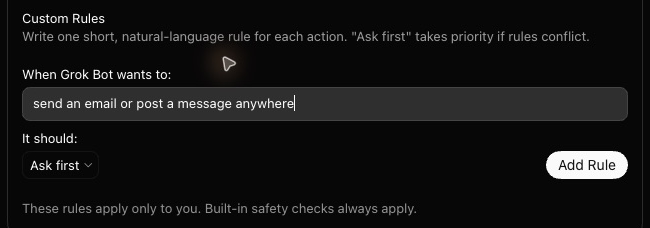
2Describe the action and choose Ask first
Under When Grok Bot wants to:, type the action in plain words. Open the It should: menu and choose Ask first. Then click Add Rule, which stays grey until you've typed something.
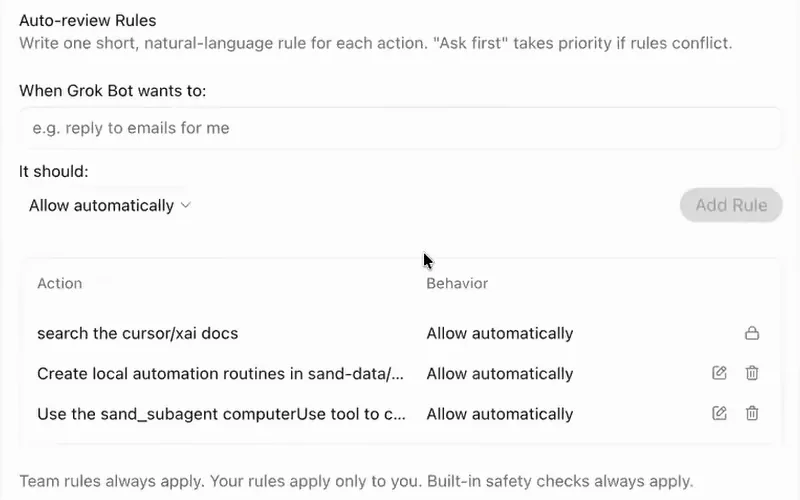
- A rule that Always allow wrote, in the app's own words.
- The pencil edits a rule and the bin deletes it. A padlock in their place marks a rule set by a team's admin, which you can't change.
Image: Grok on YouTube, Grok Bot 101 3Find your rule in the list
Each rule is a row under the form, with its Action and its Behavior. The same list holds every rule that Always allow has written for you.
On a team account and in older versions of the app, the heading over the form reads Auto-review Rules, as it does in this picture. It's the same list.
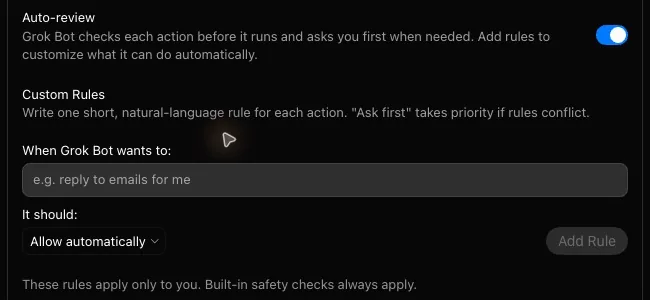

Three things decide how a rule behaves:
- When two rules match the same action, Ask first wins.
- An Allow automatically rule lets an action through only when Auto-review finds no other reason to stop it.
- Rules are saved on the computer you wrote them on. A second desktop needs its own.
Good first rules cover what can't be taken back: sending, posting, paying and deleting. Is Grok Bot safe? sorts your own accounts into the ones that need a rule.
#Approvals that arrive while you're away
An approval in a chat you have open waits for you. An approval from work that started without you, such as a routine or a message from another Bot, waits about 10 minutes. Then the card reads Expired, and the action doesn't run.
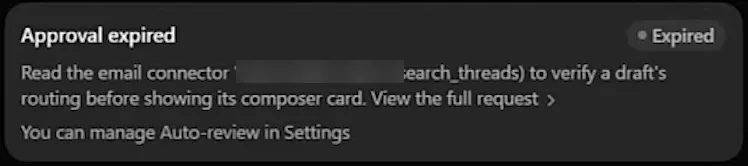
To get the work moving again:
- Ask the Bot to try the task again, and answer the new card while you're there.
- For an action a routine needs on every run, add an Allow automatically rule, or click Always allow the next time the card appears.
- Answer from wherever you are. A waiting approval also shows in the phone app, and on any other computer where you're signed in.
- Open the Bot's own chat. As of the 12 September 2026 build, a group chat couldn't show an approval card, so a Bot told you the action was blocked and asked you to come to its one-to-one chat.
#Your own computer has a separate setting
Everything so far is about the Bot's computer in the cloud. Whether a Bot may touch the Mac or PC in front of you is a different setting, called Execution on this computer. It's in Settings > Computer, with one row for each computer you've signed in on.

The menu has three choices, and the one you pick covers every Bot:
- Ask every time is where a computer starts. A Bot that wants to run something on your machine shows you the exact command first.
- Always allow lets Bots open files and run tasks there, with Auto-review still checking each one.
- Never allow shuts your computer off from Bots. Choose it unless a job needs your local files.
#Three mistakes with approvals
Each of these makes a Bot ask too much or too little.
Next, see the computer your Bots do all of this on, and what they share there.
Does Auto-review check everything a Bot does?
No. It checks commands on the computer, actions in your plugins, computer use, changes to routines, and delegation such as Cloud Agent and subagent launches. It doesn't check what a Bot saves to its memory, or most changes to settings. It's also a model making a judgment, so it can miss things. Is Grok Bot safe? covers which accounts to keep out of a Bot's reach.
Does Deny undo what the Bot already did?
No. Your answer covers the action on the card. To stop a Bot in the middle of a job, send it "Stop now". Neither one reverses work that's already finished.
Why can't I turn the Auto-review switch off?
On Cursor Enterprise, an admin can require Auto-review for the whole team. The switch then reads Required by your admin, and the admin's rules show in your list with a padlock. You can still add rules of your own, and they can only make a Bot ask more often.
My card has a different heading. Is it the same thing?
Yes. Older versions of the app head the card Auto-review Paused This Action, The Bot wants to run a task or The Bot wants to use a connected service, with a tag that reads Approval needed. The three buttons are the same.
- First published.
Get the Grok Bot cheat sheet
One page to keep open while you use Grok Bot. Sign up and download it straight away. New guides follow by email. Free.
Thank you! Your cheat sheet is ready. Download the PDF
Sources
12
- SpaceXAI docs: Approvals, security, and privacy docs.x.ai
- Cursor Help Center: Grok Bot How Tos cursor.com
- SpaceXAI docs: Grok Bot security docs.x.ai
- SpaceXAI docs: Grok Bot security FAQ docs.x.ai
- SpaceXAI docs: Chat and collaboration docs.x.ai
- SpaceXAI docs: Grok Bot for teams and enterprises docs.x.ai
- SpaceXAI docs: Grok Bot for Mobile docs.x.ai
- SpaceXAI: Grok Bot changelog x.ai
- Grok on YouTube: Grok Bot 101 (the pictures of an Always allowed card and of the rule list) youtube.com
- Nuno Tavares on YouTube: I Spent 50 Hours Testing Grok Bot (the picture of an expired card) youtube.com
- Nuno Tavares on YouTube: I Built My Entire AI Team in Grok Bot With One Prompt (a rule that stopped too much; approvals in a group chat) youtube.com
- Charles Shen on YouTube: Grok Bot Tutorial: Build an AI Agent Team (a rule that caught every Slack post) youtube.com