Grok Bot can't reach your computer: what to try, in order
Can't reach your computer means the app lost your Bots' cloud computer. Wait and Retry, test another network, then Update, Recover and Reset, in that order.
Last verified
On this page
Can’t reach your computer means the Grok Bot app has lost its connection to the cloud computer your Bots work on. Your Bots, files and logins are safe while it reconnects. Wait a few minutes and click Retry first, and leave Recover and Reset until the steps before them have failed.
#Start from what your screen says
The app has several ways of saying it can't get to the computer, and they don't all start at the same step. Tap the one you have.
Each answer points into the steps below. A red Bot failed to respond banner with none of these messages is a different problem, and Bot not responding covers it. If your Bots load but websites won't open on their computer, see Logins and CAPTCHAs.
#Take the six steps in order
The steps run from free to costly. The first three remove nothing. Update, Recover and Reset can each remove what's installed on the computer, and each step says so before you click. Stop as soon as your Bots load.
Get the computer back
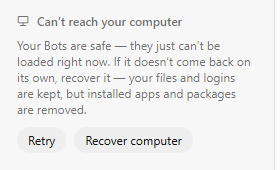
The notice in the sidebar. As a dialog, the same message is titled Couldn't Reach Grok Bot's Computer and offers the same two choices. Leave Recover computer for the fifth step. Image: Cursor forum 1Check the status page, then click Retry
Open status.cursor.com and find the row named Grok Bot. If an incident is open, wait until it's marked Resolved, and don't reset the computer or reinstall the app while you wait. With no incident, give the app a few minutes, then click Retry.
- Reconnecting at the top of a chat means the app is still trying.
- While it tries, the chat shows saved messages, which can be out of date.
Image: Cursor forum 2Quit Grok Bot fully and reopen it
Quit the whole app and open it again, so it makes a fresh connection. Closing the window isn't enough: here's how to quit on a Mac, on Windows and on a phone. Then give the app a couple of minutes.
If the pill is still there after a few minutes, go on to the next step.
- When the app can tell the network is blocking it, the start screen says so.
- The address the app needs to reach.
Image: Cursor forum 3Open Grok Bot on your phone, over mobile data
A second network shows which side is broken. Turn off Wi-Fi on your phone, open the Grok Bot app with the same Cursor account, and see whether your Bots load. No phone app? Join this computer to a phone's hotspot and open Grok Bot again.
- Your Bots load on the other network. The cloud computer is working, and something on your usual network or device is blocking the app. Recover and Reset can't fix that: each one rebuilds a computer that was fine. Try these, then quit Grok Bot fully and reopen it.
- Pause any VPN or proxy.
- In antivirus or security software, mark Grok Bot as a trusted app and turn off scanning of encrypted connections for it.
- Change the connection's DNS server to a public one such as 1.1.1.1.
- On a work network, ask IT to allow
*.cursorvm.comand*.*.cursorvm.com, and to leave both out of TLS inspection.
- They don't load there either. The computer itself is stuck. Go on to the next step.
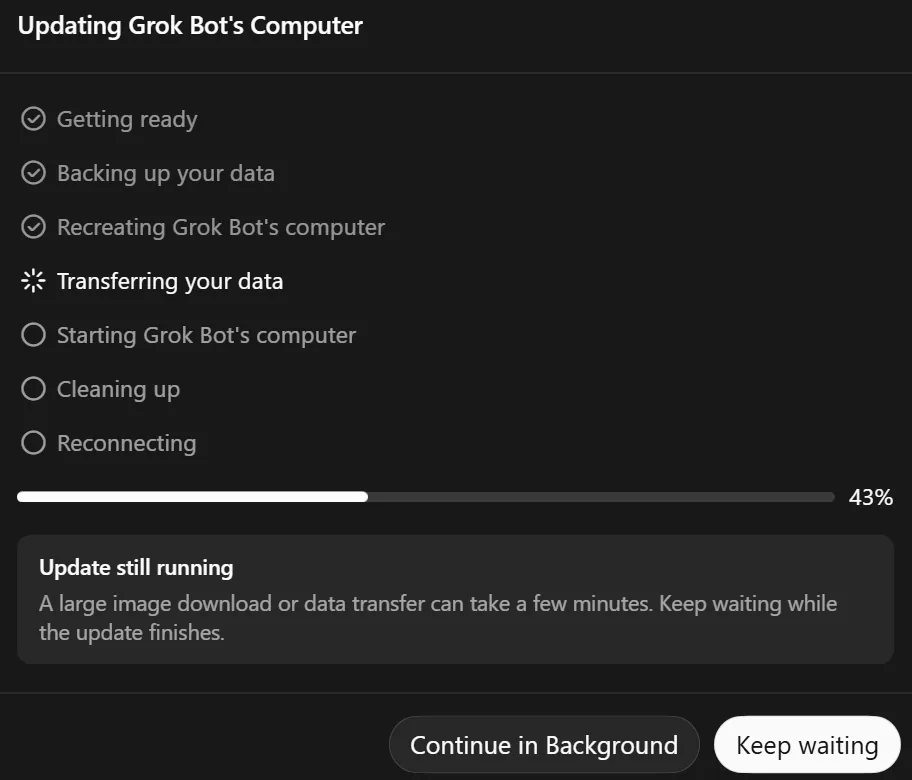
- The step in progress. An update backs up your data, rebuilds the computer, then moves the data back.
- Update still running shows when a step takes a while.
- Choose Keep waiting. It's the safe choice on a slow update.
Image: @vvedantb on X 4Update the computer, if an update is offered
The line under the row says which kind of update is waiting. A software update removes nothing. A computer update keeps your Bots, files and logins and removes installed apps and packages.
In the desktop app, open Settings > Updates. Under Grok Bot's Computer, the row Update Grok Bot's Computer has an Update button when one is waiting. Click it, then click it again when it reads Click Again to Confirm.
An update comes before a recovery because it saves your work first and doesn't run if it can't. The shared computer compares the two kinds.
No Update button on the row? Go on to the next step.
- A recovery has four steps and usually takes a few minutes.
- You can choose Continue in Background and let it carry on.
Image: Cursor forum 5Recover the computer
Recover is offered only while the computer can't be reached, and Settings has no Recover button. A recovery saves what it can, then builds a new computer from your saved data. Your Bots, chats, and the files and logins that were saved are kept. It has three costs.
- It interrupts any work your Bots have in progress.
- It removes installed apps and packages.
- It loses very recent changes, if the computer couldn't be reached to save them.
If Bots have gone missing lately, or an update told you a backup wasn't ready, write to support before you recover or reset. Otherwise click Recover computer on the sidebar notice, or Recover Grok Bot's Computer in the dialog, and confirm.
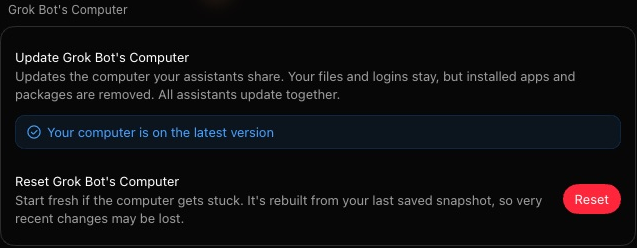
6Reset, last and once
A reset costs what a recovery costs: work in progress, installed apps and packages, and very recent changes that couldn't be saved. Your Bots, chats, and the files and logins that were saved are kept. Reset once. A second reset can interrupt a restore that's still finishing.
Use Reset when Recover isn't offered, or hasn't brought the computer back. In Settings > Updates, click the red Reset on the row Reset Grok Bot's Computer, and confirm.




#When a step stalls or fails
Update, Recover and Reset each have a message for "still working" and a message for "that didn't work". Wait through the first kind, and retry the second kind once.

Find your message in the table.
| On screen | What it means, and what to do |
|---|---|
| Update still running | A large download or data transfer is taking a few minutes. Choose Keep waiting, and don't start another update or a reset. |
| "Taking longer than expected", during a recovery | The recovery is still running. Choose Keep waiting. |
| Update unavailable, with "Your computer's files aren't ready. Try again in a moment." | The update can't start yet. Try again in a few minutes. |
| Backup not ready | The computer's data isn't safely backed up yet. The app offers the update again once a backup has finished. Wait for that, and don't reset to force it. |
| Agent busy | A Bot couldn't pause in time, so the computer wasn't updated. Let that Bot finish, then update again. |
| Update failed | The update didn't finish, and the computer is still on its old version. Your files and logins are kept; installed apps and packages are not. If the app offers Recover computer, that is the next step. |
| Recover failed | The recovery didn't finish. The message says your Bots, files and logins are safe. Click Retry Recovery once. |
| Reset failed | The reset didn't finish, and the computer may be left partly rebuilt. Click Retry Reset once. |
Before a retry, do the phone test if you skipped it. On a blocked network, a recovery or a reset fails however many times you run it.
#What only support can fix, and what to send
Some computers can only be brought back from Cursor's side. Email hi@cursor.com when one of these is true.
- Recover failed or Reset failed comes back after one retry.
- Backup not ready doesn't clear.
- The computer is empty after a recovery. Stop making changes on it.
- Bots or chats are still missing on every device.
- Setup or an update never finishes, on any network, after you've quit and reopened.
Copy this email and fill in the brackets. It covers what support asks for first.
Subject: Grok Bot can't reach its computer

Account email: [the address you sign in to Grok Bot with]
Version and platform: [for example 0.68.1 on a Mac]
On screen: [the exact message, with a screenshot attached]
Bot: [the name of one Bot that won't load]
On my phone over mobile data: [my Bots load / they don't load]
Already tried: [Retry, quit and reopen, Update, Recover, Reset]
What failed: [for example Recover failed, twice]
Request ID: [if a failed message offers Copy request ID]
The version is in Settings > Updates, and Bot not responding shows where a request ID comes from.
When support can't restore a computer, they start you on a new, empty one. Your Bots, chats, memories, routines, plugins and settings carry over, because they're stored apart from the computer. Files saved on the old computer, installed programs and website logins don't.
With the computer back, the next step is knowing what lives on it.
Can a new account or a plan change cause this message?
It can. An account with no Grok Bot access has no computer to start, and the app can show the same message. Open Settings > Usage & Billing. If it reads "No included usage available on your plan right now", sort out access first, with Sign-in and linking.
Can I recover or reset the computer from my phone?
Use the desktop app, which has all three controls. On a phone, stick to Retry and the mobile-data test.
- First published.
Get the Grok Bot cheat sheet
One page to keep open while you use Grok Bot. Sign up and download it straight away. New guides follow by email. Free.
Thank you! Your cheat sheet is ready. Download the PDF
Sources
19
- Cursor Help Center: Grok Bot computer (Update, Recover, Reset, the order, when to contact support) cursor.com
- Cursor Help Center: Grok Bot FAQs (Reconnecting, missing Bots, service incidents) cursor.com
- Cursor Help Center: Get help cursor.com
- SpaceXAI docs: Troubleshooting docs.x.ai
- SpaceXAI docs: Use the computer and apps docs.x.ai
- Cursor docs: Configure TLS-inspecting proxies cursor.com
- Cursor Help Center: Network, proxy, and remote connections cursor.com
- Cursor status page status.cursor.com
- Cursor forum: staff on a reset that fails because the app can't get out forum.cursor.com
- Cursor forum: staff on testing another network before Recover or Reset forum.cursor.com
- Cursor forum: staff on an update that sits on one percent forum.cursor.com
- Cursor forum: staff on what a rebuild from their side keeps and loses forum.cursor.com
- Cursor forum: staff on an account without access forum.cursor.com
- Image: the Can’t reach your computer notice (Cursor forum); staff on security software forum.cursor.com
- Image: the Reconnecting pill (Cursor forum) forum.cursor.com
- Image: the firewall, VPN or proxy message (Cursor forum) forum.cursor.com
- Image: the Updating Grok Bot's Computer window (@vvedantb on X) x.com
- Image: the Recovering Grok Bot's Computer window (Cursor forum); staff on DNS forum.cursor.com
- Image: the Reset failed message (@potirarott on X) x.com