Grok Bot and Slack: plugin, triggers and Team Bots
Slack works three ways with Grok Bot: a plugin that posts as you, a trigger that starts a routine from a message, and a Team Bot with its own Slack app.
Last verified
On this page
Slack works with Grok Bot in three ways: a plugin that lets a Bot read and post as you, a trigger that starts a routine when a message arrives, and a Team Bot that joins Slack under its own name. Start with the plugin, and keep every post behind your click.
#Three ways Slack and Grok Bot work together
The three connect in different places, and only one of them gives a Bot a name of its own in Slack. The drawing shows which way the work flows in each.
Pick by what you want the Bot to do:
| You want | Use | It posts as | What it needs |
|---|---|---|---|
| A Bot that reads channels and writes for you | The Slack plugin | You | Any plan with Grok Bot |
| A Bot that starts work when a message arrives | A Slack trigger on a routine | You | The plugin, and the Cursor app in the channel |
| One Bot the whole team can @mention | A Team Bot | Itself | Cursor Teams or Enterprise |
#Connect Slack
Slack takes up to two connections. The plugin is the one every job needs, and the Cursor app is the extra one for a routine that starts from a message. Connect plugins covers how plugins work in general.
Connect Slack
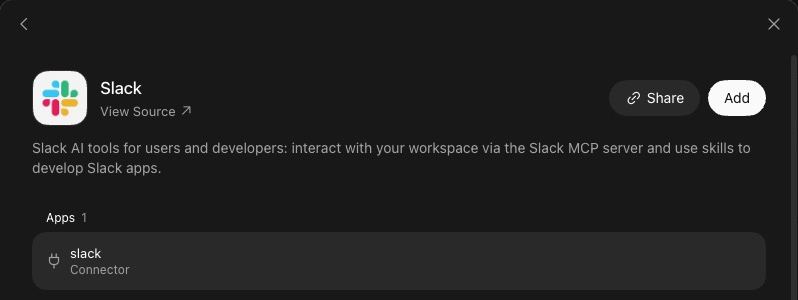
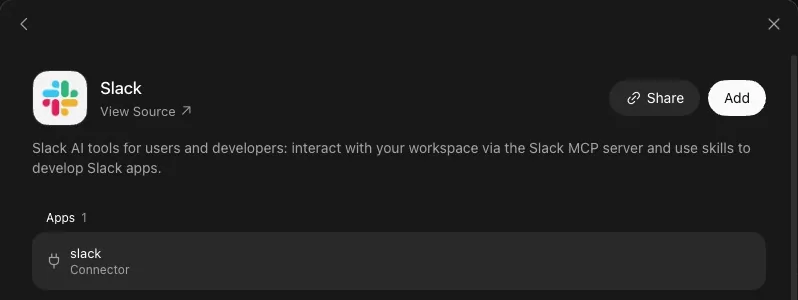
1Add the Slack plugin and sign in
Click Connect apps at the bottom of the sidebar, search for Slack and open it. Click Add, and Slack's sign-in opens in your browser. Sign in to your workspace as the person the Bot should post as, which is normally you, and allow the access Slack lists.
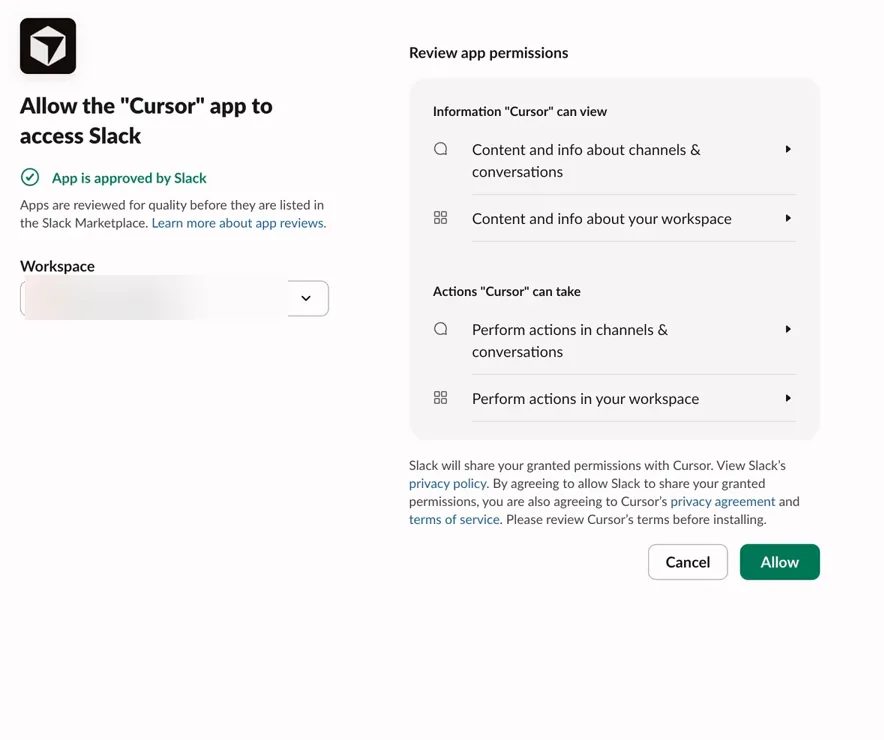
- Slack calls the app Cursor. It's the part of Grok Bot that listens for messages.
- The workspace the app joins (blurred here).
- Allow installs it. In a workspace that limits who can add apps, a Slack admin has to do this.
Image: Charles Shen on YouTube 2Connect the Cursor app to your workspace
Skip this step and the next unless a routine should start from a Slack message. In your browser, open cursor.com/dashboard, choose Integrations and click Connect beside Slack. Slack then asks you to let an app in.
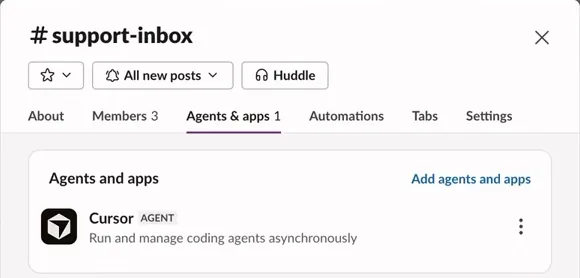
- Agents & apps, in the channel's details.
- Add agents and apps finds the Cursor app.
- Cursor, tagged AGENT, is now in the channel.
Image: Charles Shen on YouTube 3Add Cursor to each channel a routine should hear
A routine hears only the channels the Cursor app is in. In Slack, open the channel's details, choose Agents & apps and add Cursor, or type
/invite @Cursorin the channel.
The plugin belongs to your account, so every Bot you have can now read and post in that workspace.
#Four jobs to hand over
Each of these reads or drafts, and none of them posts. Add one rule first, so a Bot that does try to post has to ask: in Settings, under Custom Rules, type post a message in Slack beside When Grok Bot wants to:, set It should: to Ask first and click Add Rule. Write a rule of your own shows the screen.
Then paste a message into a Bot's chat and change the parts in brackets. Start with the one that saves a scroll every morning.
Morning summary of one channel
For a channel you have to keep up with and can't read all day.
Set up a routine: every weekday at 8:30 AM, read what was posted in #[channel] since your last run. Post one summary in this chat with three lists: decisions made, questions still open, and anything addressed to me. Say who wrote each item. Don't post, reply or react in Slack.A Created routine line in the chat. Then, each weekday morning, one summary in the Bot's chat.
Once a morning is plenty for most channels. Every run spends usage, and Routines shows how fast a tighter schedule adds up.
The second job is the one that writes in Slack, so it ends in a card.
Reply drafts that wait for you
For the threads where someone is waiting on you.
Find today's messages in #[channel] that mention me. For each one, write a reply in its thread, in the way I usually write in Slack, and show it to me as a draft. Post nothing: I'll send each one myself.One Slack message card for each reply. Edit it in the card, then click Send message or Discard.
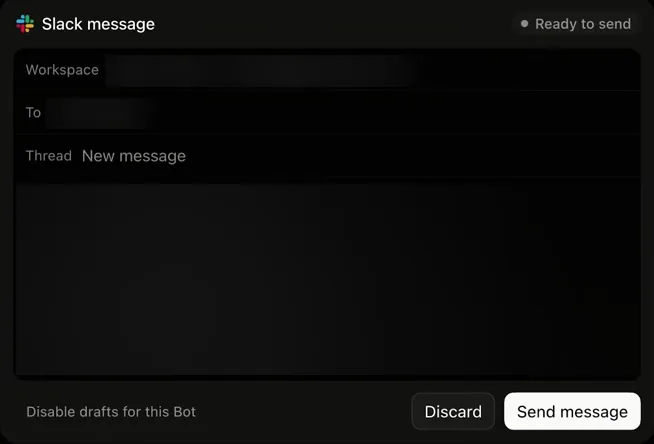
- Ready to send means the message is still waiting for you.
- Where it will go: the workspace, the person or channel, and the thread. New message starts a new one.
- Nothing is posted until you click Send message.
The next two open with a click. The first runs once a week.
Weekly digest of decisions
For a busy channel where decisions get buried under the talk around them.Apps it needs: SlackWhen it runs: Fridays at 4:00 PM
Set up a routine: every Friday at 4:00 PM, read #[channel] for the past seven days. Post a digest in this chat of the decisions the team made: what was decided, who decided it and on which day. End with the questions nobody answered. Don't post anything in Slack.One digest in the Bot's chat every Friday afternoon. To share it, ask the Bot for a draft to #[channel] and send the card yourself.
The last job starts from a Slack message instead of a clock, so every matching message is a run. A Slack trigger on a busy channel can use a week of usage in a day: keep it to one channel and one word. When your usage runs out has what to do if a week drains anyway.
Flag one word in one channel
For the few messages you want to hear about at once, such as "outage" in a support channel. It needs the Cursor app in the channel.Apps it needs: Slackthe Cursor app in the channelWhen it runs: A new message in #[channel] that mentions "[word]"
Set up a routine: when a new message in #[channel] mentions the word "[word]", tell me about it in this chat in two lines: who wrote it and what they need. Then suggest a reply I could send. Don't post anything in Slack.A Created routine line in the chat. Open the routine and check that When to run names your channel and your word. Then one short message in the Bot's chat each time the word comes up.
Only new messages count. A message posted before the routine existed doesn't start a run.
#What a Bot can and can't do in Slack
Everything the plugin does, it does as the Slack user you signed in with. Here is a post a Bot made through it, as the rest of the channel sees it.
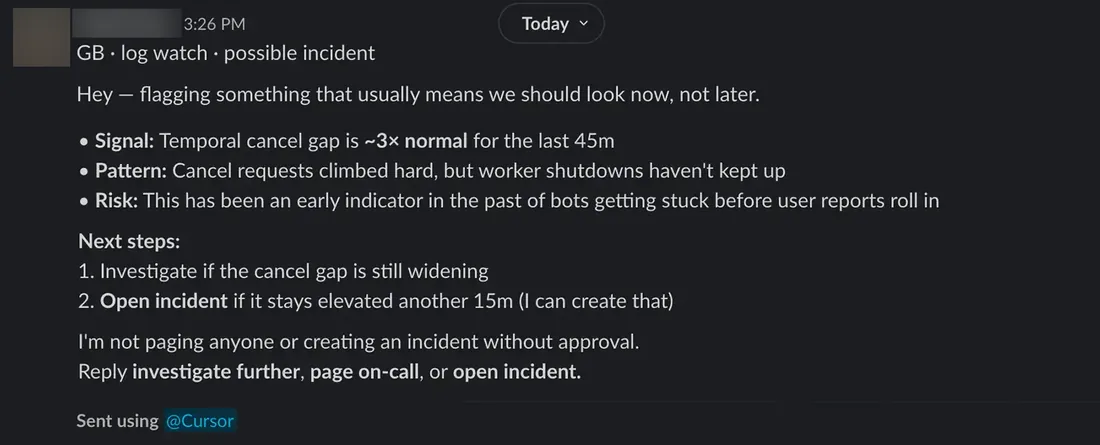
- The post sits under the person's own name and picture (blurred here), not under a Bot's.
- The footer Sent using @Cursor shows that a Bot sent it.
So the plugin's limits are your own limits in Slack, plus a few of its own.
| In Slack | Can a Bot do it? | What to know |
|---|---|---|
| Search and read channels and threads | Yes | Whatever the connected Slack user can see. |
| Post in a channel or a thread | Yes | As you. Keep it behind a draft card or the Ask first rule. |
| Send a direct message | Yes | The draft card shows who it goes to before you send. |
| Post in a private channel you're not in | No | The plugin has your access and no more. The same goes for a channel where your workspace blocks posting. |
| Post under its own name | No | A personal Bot always posts as you. A Team Bot posts as itself. |
| Start work when a message arrives | Yes | With a trigger on a routine, in channels the Cursor app is in. |
| Work in a second workspace | Yes | Connect that workspace as well. Add a second account has the steps. |
#A Team Bot in a channel
A Team Bot is one Bot a whole team shares, on Cursor Teams and Enterprise. Once its owner has published it, it can join Slack as an app of its own, with the Bot's name and picture, and it posts as itself.
Its owner adds it, on a computer. Click the Bot's name at the top of its chat, scroll to the bottom of Details and click Bring to your team's Slack.
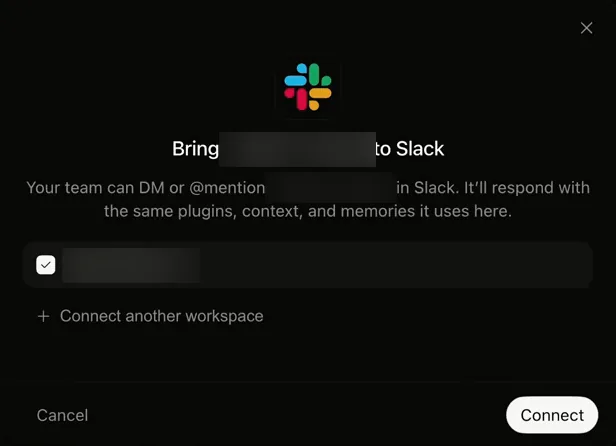
/invite @ and its name. Image: Riley Brown on YouTubeWhere a message is sent decides whether the Bot answers:
| Where | When the Team Bot answers |
|---|---|
| A direct message | Every message. |
| A channel or a group message it's been invited to | When someone @mentions it. After that it follows the thread, so replies there need no mention. |
| Any other message in the channel | It doesn't answer. |
Three things to know before a teammate's first message:
- Link your Slack account once. Open Settings > General > Team Bots and click Link. Until you do, the Bot answers you with a private Link Account button.
- You spend your own usage. Whoever asks pays for the answer. A post from a Slack workflow has no person behind it, so it spends the owner's. Whose usage a request spends has the picture.
- A channel thread isn't private. In channels the Bot works on one computer of its own, shared by every thread, so keep out of a thread anything the whole channel shouldn't see.
Grok Bot for teams covers creating a Team Bot, publishing it and who can change it.
#Fix a Slack connection
When Slack and a Bot stop working together, the cause is usually one of these. Find what you see on the left, then do what's beside it.
| What you see | What to do |
|---|---|
| Needs auth on Slack's page in Connect Apps | Click Authenticate and sign in again. Fix Needs auth has the steps if that doesn't clear it. |
| A Bot says Slack isn't connected, and the plugin reads Added | Added means installed. Open Slack's page and click Authenticate. |
| Slack says "You are not authorized to install Cursor on" your workspace | Your workspace limits who can add apps. Ask a Slack admin to approve the Cursor app, then connect again. |
| A routine doesn't start when a message arrives | Check four things: the routine isn't Paused, When to run names the channel and word you expect, the Cursor app is in that channel, and the message is new. |
| A Bot can't post in a channel | It posts as you. Join the channel in Slack first. |
| The plugin reads Disabled by team admin | Your Cursor team's admin has blocked it. Ask them to turn it on. |
| A Team Bot's setup reads Awaiting admin approval | Your Slack workspace approves new apps by hand. Click Send request in Slack, wait for an admin, then click Check approval. |
| A Team Bot asks you to link a Cursor account | Link in Settings > General > Team Bots, with the Cursor account that's on the Bot's team. |
#Check you've got it
Five jobs, three ways to connect. Put each job where it belongs.
Which of the three does each job need?
- Let anyone on the team @mention one Bot in #data-questionsA Bot that answers a whole team, each person on their own accounts, is a Team Bot.
- Sum up #launch for me every morning at 8:30A schedule starts this one. The Bot only has to read, and the plugin does that.
- Draft my replies in threads where I'm mentionedDrafts are written as you, through the plugin, and wait as cards.
- Post answers under the Bot's own nameThe plugin always posts as you. Only a Team Bot has a name of its own in Slack.
- Tell me the moment someone writes "outage" in #supportA message has to start the work, so the routine needs a trigger and the Cursor app in that channel.
The plugin
A trigger
A Team Bot
Show the answer
The plugin: Sum up #launch for me every morning at 8:30 (A schedule starts this one. The Bot only has to read, and the plugin does that.); Draft my replies in threads where I'm mentioned (Drafts are written as you, through the plugin, and wait as cards.)
A trigger: Tell me the moment someone writes "outage" in #support (A message has to start the work, so the routine needs a trigger and the Cursor app in that channel.)
A Team Bot: Let anyone on the team @mention one Bot in #data-questions (A Bot that answers a whole team, each person on their own accounts, is a Team Bot.); Post answers under the Bot's own name (The plugin always posts as you. Only a Team Bot has a name of its own in Slack.)
Next, see how a schedule or a trigger is set, checked and paused.
Can my own Bot have its own name and picture in Slack?
No. A personal Bot posts through the plugin, under your name. A Team Bot gets a Slack app with its own name, and Team Bots need Cursor Teams or Enterprise.
Can a Bot answer every message in a channel?
A trigger can be set to any message, and every message is then a run that spends usage. Narrow it to a word, a phrase or a mention of the Bot unless the channel is quiet.
Does a Slack routine run while my laptop is closed?
Yes. A Bot works on a computer in the cloud, so closing the app, your laptop or your phone doesn't stop a routine.
Does the same work with Microsoft Teams?
Connect Apps has a Teams plugin, under Productivity, and a routine can start from a Microsoft Teams message. Outlook and Microsoft 365 covers the Microsoft plugins.
- First published.
Get the Grok Bot cheat sheet
One page to keep open while you use Grok Bot. Sign up and download it straight away. New guides follow by email. Free.
Thank you! Your cheat sheet is ready. Download the PDF
Sources
13
- Cursor Help Center: Connect plugins (what the Slack plugin can do) cursor.com
- Cursor Help Center: Routines (Slack triggers, what a run spends, why a routine hasn't run) cursor.com
- SpaceXAI docs: Team Bots (adding one to Slack, how it answers there) docs.x.ai
- Cursor Help Center: Team Bots cursor.com
- SpaceXAI docs: Message and collaborate (reviewing a draft before it is sent) docs.x.ai
- SpaceXAI docs: Skills, routines, and automations (events that start a routine) docs.x.ai
- Cursor Help Center: Grok Bot How Tos (reconnecting a plugin, approvals that expire) cursor.com
- SpaceXAI: Grok Bot changelog (v0.45.0, v0.61.0, v0.62.0, v0.63.0, v0.64.0) x.ai
- SpaceXAI: Team Bots announcement x.ai
- SpaceXAI: Grok Bot for customer support (the Slack post pictured) x.ai
- Charles Shen on YouTube (connecting the Cursor app: the dashboard's Integrations page, Slack's permission page and a channel's Agents & apps tab, the last two pictured) youtube.com
- Riley Brown on YouTube (the Slack draft card and the Bring to Slack window pictured) youtube.com
- Riley Brown on YouTube (a routine that listens to Slack hears only channels the Cursor app is in) youtube.com