How to set up Grok Bot: download, sign in, first run
Install the Grok Bot app, sign in with a Cursor account, link SuperGrok or X Premium+ if that's how you pay, and wait while your cloud computer is set up.
Last verified
On this page
Grok Bot signs in with a Cursor account, whichever company you pay. Download the app, sign in with the Cursor account you plan to keep, link SuperGrok or X Premium+ if that's your subscription, and the app sets up a cloud computer and your first Bot.
Have these ready before you start.
#Pick the account you'll sign in with
Every way into Grok Bot ends at one Cursor account. That account holds your Bots, chats and weekly usage, so pick it before you install anything.
The drawing shows the two ways a subscription reaches that account.
Find your row, and you know what to sign in with.
| You pay for | Sign in with | Then |
|---|---|---|
| Cursor Pro, Pro+, Ultra or a Cursor Teams seat | The Cursor account that has the plan | Nothing more. Grok Bot is included. |
| SuperGrok, SuperGrok Plus, SuperGrok Heavy or X Premium+ | A Cursor account you'll keep. A free one is enough. | Link your Grok or X account to it, once. |
| Nothing yet | A free Cursor account | Start the trial, or pick a plan. |
If you pay for both a Cursor plan and SuperGrok, sign in with the Cursor account that has the plan. A link adds no usage on top of it, as Pricing explains.
#Install the app and sign in
With the account chosen, put the app on your computer. The sign-in itself happens in your browser, and the app picks it up from there.
Install Grok Bot and sign in
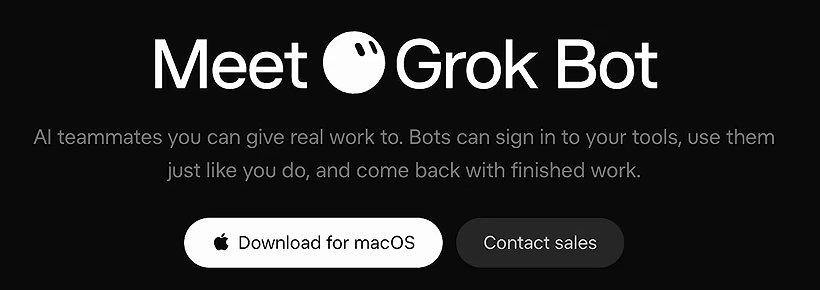
Image: Charlie Chang on YouTube 1Download the installer
Open x.ai/bot and click the download button, which names your system. Every installer is also listed on cursor.com/download/bot, including Linux packages and the Mac version for Intel chips.
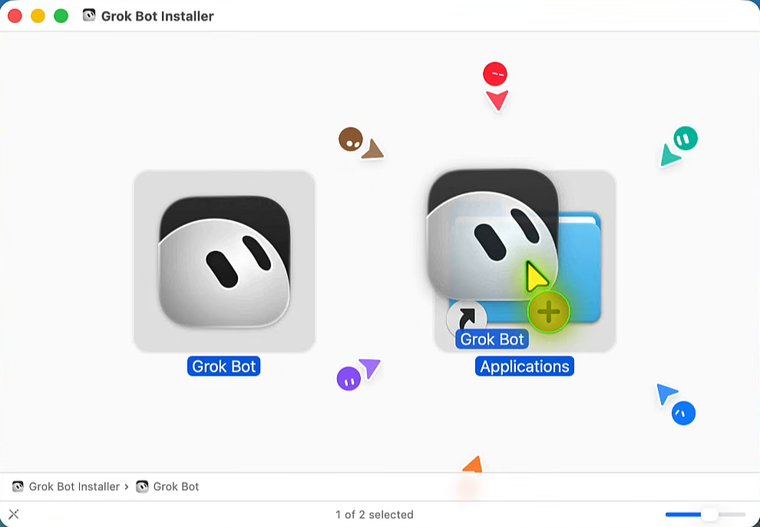
Image: Kaceli TechTraining on YouTube 2Install the app and open it
Open the file you downloaded and install it the way your system expects.
- Mac: drag Grok Bot onto Applications, open it from there, and click Open when macOS asks whether you're sure.
- Windows: run Grok Bot Setup, click Next >, then Install, then Finish.
- Linux: install the
.debor.rpmwith your package manager, or make the AppImage executable and run it.
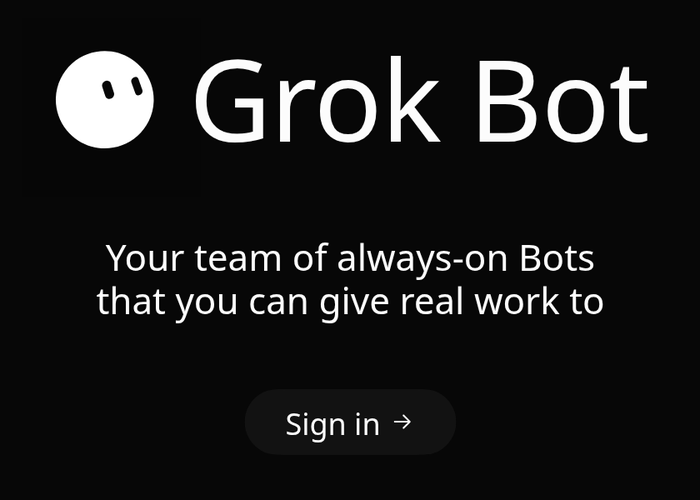
Image: Cursor Help Center 3Click Sign in
The app opens on one screen with one button. Click Sign in →.
Your browser opens, and the app reads Continue in your browser while it waits. If no browser window appeared, click Reopen link.
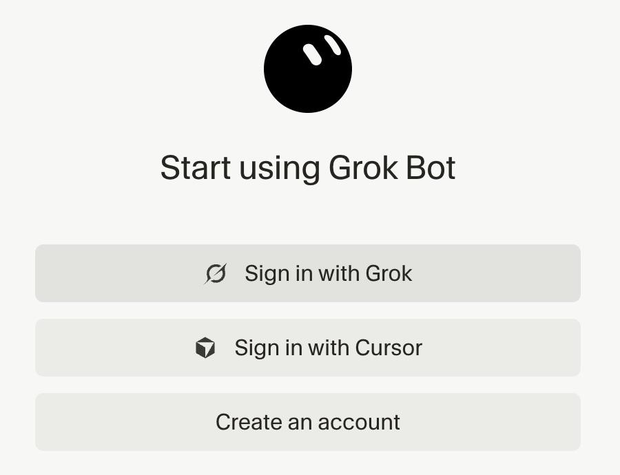
Image: u/Humble_Hat_7160 on Reddit 4Sign in with your Cursor account
In the browser, click Sign in with Cursor, then sign in the way you normally do: Google, GitHub, Apple or your email. No Cursor account yet? Click Create an account.
- SuperGrok and X Premium+ subscribers sign in to a Cursor account here too. The subscription is linked afterwards, in the next section.
- Use the same sign-in every time, on every device. A different email opens a different Cursor account.
- At a company with single sign-on, go through your company's sign-in page.
5Click Open Grok Bot
One or two short pages can come first. One has a Share Data switch, and what you choose there also applies to your Cursor account. Another asks whether the Grok Bot app may sign in with this account: click Sign in.
The last page reads “All set! Feel free to return to Grok Bot.” Click Open Grok Bot, and click it again if the browser asks for permission.


#Link SuperGrok or X Premium+
On a Cursor plan, skip this section. With SuperGrok, SuperGrok Plus, SuperGrok Heavy or X Premium+, one button ties your subscription to the Cursor account you just signed in with.
That link can't be undone or moved to another Cursor account, by you or by support. So the second step has a line to read before you click.
Link your subscription
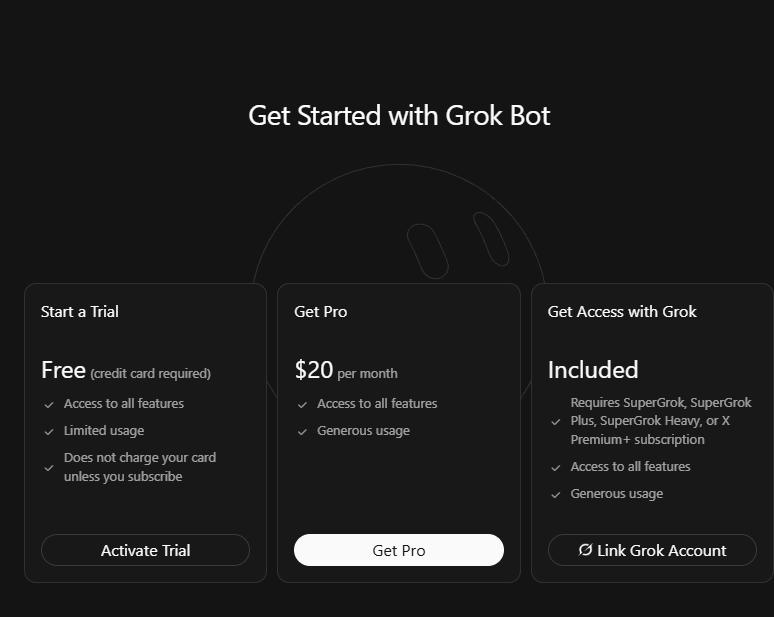
Image: Michel Szabo on X 1Click Link Grok Account
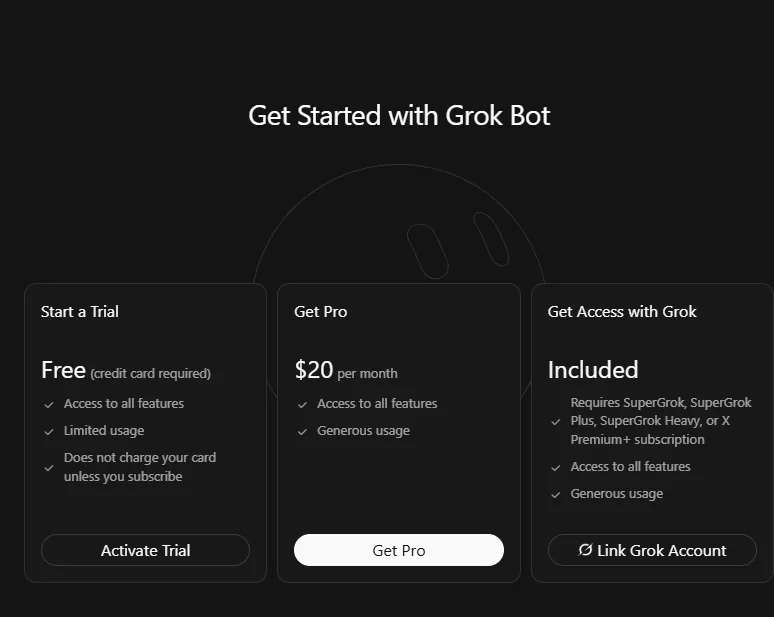
Get Started with Grok Bot has three columns. Yours is the third, Get Access with Grok. Click Link Grok Account.
With X Premium+, use Link X Account. If the screen has only Link Grok Account, that button is the one: its column lists X Premium+.
- Signed in as names the Cursor account that will hold the link. If it isn't the one you chose, click Switch accounts.
- When the account is right, click Link Accounts.
Image: Daniel Morris on X 2Check the account, then click Link Accounts
Your browser opens a page titled “Link Your SuperGrok Subscription to Access Grok Bot”. Read the line under the big button before you click anything.
A Grok sign-in screen follows. Use the Grok or X account that has your subscription. The link page asks you to authorize with that account there, and not to sign in with an email address.

A link grants weekly usage and changes nothing else: you stay on your Cursor plan, or on none. Pricing covers what each subscription grants.
#Get through first run
Once the account has access, the app does the rest. Your part is to wait, then click Next a few times.
First run
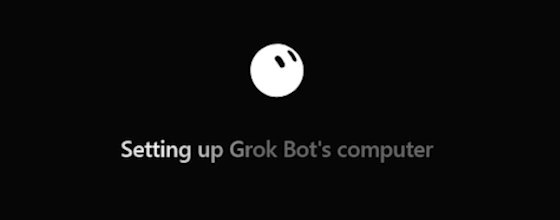
Leave the app open until this line goes away. It can also read Starting your computer. Image: Nate Herk on YouTube 1Keep the app open while your computer is set up
Grok Bot creates the cloud computer your Bots will work on. It does this once for your account, and it can take several minutes.
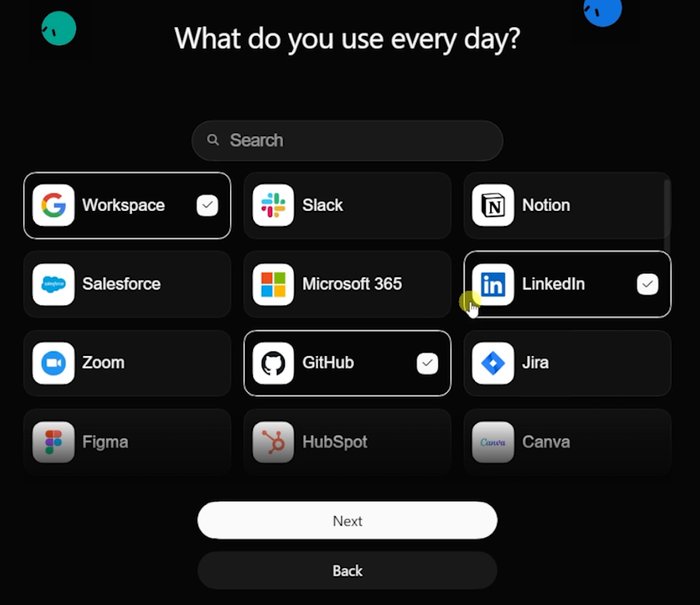
Image: Nate Herk on YouTube 2Click through the intro
A short intro follows: a few screens about Bots and their computer, ending on What do you use every day? Click Next on each one.
Ticking an app here doesn't connect it or sign you in. Your picks only shape the Bots the app suggests.
- Grok BotConnect appsYour first chat, ready for a message
3Meet your first Bot
Setup creates your first Bot for you. Its name is Grok Bot, and the app opens a chat with it.
Earlier versions showed a Create your first Bot form at this point. The app now makes the Bot itself.


#Three setup mistakes
Setup goes wrong in three places, and each is cheaper to avoid than to fix.
#Check you've got it
You're signed in, and you know which account everything sits on. One check on the choice you can't take back.
You link SuperGrok while signed in to your work Cursor account. A month later you want Grok Bot on your personal Cursor account. What can you do with the link?
- Unlink it in Settings, then link again from the personal accountThe app has no unlink button anywhere, and a link can't be undone.
- Ask Cursor support to move itSupport can't unlink a link or move it to another Cursor account.
- Nothing. The link stays on the work accountA link pairs one Cursor account with one Grok or X account for good. To use that usage, you sign in to Grok Bot with the work account.
Show the answer
Nothing. The link stays on the work account A link pairs one Cursor account with one Grok or X account for good. To use that usage, you sign in to Grok Bot with the work account.
The Bots you made stay with the work account too. That's why the account comes first.
Next, create a Bot of your own and hand it a job.
Can I set up Grok Bot on my phone?
Yes, with one exception. Install Grok Bot from the App Store or Google Play and sign in with the same Cursor account you use on your computer: your plan carries over, and there's nothing to buy again. The exception is a SuperGrok or X Premium+ link, which you make on a computer first. Platforms lists what each phone needs.
- First published.
Get the Grok Bot cheat sheet
One page to keep open while you use Grok Bot. Sign up and download it straight away. New guides follow by email. Free.
Thank you! Your cheat sheet is ready. Download the PDF
Sources
18
- Cursor Help Center: Sign in to Grok Bot cursor.com
- Cursor Help Center: Link SuperGrok for Grok Bot cursor.com
- Cursor Help Center: Onboarding cursor.com
- Cursor Help Center: Plans and billing cursor.com
- Cursor Help Center: Subscribe from the mobile app cursor.com
- Cursor docs: Get started with Grok Bot cursor.com
- SpaceXAI docs: Get started docs.x.ai
- SpaceXAI docs: Troubleshooting docs.x.ai
- SpaceXAI docs: Grok Bot for Mobile docs.x.ai
- Cursor: Download Grok Bot cursor.com
- SpaceXAI: Grok Bot changelog (v0.51.0) x.ai
- Cursor forum: the Intel Mac download forum.cursor.com
- Image: the download button on x.ai/bot (Charlie Chang on YouTube) youtube.com
- Images: the Mac installer and the All set page (Kaceli TechTraining on YouTube) youtube.com
- Image: the browser sign-in page (u/Humble_Hat_7160 on Reddit) reddit.com
- Image: the Get Started with Grok Bot screen (Michel Szabo on X) x.com
- Image: the Link Accounts page (Daniel Morris on X) x.com
- Images: computer setup and the intro (Nate Herk on YouTube) youtube.com