Grok Bot sign-in problems and SuperGrok linking fixes
Grok Bot signs in with a Cursor account, and a SuperGrok or X Premium+ link is permanent. Find the message on your screen, then the fix for it, in order.
Last verified
On this page
Grok Bot signs in with a Cursor account, and a SuperGrok or X Premium+ subscription counts only once it's linked to that account. When sign-in or linking fails, start from the exact words on your screen: each message has its own cause and its own fix.
#Find the fix for what your screen says
Sign-in and linking fail with many different messages, and two that look alike can have opposite fixes. Choose where you're stuck, then the words on your screen, and you get the cause and the steps in order.
The steps in each fix link to the sections below, where the screens are.
#Check which Cursor account you're in
Several fixes start with the same look. Your plan, your link and your Bots all sit on one Cursor account, and the app may be signed in to another.
Click your picture at the bottom left of the app, choose Settings, and find Account at the top of General.

- Your name and the email address of the Cursor account this app is signed in to, blurred here.
- Add account saves a second Cursor account beside this one.
- Sign Out takes this account off this computer.
- Wrong account, or an app with none of your Bots in it: click Sign Out, then sign in with the right account, by the same method you used when you made it. Signing out removes the account's data from this computer only. Your Bots and chats come back when you sign in again.
- The browser can disagree with the app. cursor.com may be signed in to a different Cursor account than Grok Bot is. Compare the email addresses before you buy or link anything on the web.
#Fix a sign-in that won't finish
These steps are for a sign-in that loops, stops on an error page, or drops you back at Sign in →. Here is one such page, with the failure in a grey line.

Take the steps in order, and stop as soon as you're in.
Keep the app open and finish in the browser
Leave Grok Bot open while you sign in. Carry on in the browser until the page reads “All set! Feel free to return to Grok Bot.” Then switch back to the app yourself if it doesn't come to the front. The app stops waiting after five minutes, and then you start again from Sign in →.
Update the app, then sign out and back in
In the app, open Settings > Updates and click Check for Updates. Locked out of the app? Install the current version from cursor.com/download/bot. Then sign out and sign in again.
Clear cookies and use a private window
In your browser, clear the cookies for cursor.com and x.ai. Then sign in again in a private or incognito window.
Sign in at x.ai/bot
On a computer, open x.ai/bot in the browser and sign in there with the same Cursor account. Then try the app once more.
Wait 30 to 60 minutes
An error that started today can clear by itself when your session refreshes. Give it 30 to 60 minutes and try again.
Reinstalling the app usually doesn't fix a sign-in, so you can skip that. If the last step fails too, write to support.
#“Authentication error” on an app that's signed in
One message looks like a sign-in problem and isn't. A red banner above the message box reads Authentication error, with “If you are logged in, try logging out and back in.” under it, while the app still shows your account and your Bots.

The fix is on your Bots' computer. A computer update keeps your Bots, files and logins, and removes the apps and packages installed on the computer. Open Settings > Updates, and if Update Grok Bot's Computer offers an Update button, click it. Not responding shows that screen.
With no update waiting, or with the banner still there afterwards, take the five steps above.
#Fix a link that won't take
Linking happens on one web page, and when it fails that page says why in a red line. Read the line first, because it tells you which of your two accounts is the problem.
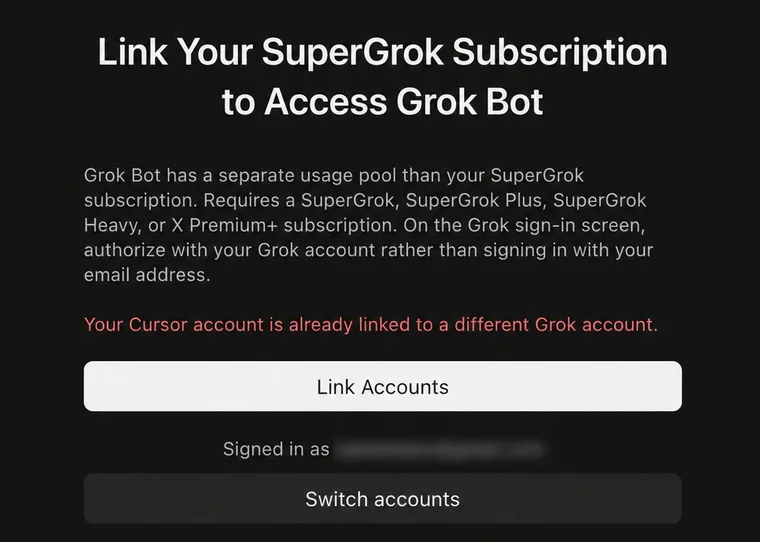
- The red line names the case. Here the Cursor account already has a link.
- Signed in as is the Cursor account you're linking to.
- Switch accounts signs you in to a different Cursor account.
Three rules explain every red line.
- One to one, for good. A Cursor account pairs with one Grok or X account. The pairing can't be undone or moved to another Cursor account, by you or by support.
- Usage follows the subscription. Upgrade or downgrade on the Grok or X side and Weekly usage follows, which can take up to 24 hours. You don't link again.
- One reason to link again. The account you linked had no plan that includes Grok Bot, such as SuperGrok Lite, and you've since upgraded it.
#Get back to the link page
Once you're inside the app, Settings has no link option. There are three ways back.
- Quit Grok Bot fully and open it again. While your account has no access, the app opens on Get Started with Grok Bot, with Link Grok Account. Closing the window isn't enough: here's how to quit fully.
- On a free account, open Settings > Usage & Billing. The page has a Get Access with Grok button.
- In a browser, open cursor.com/promos/super-grok while signed in to cursor.com with the same Cursor account.
Set up Grok Bot walks through the link itself.
#Legacy plans and Privacy Mode (Legacy)
Two older Cursor settings keep Grok Bot switched off, even on an account that pays. Both are changed on Cursor's website.
Two settings that block Grok Bot
| Request-based plan | Privacy Mode (Legacy) | |
|---|---|---|
| What it is | An older Cursor plan that counts requests each month | An older privacy setting that allows no data storage |
| What you see | The app asks you to upgrade, though you already pay for Pro | A message about Legacy Privacy Mode when you sign in |
| Why it blocks | Grok Bot comes with usage-based plans only | Grok Bot needs cloud storage to run |
| The fix | Opt in to usage-based pricing on cursor.com | Switch to Privacy Mode in Cursor's privacy settings |
| What you give up | The request-based plan | The no-storage setting. With Privacy Mode on, your data still isn't used for training |
- On a Cursor team, both settings belong to your admin. Ask them.
- A team on a request-based plan can't use a personal SuperGrok link in its place, and neither can an Enterprise seat.
#What only support can clear
Some account problems can't be fixed from your side. Email hi@cursor.com when one of these is true.
- The sign-in page reads “Access blocked, please contact support.”
- A sign-in still loops after all five steps.
- You pay for a current Cursor plan, you're signed in to the account that has it, and the app still asks you to upgrade.
Support can't unlink a link or move it to another Cursor account, so don't wait on a ticket for that.
Put these in the email, and leave passwords and sign-in codes out of it.
Once you're in, the next step is a Bot of your own.
Can I use two Grok Bot accounts on one computer?
Yes. Open the account menu at the bottom left and choose Add account. Each account keeps its own Bots and data on this computer, and the account menu gains Switch account to move between them.
Does signing in to Grok Bot count as another computer on my Cursor account?
Yes. Cursor limits how many computers can use one account, and Grok Bot counts as one when you sign in. Its cloud computer can count as another. If you hit the limit, sign out on devices you don't use: the extra ones drop off the count within a day, and access comes back by itself.
Can I change the email address on my account?
No. The email on a Cursor account can't be changed. A new email means a new Cursor account, which starts with no Bots, and a link doesn't move to it.
- First published.
Get the Grok Bot cheat sheet
One page to keep open while you use Grok Bot. Sign up and download it straight away. New guides follow by email. Free.
Thank you! Your cheat sheet is ready. Download the PDF
Sources
25
- Cursor Help Center: Sign in to Grok Bot cursor.com
- Cursor Help Center: Link SuperGrok for Grok Bot cursor.com
- Cursor Help Center: Plans and billing cursor.com
- Cursor Help Center: Grok Bot FAQs cursor.com
- Cursor Help Center: Subscribe from the mobile app cursor.com
- Cursor Help Center: Get help cursor.com
- SpaceXAI docs: Get started docs.x.ai
- SpaceXAI docs: Troubleshooting docs.x.ai
- SpaceXAI docs: Settings and notifications docs.x.ai
- SpaceXAI docs: Teams and enterprises docs.x.ai
- SpaceXAI docs: Security FAQ docs.x.ai
- Cursor docs: Grok Bot for teams cursor.com
- SpaceXAI: Grok Bot changelog (v0.24.0, v0.28.0, v0.48.0) x.ai
- Cursor forum: staff on Authentication error while signed in forum.cursor.com
- Cursor forum: staff on updating Grok Bot's computer forum.cursor.com
- Cursor forum: staff on linking from cursor.com and checking the account forum.cursor.com
- Cursor forum: staff on a link left on a deleted Cursor account forum.cursor.com
- Cursor forum: staff on request-based plans forum.cursor.com
- Cursor forum: staff on signing in on iPhone forum.cursor.com
- Cursor forum: staff on Waiting for Browser on Android forum.cursor.com
- Cursor forum: staff on an app that opens empty forum.cursor.com
- Cursor forum: staff on Grok Bot counting as a device forum.cursor.com
- Image: the There was an issue authenticating page (u/Humble_Hat_7160 on Reddit) reddit.com
- Image: the Authentication error banner (@LubaYudasina on X) x.com
- Image: the link page with its red line (@ilyusha on X) x.com