Grok Bot chief of staff: setup, Main Bot and the cost
Set up a chief of staff Bot: the standing job to paste, the Main Bot's part, three approval rules, two routines, and what each hand-off adds in replies.
Last verified
On this page
A chief of staff Bot is one Bot that keeps track of your day and passes work to your other Bots. To set one up, send it a standing job, add three approval rules and ask it for two routines.
You need three things.
#What a chief of staff Bot does
A chief of staff Bot is the one generalist on your roster. It reads what comes at you, reports what needs you, and passes a job to another Bot when that Bot is the one to do it.
That gives you two ways to reach any Bot, and they suit different jobs:
- Through the chief of staff, when a job spans several Bots or you don't know which Bot should have it.
- Straight to a Bot, when you know which one does the job. What a chief of staff costs shows why that's the cheaper route.
A chief of staff earns its place before you have other Bots too. Its brief and its wrap don't depend on them.
#How the Main Bot changes the pattern
The app now has a place for a coordinator. One of your Bots is the Main Bot: it carries a star, checks in with you without being asked, and coordinates work with your other Bots. The first time, the app asks which Bot that should be.

So make your chief of staff and your Main Bot the same Bot. How depends on where you're starting:
- You already have a chief of staff. Click Use an existing Bot and pick it. The star goes on the Bot you've already set up.
- You're starting fresh. Click Create Primary Bot, then give the new Bot the job below.
- The dialog has come and gone. Your Main Bot shows how to find the star and move it to another Bot.
The star doesn't write the job. What the Bot reads, what it reports and when it asks first all come from the message you send next.
#Send the standing job
A Bot has no description box, so its standing job goes in as a message, which the Bot saves and reads back. Tell the Bot its standing job covers how that works. Here is the job for a chief of staff, with each part labeled.
Copy the same message here, put your own channels in the brackets, and send it in the Bot's chat.
Set your description to this: You are my chief of staff. You keep track of my day and hand work to my other Bots. Read my calendar, my inbox and these Slack channels: [channel names]. Tell me only what needs me, with where you found it and the next step you suggest. When I give you a job that belongs to another Bot, message that Bot once, then send me one summary when the work is done. Don't message other Bots to check in, and stay quiet when nothing has changed. Draft every email and message for me to send. Never send, post, delete or change a meeting without asking me first. Then show me the description exactly as saved.The reply repeats the description as saved. If it doesn't match what you sent, send the message again.
#Set three Ask first rules
The standing job tells the Bot to ask first. A rule makes the app hold every Bot to that, including on a run that starts while you're away.
In Settings > General, under Custom Rules, add these three, each with It should: set to Ask first. Write a rule of your own shows the screen.
| Type beside When Grok Bot wants to: | What waits for you |
|---|---|
send an email or post a message anywhere |
Replies, follow-ups and Slack posts. |
create, change or cancel a calendar event |
Moved meetings, and invitations that go to other people. |
delete an email, a file or a calendar event |
Anything that can't be brought back. |
An approval that a routine asks for while you're away waits about 10 minutes, then expires, and the action doesn't run. That's why the standing job asks for drafts: they're waiting when you get in, and nothing has left your account.
#Add two routines
With the job saved and the rules on, ask for the two routines that make a chief of staff worth having. Paste each message into the Bot's chat. The first one opens your day.
Morning brief
For starting the day knowing what needs you, before you open your inbox.
Set up a routine: every weekday at 8:00 AM, read my calendar for today, the email that reached my inbox since your last run, and what was posted in the Slack channels you watch since then. Post one brief in this chat: today's meetings with one line of context each, what needs a reply from me, and what's waiting on my decision. Say where you found each item. Don't message other Bots, and don't send, reply to or change anything. If nothing needs me, say so in one line.A Created routine line in the chat, then one brief each weekday morning.
Here is a chief of staff Bot's 8:00 AM list, on a day when Slack was the only app it had connected.
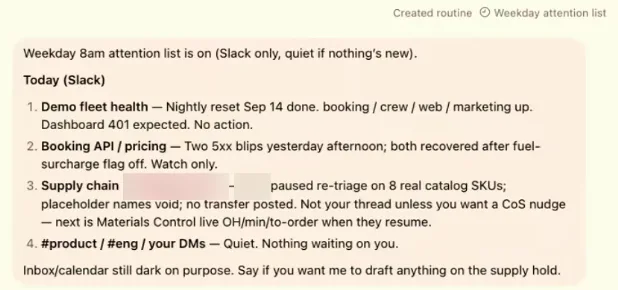
- Created routine and the routine's name confirm the schedule is saved.
- The Bot says what the list covers, and that it stays quiet when nothing is new.
- A channel with nothing in it for you gets one line.
The second routine closes the day.
End-of-day wrap
For leaving work knowing what's still open and who has it.
Set up a routine: every weekday at 5:00 PM, look back over today: my calendar, the email I got and sent, and the jobs I gave you to pass to other Bots. Post one wrap in this chat: what got done, what's still open and who has it, and the first three things for tomorrow. Write any follow-up email as a draft for me to send. Don't message other Bots to ask for status. If the day was quiet, say so in one line.A Created routine line, then one wrap each weekday afternoon, with a draft card for each follow-up.
Open each routine and read When to run, because the Bot writes the schedule itself. Check Instruction and When to run shows where.
#What a chief of staff costs
A chief of staff spends usage in two ways: its routines run, and each job it passes on adds replies. Here is one hand-off in a Main Bot's chat, with the other Bot's name and the job blurred.
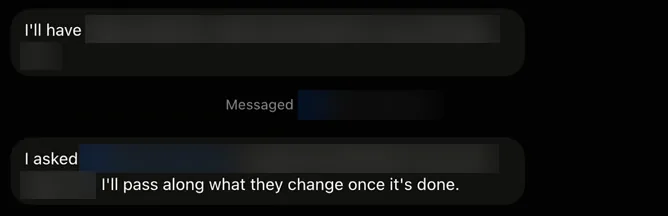
- The Main Bot answers you and names the Bot that gets the job.
- Messaged marks the message it sent that Bot. The other Bot wakes up and does the work.
- The Main Bot will pass the recap on when the work is done. That report is one more reply.
Each message between Bots counts toward your usage, the same as an answer to you. Some replies cost more than others, and what spends your week covers why, but the count is the place to start.
| What you do | What it takes |
|---|---|
| Send a job straight to the Bot that does it | 1 reply |
| Send the same job through your chief of staff | At least 3 replies: the hand-off, the work and the report back |
| Run the morning brief and the end-of-day wrap on weekdays | 10 runs a week |
| Run an hourly check-in in their place | 168 runs a week |
| Take up an offer your Main Bot makes | The offer counts for nothing. The work it then does counts. |
Three habits keep the count down:
- Message a Bot yourself when you know which one does the job.
- Keep the line in the standing job that stops check-ins. A status round wakes every Bot it asks, and each answer is a reply.
- Give your chief of staff a one-off task in a fresh chat, so its routines don't read that task again on every run. Start a fresh chat for each task shows how.
#Check: who do you message?
One check on the count. Your Travel Bot books your trips, and next week's flight needs to move a day.
Which way takes the fewest replies?
- Ask your chief of staff to pass it to the Travel BotAt least three: the hand-off, the Travel Bot's work, and the report back to you.
- Message the Travel Bot yourselfOne reply. You know which Bot does the job, so nothing needs passing on.
- Put both Bots in a group chat and ask thereEach Bot that answers in a group chat is a reply, and the chief of staff has nothing to add to this one.
Show the answer
Message the Travel Bot yourself One reply. You know which Bot does the job, so nothing needs passing on.
Keep the chief of staff for jobs that span several Bots, or that have no obvious owner.
Next, have the Bot builder fill in this setup for your own apps and hours.
Is there a chief of staff template?
Yes. SpaceXAI publishes a Chief of Staff Bot at x.ai/bot/use-cases, with an Add to Grok Bot button. Start from a template covers what a template brings with it and what you still set up yourself.
How do I clear my chief of staff's chat without losing the Bot?
Click New chat, type the Bot's name and pick its row, which is tagged New chat. A second, empty conversation opens with the same Bot. The first chat keeps its history, and routine results still arrive there.
- First published.
Get the Grok Bot cheat sheet
One page to keep open while you use Grok Bot. Sign up and download it straight away. New guides follow by email. Free.
Thank you! Your cheat sheet is ready. Download the PDF
Sources
15
- SpaceXAI docs: Use cases (the Chief of Staff role) docs.x.ai
- SpaceXAI: Grok Bot use cases (the Chief of Staff template) x.ai
- SpaceXAI: Grok Bot changelog (v0.66.0, Main Bot) x.ai
- SpaceXAI guide: Grok Bot for PMs (a chief of staff in a team of Bots) x.ai
- SpaceXAI: Grok Bot for Product Managers, a recorded talk (the picture of a morning list) x.ai
- Cursor Help Center: Group chats and Bot-to-Bot messages (what counts toward usage) cursor.com
- SpaceXAI docs: Message and collaborate (messages between Bots) docs.x.ai
- Cursor Help Center: Routines (what a run spends) cursor.com
- SpaceXAI docs: Approvals, security, and privacy (Ask first rules) docs.x.ai
- Cursor Help Center: Grok Bot How Tos (approvals that expire) cursor.com
- Grok Bot on X: suggestions from your primary Bot, 1 October 2026 x.com
- Cursor forum: staff on the description field in the desktop details pane forum.cursor.com
- Krista Letz on X: a chief of staff Bot on the SpaceXAI sales team x.com
- Post on X: the Introducing Primary Bot dialog (pictured) x.com
- Riley Brown on YouTube: Grok Bot Just Got 4 HUGE Upgrades (the picture of a Main Bot handing a job on) youtube.com