Learn Grok Bot
Cheat sheetGet the cheat sheet

Learn

Grok Bot plugins: connect apps and what to do without one

Open Connect apps, add a plugin and sign in, and every Bot on your account can use it. If your app has no plugin, a Bot can use its website instead.

Last verified

On this page

A plugin signs a Bot in to an app you use, such as Gmail, Slack or Notion, so the Bot can work there directly. You add plugins in Connect Apps, and an app with no plugin can still be reached through its website.

You need three things.

What you need

#What a plugin gives a Bot

A Bot has two ways into an app: a plugin, or the app's website in the browser on its computer. Both reach the same account, and the plugin gets there in one step.

asks directlyclicks throughpagesYour BotPluginIts browserThe appasks directlyclicksthroughpagesYour BotPluginIts browserThe app
The plugin is the direct line. The website still works when an app has no plugin.

A plugin changes four things:

  • The Bot asks the app directly. It searches the mail or creates the event in one request, where the website route means opening pages and clicking. That's often more reliable.
  • The Bot gets your access and no more. A plugin can do only what the account you sign in with can already do. It can't raise your access or change who a file is shared with.
  • Your sign-in stays out of the Bot's hands. You sign in on the app's own page, and the Bot uses the connection without ever receiving the token behind it.
  • One connection serves every Bot. A plugin is installed on your account, so every Bot you have can use it.

#Connect a plugin

Connecting takes one click in Grok Bot and a sign-in in your browser. The walkthrough ends on the list that shows whether the sign-in took.

Walkthrough

Connect a plugin

  1. The foot of the Grok Bot sidebar: a wide button that reads Connect apps, with three small app icons at its right-hand end

    1Click Connect apps

    Connect apps is at the bottom of the sidebar, under your list of Bots.

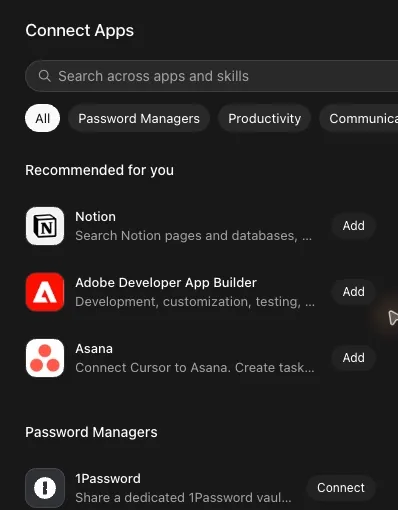
    1. Search across apps and skills finds a plugin by name.
    2. The chips filter by category. The last one, More, holds Data, Sales, Finance, Research and Support.
    3. Add installs the plugin. When the app needs a sign-in, your browser opens straight away.

    2Find the app and click Add

    A window titled Connect Apps opens. Find your app, then click Add beside it.

    Two apps have a different button. 1Password reads Connect, and GitHub, which comes with the app, reads Connect GitHub.
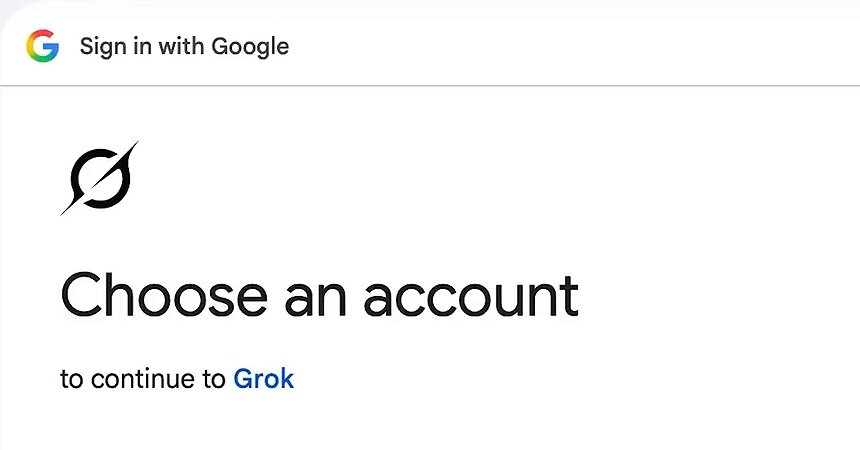
  2. The left half of a Google sign-in page. Under the heading Choose an account it reads: to continue to Grok
    Google's page for the Google plugins. It names Grok, or Cursor on some accounts. Either one is Grok Bot. Image: AI Master on YouTube

    3Sign in on the app's own page

    The sign-in page belongs to the app you're connecting, and it opens in your browser, outside Grok Bot. Pick the account, approve what the page asks for, and finish within about 10 minutes.

    The last page reads Authorization complete! You can close this tab. Close it and go back to Grok Bot.

    1. Connected: signed in. Your Bots can use this plugin now.
    2. Authenticate: installed, and not signed in. Click it to open the sign-in page again.

    4Check that the plugin says Connected

    In Connect Apps, click the count at the top right, such as 11 connected. A page titled Manage plugins and skills lists every plugin you've added and the state of each.

You can also start from a chat. Ask a Bot for work in an app it can't reach yet, and it offers to add the plugin, then posts a card with an Authorize button that opens the same sign-in page.

#Find your app

Connect Apps lists 238 plugins in ten categories. Before you go looking, check your app here: the finder says whether it has a plugin, what a Bot can do with it, and what happens when it has none.

Is there a plugin for your app?

Type an app's name, or tap one that people ask about.

The finder needs JavaScript to search. The answers for the apps people ask about most follow, then the full list.

Has a plugin

Gmail

Find it
Gmail, under Communication in Connect Apps.
A Bot can
Search and read your mail, write drafts, send, and apply labels, in the mailbox you connect.
Know this
On a work Google account, your admin may have to approve the app named Grok before the sign-in goes through.
More
Grok Bot and Gmail has the connection steps and jobs to hand over.
Has plugins

Outlook and Microsoft 365

Find it
Four separate plugins: Outlook and Outlook Calendar under Communication, OneDrive and Teams under Productivity. Nothing in the list is named Microsoft 365, Word, Excel or SharePoint.
A Bot can
With Outlook: search, read and send email, and look up contacts. With Outlook Calendar: list, create, update and cancel events. With OneDrive: browse, search and read files. With Teams: search, read and send chats and channel messages.
Know this
Add each one you need. Adding Outlook doesn't add the calendar.
Has a plugin

Google Calendar

Find it
Google Calendar, under Communication in Connect Apps.
A Bot can
Read the calendars you can see, check free time, and create events, update them and answer invitations on calendars you can edit.
Know this
The plugin can't change Google Meet settings, and it can't add a Zoom link to an event. Put the Zoom link in the event's location yourself.
Has a plugin

Slack

Find it
Slack, under Communication in Connect Apps.
A Bot can
Read and post as the Slack user you connect, in the channels that user can post in.
Know this
One connection covers one workspace. A Slack message that starts a routine is a separate setup from the plugin.
Has a plugin

Notion

Find it
Notion, under Productivity in Connect Apps.
A Bot can
Search pages and databases, create and update records, and publish content to your workspace.
Know this
Notion takes a second account, so you can connect two workspaces and tell the Bot which one to use by its label.
Built in

GitHub

Find it
GitHub, under Code in Connect Apps. Its button reads Connect GitHub in place of Add.
A Bot can
Read and act on pull requests, issues, checks and code.
Know this
GitHub comes with the app, so its page has no Uninstall button.
Has a plugin

Linear

Find it
Linear, under Productivity in Connect Apps.
Know this
A Linear event can also start a routine, so a Bot can pick up work when something changes there.
No plugin

WhatsApp

Find it
Nothing in Connect Apps is named WhatsApp, and you can't message a Bot from WhatsApp.
Without one
The only route is WhatsApp's website in the Bot's browser, signed in as you.
Know this
WhatsApp has suspended accounts after their owner connected a Bot to them. Keep a Bot out of your personal WhatsApp.
No plugin

LinkedIn

Find it
Nothing in Connect Apps is named LinkedIn.
Without one
A Bot can open LinkedIn's website in its browser once you've signed in there.
Know this
LinkedIn has ended every session on an account after a Bot sent messages from it. Have the Bot write the messages, and send them yourself.
Has a plugin

1Password

Find it
1Password, under Password Managers in Connect Apps. Its button reads Connect.
A Bot can
Fill saved logins on its own computer. Connecting sets up a vault named “Shared with Grok Bot”, and a Bot can read only that vault.
Know this
Only the items you move into that vault are shared. It's the plugin to add when your Bots sign in to websites that have no plugin.
Has a plugin

X

Find it
X, under Communication in Connect Apps.
A Bot can
Search posts, read timelines, pull trends, manage bookmarks and use X Chat.
Know this
Connecting creates an X developer account for you if you don't have one, and the plugin spends that account's X API credits. Paid Grok Bot plans come with free credits to start.
Has plugins

Google Docs and Slides, but no Drive or Sheets

Find it
Google Docs is under Productivity and Google Slides under Design. The list has no plugin named Google Drive or Google Sheets.
Know this
No plugin can change who a file is shared with.
Listed, can't connect

Zoom

Find it
Zoom, under Communication in Connect Apps.
Know this
Zoom's sign-in fails with error 4700 (Invalid redirect). It's a known issue with no workaround, and nothing you change on your side fixes it.
Meanwhile
Have a Bot create the meeting in Google Calendar, and put the Zoom link in the event's location yourself.
Ask a Bot

An MCP server

Find it
Connect Apps has no form for adding a server. You add one by asking a Bot.
More
Add a custom MCP server has the message to send and the one rule the server has to meet.
Has a plugin

This app

Find it
In Connect Apps, under its category. Type its name in the search box, click Add, then sign in.
What it does
Open the plugin's page in Connect Apps before you add it. The page describes the plugin and lists the skills that come with it.
Know this
Once it's connected, every Bot on your account can use it.
No plugin

Nothing by that name in Connect Apps

Check first
Try the name of the company that makes the app. Jira, for example, comes with the Atlassian plugin.
Without one
Ask a Bot to do the job on the app's website. The Bot opens the site in the browser on its computer and asks you to sign in when it reaches the login page.
Know this
The website route is often less reliable than a plugin, and some sites block a cloud computer. Logins and CAPTCHAs covers what to do then.
Or
If the app's maker offers an MCP server, a Bot can add it: see Add a custom MCP server.
All 238 plugins in Connect Apps, by category

Password Managers 1

  • 1Password

Productivity 63

  • Adobe Developer App Builder
  • Airtable
  • Asana
  • Atlassian
  • Atlassian Forge
  • Atlassian Teamwork Graph CLI
  • Box
  • Canva
  • ChatPRD
  • ClickUp
  • Coda
  • Craft
  • Descript
  • Fathom
  • Fireflies
  • GitBook
  • GitLab
  • Glean
  • Glean Developer Docs
  • Google Docs
  • Granola
  • GSAP
  • Guru
  • Harness
  • IcePanel
  • Jam
  • Jotform
  • Juicebox
  • LaunchDarkly
  • Linear
  • Listen Labs
  • MagicPath
  • Mem
  • Mintlify
  • Miro
  • Monday.com
  • Notion
  • OneDrive
  • Otter.ai
  • Paper
  • Playwright
  • Profound
  • Read AI
  • ReadMe
  • Readwise
  • Resend
  • Riverside
  • Runway
  • Sanity
  • Smartsheet
  • Svelte
  • Teams
  • TierZero
  • Todoist
  • Typeform
  • UiPath
  • Upwork
  • Webflow
  • Wix
  • Workable
  • Wrike
  • Xero
  • Zapier

Communication 29

  • ActiveCampaign
  • AgentMail
  • Ando
  • Bird
  • Brevo
  • Calendly
  • Customer.io
  • Fireflies
  • Gmail
  • Google Calendar
  • Infobip
  • Inkbox
  • Klaviyo
  • Knock
  • Linq
  • MailerLite
  • Mailgun
  • Migma
  • Nitrosend
  • Outlook
  • Outlook Calendar
  • postiz
  • Slack
  • Superhuman Mail
  • Typeform
  • Upwork
  • Workable
  • X
  • Zoom

Design 13

  • Canva
  • Docs Canvas
  • Figma
  • Google Slides
  • Mobbin
  • Mural
  • Paper
  • PR Review Canvas
  • Refero
  • Slides.com
  • Superdesign
  • tldraw
  • Wonder

Code 53

  • Amazon Location Service
  • Appwrite
  • AWS Amplify
  • AWS Core
  • AWS Databases
  • AWS Deployments
  • AWS Serverless
  • Azure
  • Browserless
  • Browserstack
  • Clerk
  • Cloudflare
  • CockroachDB
  • Compound Engineering
  • Convex
  • Coralogix
  • Create Plugin
  • Datadog
  • Docker
  • Encore
  • Firebase
  • Floot
  • GoDaddy
  • incident.io
  • JFrog
  • Knock
  • Lightrun
  • MongoDB
  • Monk.io
  • Neon Postgres
  • Netlify
  • PagerDuty
  • ParadeDB
  • Pinecone
  • PlanetScale
  • Railway
  • Redis
  • Render
  • Runlayer
  • ScyllaDB
  • Sentry
  • Supabase
  • Superpowers
  • Temporal
  • turbopuffer
  • Turso
  • Twilio
  • Vantage
  • Vercel
  • WorkOS
  • Zscaler
  • GitHub
  • Origin

Data 39

  • Amplitude
  • Antimetal
  • Apify
  • Astronomer
  • AWS Data Analytics
  • Azure Cosmos DB
  • Braintrust
  • Bright Data
  • ClickHouse
  • Confidence by Spotify
  • Customer.io
  • Dagster
  • dbt Labs
  • Elastic
  • Exa
  • Firecrawl
  • Fullstory
  • Grafana Cloud
  • Grafana Labs
  • Hex
  • Hugging Face
  • Langfuse
  • Mixpanel
  • Monid
  • Observe by Snowflake
  • Omni Analytics
  • Omni Integrations
  • OpenSearch
  • Parallel
  • Pendo
  • PostHog
  • Postman
  • prisma
  • Semrush
  • Similarweb
  • Smartsheet
  • Snowflake
  • Statsig
  • ThoughtSpot

Sales 16

  • Adspirer
  • Amplemarket
  • Apollo.io
  • Attio
  • Clarify
  • Clay
  • Customer.io
  • Gojiberry AI
  • Gong
  • Granola
  • HubSpot
  • Hunter
  • Monaco
  • Outreach
  • Salesforce
  • ZoomInfo

Finance 25

  • 1inch
  • Aave
  • Airwallex AgentOS
  • Airwallex Developer
  • Brex
  • Capital.com
  • Chargebee
  • Circle
  • Docusign
  • Kraken
  • Link
  • Mercury
  • Natural
  • Orthogonal
  • PayBox
  • Phantom
  • Ramp
  • Razorpay
  • RevenueCat
  • RevenueCat Play Billing
  • Revolut X
  • Shopify
  • Stripe
  • Whop
  • Xero

Research 11

  • Ahrefs
  • Context.dev
  • Context7
  • Crustdata
  • Harmonic
  • Parallel
  • Semrush
  • SuperMe
  • Treg
  • UserTesting
  • You.com

Support 3

  • Intercom
  • MailerLite
  • Plain
Open on its own page

When the answer is No plugin, the Bot works on the app's website. It opens the site in the browser on its own computer and asks you to sign in there, and that sign-in then serves every Bot on your account. The shared computer shows the sign-in step.

#Add a custom MCP server

An MCP server is a connection some apps and companies offer for AI tools. Connect Apps has no form for adding one. You send its address to a Bot:

PromptAdd an MCP server
Add this MCP server: https://your-app.example.com/mcp

The Bot confirms the details with you and sets the server up, and its tools are there from your next message. Two rules apply:

  • The address has to be a public HTTPS one. A Bot works in the cloud, so it can't reach a server that runs only on your own computer.
  • Like a plugin, the server is added for your whole account.

#Keep a plugin working

Once a plugin is added, everything about it is on its own page. Open Connect Apps, click the connected count, then click the plugin.
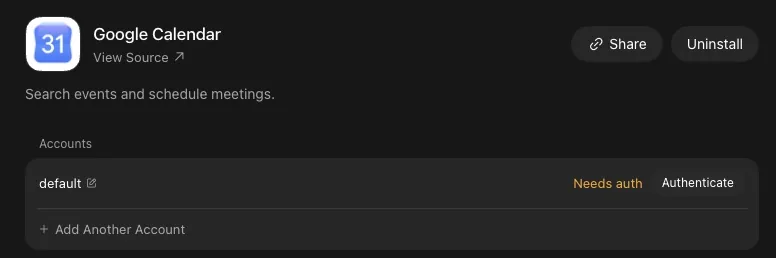
  1. Needs auth means the sign-in was never finished, or has lapsed. Authenticate opens it again.
  2. Add Another Account connects a second login to the same app.
  3. Uninstall removes the plugin for every Bot on your account.

A connected plugin also has a Tools row. Click it for one switch per action, and turn off any action no Bot of yours should take.

#Fix Needs auth

  1. On the plugin's page, click Authenticate on the account's row. Your browser opens the app's sign-in page.
  2. Sign in and approve. The row changes to Connected, and the Tools row appears under it.

If that doesn't clear it:

  • A card in a chat that says "Waiting for [app] authorization..." has a Reopen button, which brings the sign-in page back.
  • A Bot posts a card only when a plugin needs a sign-in, so don't wait for one. Start from the plugin's page.
  • As a last step, click Uninstall, add the plugin again and sign in. Uninstalling disconnects the app for every Bot, so routines that use it fail until you've reconnected.

#Add a second account

  1. On the plugin's page, click Add Another Account.
  2. Type a label for it, such as work or personal.
  3. Click Authorize and sign in with the second account.

Tell a Bot which account to use by its label: "Use my work Notion." Every Bot on your account can use every connected account. A plugin with no Add Another Account line takes one account at a time.

#Three mistakes with plugins

Most plugin trouble is one of these.

#Check you've got it

One check on what Added means.

Predict

You added the Google Calendar plugin last week. Today a Bot says it can't reach your calendar, and in Connect Apps the plugin reads Added. What's going on?

  • An update removed the plugin, so it has to be added again
  • The plugin is installed, and its account isn't signed in
  • The plugin was added for another Bot, and this Bot needs its own
Show the answer

The plugin is installed, and its account isn't signed in

Added means installed. Open the plugin's page and its account row reads Needs auth. Click Authenticate, sign in, and every Bot on your account can use the calendar.

Added means installed. Open the plugin's page and its account row reads Needs auth. Click Authenticate, sign in, and every Bot on your account can use the calendar.

With an app connected, a Bot can do its job there on a schedule, without being asked each time.

Can I connect a plugin from my phone?

Yes. In the phone app, tap your picture at the top left and choose Plugins. If an app's sign-in fails on the phone, connect it on a computer, and the connection carries over.

Does a plugin use up my weekly usage?

Usage is spent by the work a Bot does, and work through a plugin counts like any other. Usage limits explains the meter.

Why does a plugin say Disabled by team admin?

On a Cursor team, your admin chooses which plugins the team can use, and Grok Bot follows that list. Ask your admin to turn the plugin on. The block covers the plugin only, so a Bot can still reach the app's website.

  1. First published.

Sources

14
  1. Cursor Help Center: Connect plugins cursor.com
  2. Cursor Help Center: Grok Bot How Tos (reconnecting a plugin, a second account) cursor.com
  3. SpaceXAI docs: Use the computer and apps docs.x.ai
  4. SpaceXAI docs: Grok Bot for teams and enterprises (where sign-in tokens are kept, team plugin policy) docs.x.ai
  5. SpaceXAI docs: Settings and notifications (switching a plugin's tools on and off) docs.x.ai
  6. SpaceXAI: Grok Bot changelog (v0.53.0, v0.60.0, v0.63.0) x.ai
  7. SpaceXAI: Grok Bot plugin pages (Outlook, Outlook Calendar, OneDrive, Teams, X) x.ai
  8. SpaceXAI: Grok Bot now works with X x.ai
  9. Cursor Help Center: Routines (events that can start one) cursor.com
  10. Cursor forum: staff on adding a custom MCP server forum.cursor.com
  11. Cursor forum: staff on connecting from the phone app forum.cursor.com
  12. r/GrokBot: WhatsApp suspended accounts connected to a Bot reddit.com
  13. r/GrokBot: LinkedIn revoked a session after a Bot sent messages reddit.com
  14. AI Master on YouTube (the Google sign-in page pictured) youtube.com