Grok Bot not responding? Fix "Bot failed to respond"
Bot failed to respond usually means a service incident, one failed reply or a stuck cloud computer. Check the status page, resend, then take the fixes in order.
Last verified
On this page
Bot failed to respond means the reply to your message failed, and the banner doesn't say why. Check the Grok Bot row on status.cursor.com first, because during an incident the only fix is to wait. With no incident open, send your message again.
#What the message looks like
The message is a red banner above the message box. Its title is Bot failed to respond, and the line under it reads "Something went wrong while generating the reply. Try again."

A Bot can also go quiet with no banner: you send a message and no reply comes. The finder in the next section handles both.
#Find the fix for your case
The same banner has several causes, and each has its own fix. Answer up to three questions about what you see, and the finder gives you the cause and the fixes to try, in order.
Each fix in your list links to its steps in the next two sections.
#Work through the fixes in order
The six fixes are in the order to try them, with the likeliest causes first. Stop as soon as your Bot answers. Only the last one removes anything, and its step says what.
Fix a Bot that isn't responding
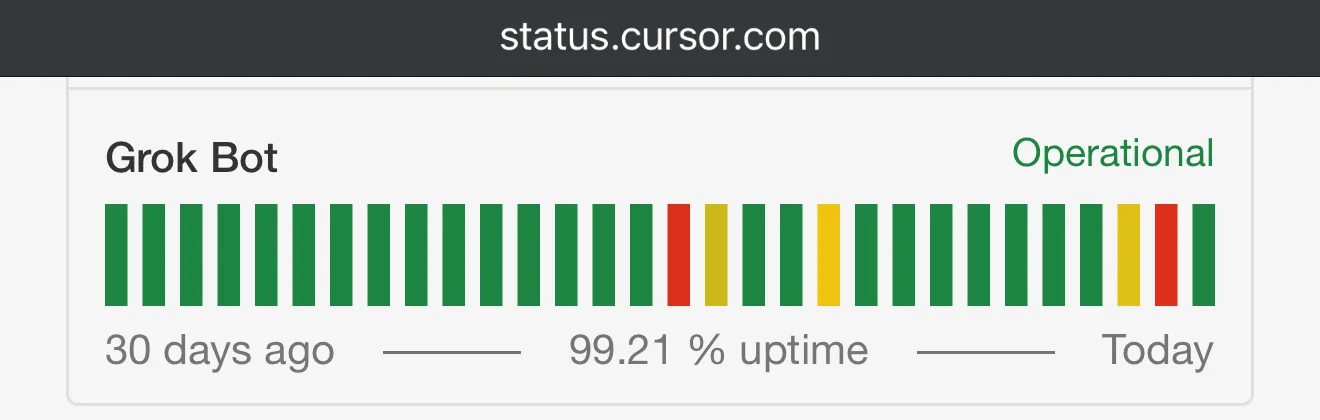
- Find the row named Grok Bot. Cursor's other products have rows of their own.
- Operational means no incident is open. During an incident this word changes, and the page lists the incident with its updates.
Image: Cursor forum 1Check the status page
Open status.cursor.com in a browser and find the row named Grok Bot. The app doesn't show service status, so an incident appears only on that page.
- An incident is open. Wait until the page marks it Resolved. Don't Reset the computer or reinstall the app while you wait: neither fixes an incident, and a reset can lose very recent changes. Then send your message again, because a message sent during an incident isn't retried.
- The row reads Operational. Go on to the next fix.

Read the second line before you resend. This one names its cause: the request was rate limited, so give it a little longer. Image: Cursor forum 2Send the message again
With no incident open, wait a moment and send the same message again. On a message marked Failed to send, click Resend.
Model provider is overloaded takes the same fix: wait a moment, then send again.
- Needs approval is the tag on a card the Bot is waiting on. The Bot's row in the sidebar turns orange and starts Waiting for you.
- Answer with Allow once or Deny, and the Bot carries on.
3If the Bot is silent, see whether it's waiting for you
When a Bot goes quiet with no banner, check whether it stopped to ask you something. Scroll to the end of its chat and look for a card: an approval, a question, a sign-in or a request for a secret.
No card? Click a different Bot in the sidebar, then click back, which reloads a chat that has stopped showing new messages. If the Bot is busy on the wrong thing, send “Stop now”, then ask again.
4Quit Grok Bot fully and reopen it
Quit the whole app, then open it again. Closing the window leaves the app running.
- Mac: open the Grok Bot menu in the menu bar and choose Quit Grok Bot, or press Cmd+Q.
- Windows: right-click the Grok Bot icon in the system tray and choose Quit.
- Phone: swipe the app away, then open it.
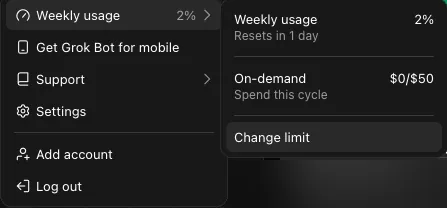
- The percent is how much of this week's included usage is gone.
- Resets in counts down to the next week's usage.
- On-demand is paid usage past the weekly amount, shown as spent against your limit.
5Check your weekly usage
Click your picture at the bottom left of the app, then Weekly usage.
At 100%, with on-demand off or spent, your Bots stop until the reset. Usage running out has what to do then. Below 100%, usage isn't the cause.
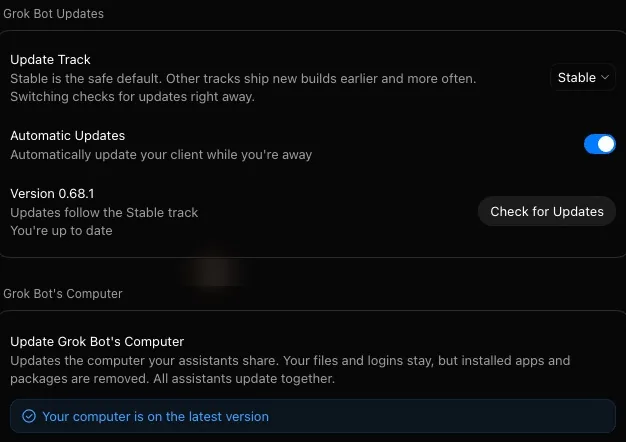
- Check for Updates looks for a newer app. If it finds one, choose Restart to Update. Versions before 0.63 could show Bot failed to respond when weekly usage ran out.
- When a computer update is waiting, an Update button shows on this row. Click it, then click it again when it reads Click Again to Confirm.
6Install any update that's waiting
Open Settings from the same menu and choose Updates. The page holds two updates: one for the app, and one for your Bots' computer. A computer update keeps your Bots, files and logins, and removes the apps and packages installed on the computer.
A computer update takes a few minutes. If a window says Update still running, choose Keep waiting.


#Reset the computer only as a last step
If every Bot still fails and no incident is open, the cloud computer your Bots share is stuck. Reset rebuilds it from your last saved data, which costs you the apps and packages installed on it and can cost very recent changes.
The button is in the desktop app, at the bottom of Settings > Updates.

- Kept: your Bots, your chats, and the files and logins that were already saved.
- Removed: apps and packages installed on the computer. You reinstall those afterwards.
- At risk: very recent changes, when the computer can't be reached to save them first.
Click Reset and confirm. The rebuild takes a few minutes, and the computer is ready as soon as the app reconnects. Reset once only: if the app says Reset failed, choose Retry Reset one time and then stop, because another reset can interrupt a restore that's still finishing.
#What only support can fix, and what to send
Some stuck computers can only be rebuilt from Cursor's side. Email hi@cursor.com when one of these is true.
- Every Bot still fails after one reset, and the status page shows no incident.
- Reset failed shows again after Retry Reset.
- One Bot fails on the same request in a new chat, while your other Bots answer.
The request ID lets support find the exact failure. Here is an email with that and everything else support asks for.
To get the request ID, right-click the message that failed and choose Copy request ID. If the menu doesn't offer it, that message has no ID you can copy: send the error text and a screenshot instead. Leave passwords, codes and secret values out of the email.
#Messages that look similar
A Bot also goes quiet behind these messages. Each one has its own page.
| On screen | What it is, and where to go |
|---|---|
| "Weekly usage limit reached", or a warning that you're at 75% or 90% of your weekly usage limit | The week's included usage is gone or nearly gone. See Usage running out. |
| Reconnecting, "Can’t reach your computer" or Couldn't Reach Grok Bot's Computer | The app has lost its connection to the cloud computer. See Can't reach your computer. |
| An open incident on the status page | The service is having trouble for many people at once. See Is Grok Bot down? |
| Authentication error, or a sign-in screen that keeps coming back | A sign-in problem, with fixes of its own. See Sign-in and linking. |
| The Bot says a website blocked it or showed a CAPTCHA | The site is turning away the cloud computer. See Logins and CAPTCHAs. |
| Update required, or any other message | Look it up in Error messages. |
With your Bots answering again, the next step is knowing the computer they share, so an update or a reset never costs you work.
Can I fix a Bot that isn't responding from my phone?
You can do the first fixes on the phone: check the status page, send the message again, and close and reopen the app. Updating and resetting the computer are done in the desktop app.
- First published.
Get the Grok Bot cheat sheet
One page to keep open while you use Grok Bot. Sign up and download it straight away. New guides follow by email. Free.
Thank you! Your cheat sheet is ready. Download the PDF
Sources
17
- Cursor Help Center: Grok Bot FAQs (Is Grok Bot down?) cursor.com
- Cursor Help Center: Grok Bot How Tos (troubleshooting, request ID, updates) cursor.com
- Cursor Help Center: Grok Bot computer (Update, Recover, Reset) cursor.com
- Cursor Help Center: Get help cursor.com
- SpaceXAI docs: Troubleshooting docs.x.ai
- SpaceXAI docs: Use the computer and apps docs.x.ai
- SpaceXAI: Grok Bot changelog (v0.58.0, v0.62.0, v0.63.0, v0.66.0) x.ai
- Cursor status page status.cursor.com
- Cursor forum: staff on a stuck computer and what a reset keeps forum.cursor.com
- Cursor forum: staff on why every Bot fails at once forum.cursor.com
- Cursor forum: staff on when not to reset forum.cursor.com
- Cursor forum: staff on resending after an incident forum.cursor.com
- Cursor forum: staff on a chat that stopped showing new messages forum.cursor.com
- Cursor forum: staff on quitting from the Windows system tray forum.cursor.com
- Image: the Bot failed to respond banner (@IvankoListen on X) x.com
- Image: the rate-limited banner (Cursor forum) forum.cursor.com
- Image: the Grok Bot row on the status page (Cursor forum) forum.cursor.com