Teach a task in Grok Bot and save it as a skill
Show a Bot a task once with Teach a task, read the skill it saves, then run it again with a slash. Recordings last up to ten minutes and carry no sound.
Last verified
On this page
To teach a Bot a task, click + in its message box, choose Teach a task and do the task once on the Bot's computer while it records. The Bot turns the recording into a skill: written steps that any of your Bots can run again when you type /.
You need three things.
#Teach the task, then run the skill
You do the task once on the Bot's desktop while the Bot watches. The walkthrough goes from the first click to the skill's first run.
Teach a task and run it again
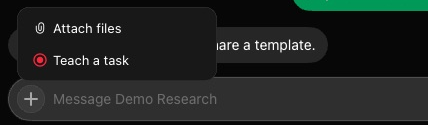
1Click + and choose Teach a task
In the Bot's chat, click the + at the left of the message box. The menu has two items. Choose Teach a task.
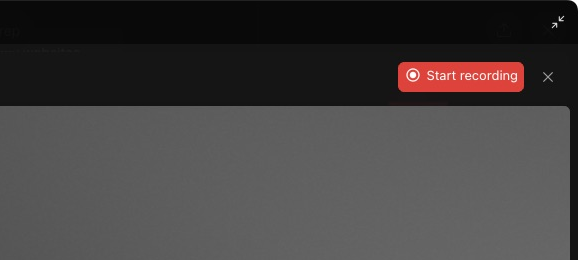
2Click Start recording
The Bot's desktop fills the window, under a bar that starts "Record yourself doing a task." Nothing is recorded yet. Decide where you'll begin, then click Start recording at the top right.
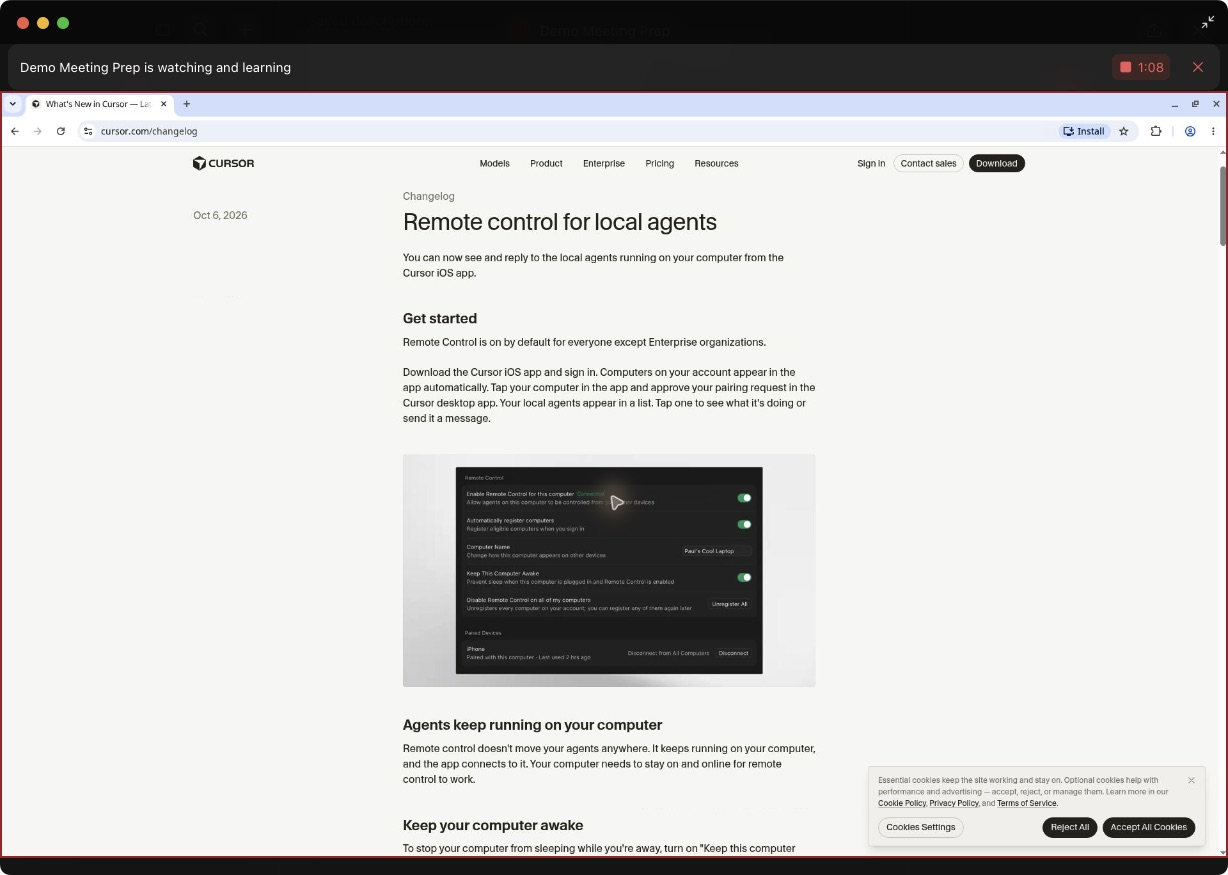
3Do the task once, then click the square
The bar now says the Bot is watching and learning, and the desktop has a red outline. Work on the Bot's desktop with your own mouse and keyboard: here, opening Chrome from the dock and going to a public changelog page. When the task is done, click the square beside the timer.
A recording can run for up to ten minutes and carries no sound, so explaining out loud adds nothing. The x beside the timer throws the recording away.
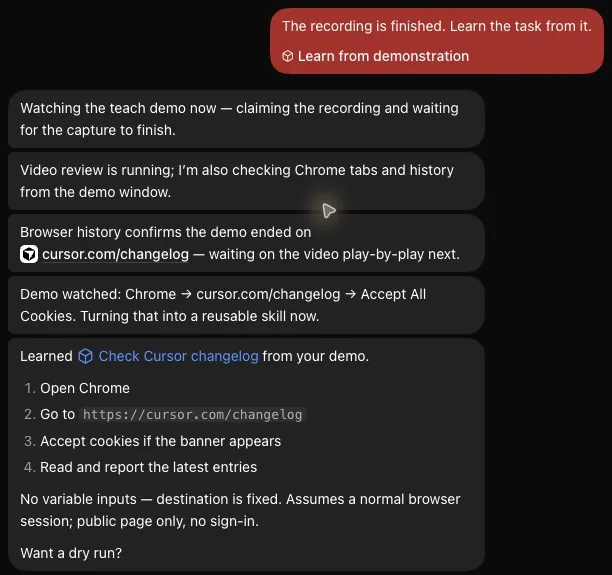
- The app sends this message when you stop. You don't type it.
- The skill's name is a link to its page. The skill is already saved.
- These are the steps as the Bot understood them. Step 3 was never in the recording: the Bot added it.
4Read what the Bot learned
The window goes back to the chat, where the app has sent a message for you. About a minute later the Bot reports what it learned.

5Type / and pick the skill
Type / in the message box. A list opens with skills tagged Skill and app shortcuts tagged Action. Type a few letters of the skill's name, press Return to put it in the box, and press Return again to send.
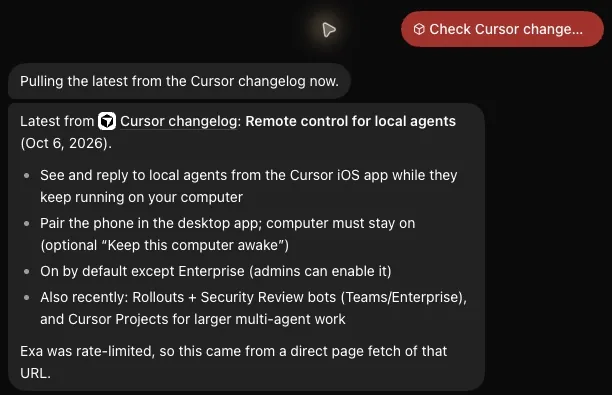
- Your message is the skill itself, sent as a chip.
- The Bot says how it got the answer: it fetched the page directly and never opened Chrome. A skill is written instructions, and the Bot follows them in its own way.
6Read the result
The skill goes out as a chip, and the Bot does the task. This run took 15 seconds.



#Read the skill and fix what the Bot guessed
A skill is a page of text that the Bot wrote from one viewing. Open it from the link in the Bot's report, and read it before you rely on it.
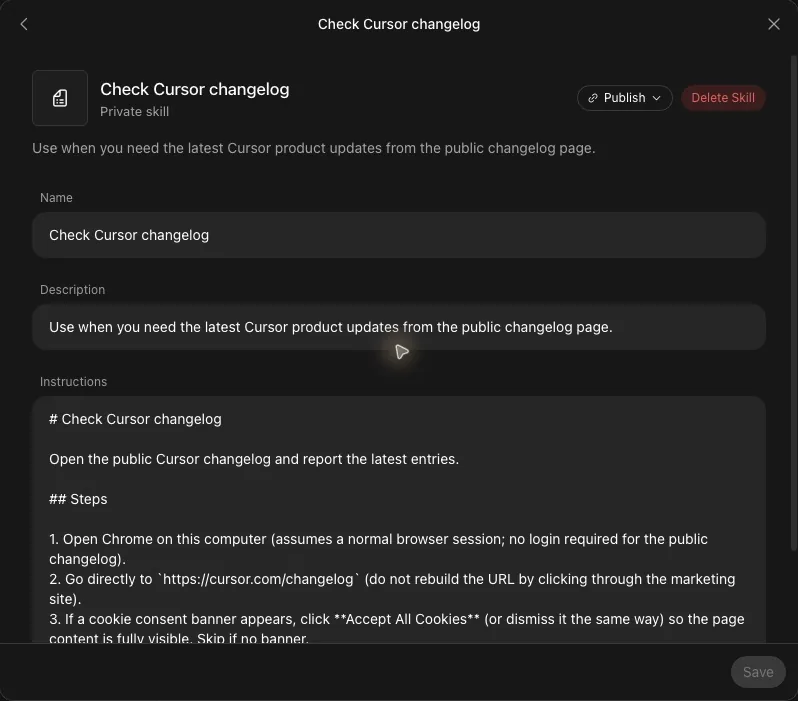
- Description starts "Use when". It tells a Bot when this skill fits a request.
- Instructions holds the steps as plain text. Any line can be changed.
- Save stays grey until you change something.
One demonstration shows one path through a task. Add what the recording couldn't show:
- A rule for each decision: what counts as new, urgent or done.
- What to do when a page won't load or something is missing.
- What to hand back, and in what form.
- Which steps need your approval first.
Type these into Instructions and click Save, or tell the Bot in chat what to change and it rewrites the skill.
#Show a task or describe it?
Recording is one way to make a skill. The other is to describe the task, or to do it once with the Bot in chat and ask the Bot to save the method.
Save the process we just used as a skill called "[name]". Include where to look, the rule for what counts as [new, urgent or done], what to send me, and that you ask me before you contact anyone.Show a task when its steps are clicks that are quicker to do than to explain. Describe it when the task turns on a rule, works through a plugin or needs a secret. Sort these six to try the difference.
Sort each task: would you show it, or describe it?
- Downloading last month's invoice from a supplier's websiteA fixed path of clicks through one site is quicker to do than to explain.
- Sorting your inbox through the Gmail pluginA recording captures the Bot's screen, and work through a plugin never appears there.
- Filling in the same web form from a list every weekThe Bot needs to see which field takes which value.
- A task that starts with typing a passwordNever type a secret into a recording. Sign in first, then describe or show the rest.
- Exporting a report through a dashboard's menus and filtersThe menus are the hard part to put in words.
- Deciding which emails count as urgentThat's a rule, and one recording can't show a rule.
Show it
Describe it
Show the answer
Show it: Downloading last month's invoice from a supplier's website (A fixed path of clicks through one site is quicker to do than to explain.); Filling in the same web form from a list every week (The Bot needs to see which field takes which value.); Exporting a report through a dashboard's menus and filters (The menus are the hard part to put in words.)
Describe it: Deciding which emails count as urgent (That's a rule, and one recording can't show a rule.); Sorting your inbox through the Gmail plugin (A recording captures the Bot's screen, and work through a plugin never appears there.); A task that starts with typing a password (Never type a secret into a recording. Sign in first, then describe or show the rest.)
#Find, change or delete a skill
Your private skills are one library, shared by every Bot on your account. The library is kept with your plugins.
Click Connect apps at the bottom of the sidebar, then the count at the top right of the window, which reads something like 3 connected. Private skills is at the foot of the page that opens.

- Each row is one skill: its name, Created locally, then when a Bot should use it. Click a row to open the skill's page.
- To change a skill, edit Name, Description or Instructions on its page and click Save.
- To remove one, click Delete Skill at the top right of its page. The library is shared, so the skill is gone for every Bot.
- Skills that came with the app, such as add-connector, aren't in this list and can't be deleted.
#Three mistakes when teaching a task
Two of these happen while you record, and the third after the skill is saved.
Next, decide whether one Bot is enough for the work you've handed over.
I can't find Teach a task. Where is it?
In the desktop app it's in the + menu of the message box, in a chat with one Bot. Earlier versions had a Teach a task button at the top right of the Bot's full-screen computer instead. If the menu item is missing, describe the task and ask the Bot to save it as a skill.
- First published.
Get the Grok Bot cheat sheet
One page to keep open while you use Grok Bot. Sign up and download it straight away. New guides follow by email. Free.
Thank you! Your cheat sheet is ready. Download the PDF
Sources
5
- SpaceXAI docs: Skills and routines docs.x.ai
- Cursor docs: Work with Grok Bot cursor.com
- Cursor Help Center: Store secrets securely cursor.com
- SpaceXAI docs: Grok Bot for Mobile docs.x.ai
- Cursor forum: staff on where skills are edited on desktop forum.cursor.com