How many Grok Bots do you need? Main Bot and group chats
Give each lasting job one Bot and add another only when the work has its own sources or rules. See the Main Bot, group chats and what extra Bots add to usage.
Last verified
On this page
One Bot for each lasting job is enough, and two jobs that share the same sources and rules can share a Bot. A bigger roster costs more only when more Bots are answering: every reply counts toward your usage, including the ones Bots send each other.
#When a second Bot earns its place
A second Bot is worth creating when a new job would pull your first Bot in two directions. Give a job a Bot of its own when it has a different:
- goal, or area to look after
- set of apps and sources
- way of working
- rule about what needs your OK
- schedule
A job that matches a Bot you already have on all five belongs to that Bot. Tick the jobs you'd hand over, and the sketch shows the fewest Bots that cover them.
- Each scheduled run and each Bot reply counts toward your Weekly usage. The size of the weekly allowance isn't published, so count runs and replies. Watch the percent as your roster grows.
- The fewest Bots isn't always the cheapest roster. A routine on a Bot you chat with all day reads that whole chat on every run, so give a daily routine a Bot of its own.
#Your Main Bot
One of your Bots is the Main Bot: the Bot you hand work to first. It checks in with offers to take work on, and it coordinates your other Bots by passing jobs to them and bringing back what they report.
Find your Main Bot, then change it

1Look for the star
The Main Bot's picture carries a small star. The Main Bot sits at the top of the sidebar as a large tile, above the rest of your Bots.
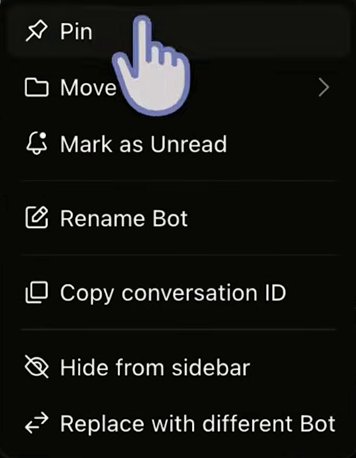
Image: Riley Brown on YouTube 2Right-click it and choose Replace with different Bot
To give the star to another Bot, right-click the Main Bot in the sidebar and choose Replace with different Bot. A dialog titled Choose a primary Bot lists your Bots. Pick one and click Confirm.
The Main Bot's menu has Replace with different Bot where every other Bot's menu has Delete.


- The first time, the app asks. A dialog titled Introducing Primary Bot offers Use an existing Bot and Create Primary Bot. Primary Bot is the dialogs' name for the Main Bot.
- An offer from the Main Bot doesn't count against your usage. The work it then does counts, and so does each message it sends another Bot.
- The Main Bot needs version 0.59.0 of the app or later.
A Bot that coordinates the others is often called a chief of staff. The chief of staff pattern shows how to set one up, and when to go straight to the Bot that owns the job.
#Put Bots in a group chat
A group chat puts two to six of your Bots in one conversation, where you can watch them hand work to each other. To start one, click New chat, choose Create group chat, then click each Bot you want in it.
Here is a group chat after one message to two Bots, with the first part of the title blurred.
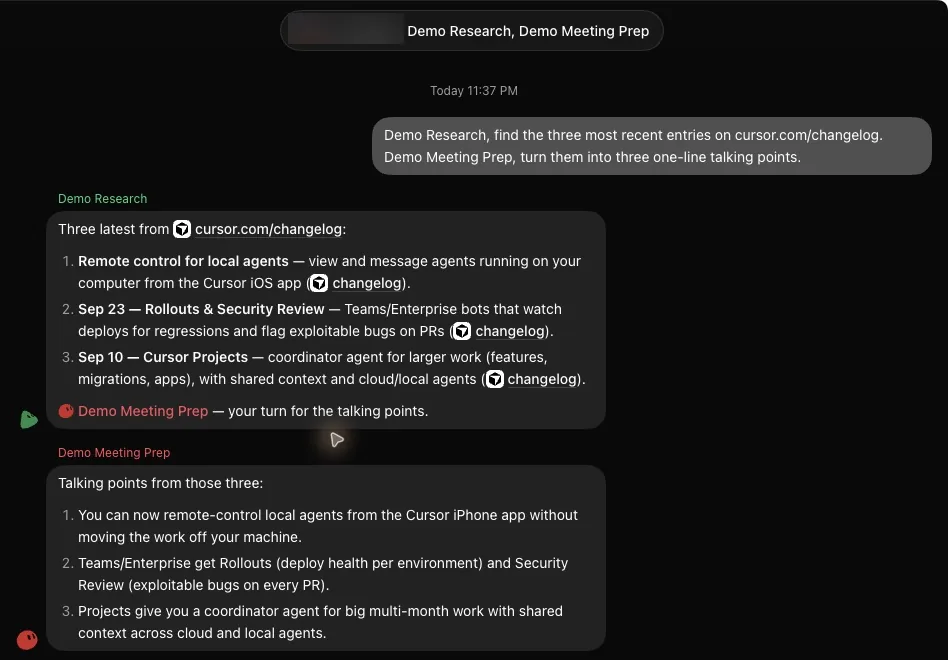
- The title starts with your own name, then lists each Bot in the chat. To name the chat, right-click it in the sidebar and choose Rename chat.
- Your message goes to the whole group.
- Each reply sits under the name of the Bot that wrote it, in that Bot's color, with that Bot's picture beside it.
A group chat works differently from a chat with one Bot in four ways.
| In a group chat | |
|---|---|
| Who answers | Write normally and the Bots decide between them who replies. Type @ and a Bot's name to send a request to that Bot. @everyone reaches all of them, so keep it for news the whole group needs. |
| What it costs | Each Bot's reply counts toward your usage, so fewer Bots in a group means fewer replies. |
| Approvals | As of the 12 September 2026 build, a group chat couldn't show an approval card. A Bot that needed your OK said the step was blocked and asked you to open its own chat, where the card can appear. |
| Voice | Voice chat works with one Bot at a time, so a group chat has none. |
#When Bots message each other
Bots also message each other outside a group chat. One Bot sends a request. The other wakes up, does the work and answers when it's done. Grey lines in a Bot's chat mark each exchange.
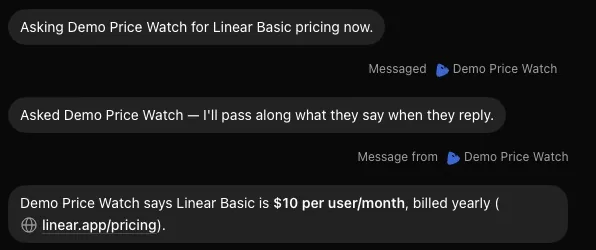
- Messaged and a Bot's name: this Bot sent that Bot a request.
- Message from and the same name: the reply has come back.
- This Bot passes the answer on to you in its own words.
- To ask for a hand-off yourself, tell a Bot which Bot to ask and what you want from it. The other Bot's name in plain words is enough, and typing
@in the message box lets you pick it from a list. A Bot also messages another Bot when it decides the job needs one. - Each message between Bots is a reply, and it counts toward your usage like any other.
- No setting stops Bots messaging each other. Keep Bots from answering each other has a line to send them, and what to do about a Bot that ignores it.
- A Bot can create another Bot when it decides a job needs an owner of its own, and the new Bot shows up in your sidebar. To keep your roster small, tell your Bots to ask you before they create one.
#Check: one Bot or two?
Try the five tests on a roster of one. Your Research Bot checks three competitors' pricing pages every Monday, and three new jobs have come up.
Which of these jobs should get a Bot of its own?
- Check the same three competitors' careers pages every Monday as wellThe same companies and the same kind of page, on the same day. Ask Research to add it to the Monday check.
- Draft replies to refund requests in the support inbox, and never send one without your OKResearch reads public pages. This job works in a mailbox, under a firm rule about sending. That's a second job, so it's a second Bot.
- Turn last Monday's pricing table into three slides for ThursdayA one-off built on work Research already has. One message to Research covers it.
Show the answer
Draft replies to refund requests in the support inbox, and never send one without your OK Research reads public pages. This job works in a mailbox, under a firm rule about sending. That's a second job, so it's a second Bot.
That was the last lesson. Next, build a Bot for a job of your own.
How many Bots can you have in Grok Bot?
No maximum is published. The limits that are published are smaller ones: a group chat holds two to six Bots, and one Bot can own up to 50 routines.
What is a channel in Grok Bot?
An older name for a group chat. Early versions of the app offered New Channel where Create group chat is now, and Bots still say "channel" in their replies now and then.
- The picture of messages between Bots is now from our own run of the app (version 0.68.1). Messaged and Message from both appear in the chat of the Bot that asked, and the exchange opens with a Close Chat button and no "view-only" line.
- First published.
That is the last step on this path.
Get the Grok Bot cheat sheet
One page to keep open while you use Grok Bot. Sign up and download it straight away. New guides follow by email. Free.
Thank you! Your cheat sheet is ready. Download the PDF
Sources
12
- SpaceXAI docs: Create and manage Bots docs.x.ai
- SpaceXAI docs: Message and collaborate docs.x.ai
- Cursor Help Center: Group chats and Bot-to-Bot messages cursor.com
- SpaceXAI: Grok Bot changelog (v0.66.0, Main Bot) x.ai
- Grok Bot on X: suggestions from your primary Bot, 1 October 2026 x.com
- Cursor Help Center: Grok Bot How Tos cursor.com
- Cursor Help Center: Routines cursor.com
- Cursor Help Center: Team Bots (approvals in group chats) cursor.com
- SpaceXAI docs: Skills and routines docs.x.ai
- Riley Brown on YouTube: Grok Bot Just Got 4 HUGE Upgrades (the picture of the Main Bot's menu) youtube.com
- Nuno Tavares on YouTube: a Bot in a group chat asking to move an approval to its own chat youtube.com
- Post on X: the Introducing Primary Bot dialog x.com