Fix it
Grok Bot usage running out fast? How to make it last
Every Bot reply, routine run and Bot-to-Bot message spends weekly usage, and long chats cost more each turn. Find the leak, then make your week last.
Last verified
On this page
A week of Grok Bot usage goes fast because a Bot is charged for the work it does, and before every reply it reads its whole conversation again. Long chats, frequent routines and Bots that answer each other are where a week goes, and each one has a fix.
#What spends your week
Usage is charged for the work a Bot does to write a reply. The number of messages you send, and how long they are, isn't what's counted.
So the same question costs more in a chat you've used all week than in a new one. On one account, a one-line answer moved the weekly meter by about a hundredth of a percent, and a small web task (open one page, report one number) by about three times that.
Four things count as a reply, and each pays that cost:
- A Bot's answer to you.
- Each Bot's reply in a group chat.
- Each message one Bot sends another.
- Each run of a routine.
#Which habit is draining your week?
Five habits make a week leak. Tick the ones that are yours, and the finder lists your fixes in the order to make them.
Each fix on your list is a step in the next section.
#Make the week last
The five fixes are in order, with the one that usually saves the most first. Only one of them removes anything, and its step says what.
Make a week of usage last
- New chat is the + above this pin, beside the search button.
- A Bot you already have is tagged New chat. Click its row.
1Start a fresh chat for each task
Click New chat, the + at the top of the sidebar, and type your Bot's name. Pick its row, which is tagged New chat, and a second, empty conversation with the same Bot opens.
- The new chat starts without the old conversation. Open with two lines on what the Bot needs to know for this task.
- Leave the old chat where it is. A chat costs usage only when a new message goes into it, so there's nothing to clear or delete.
- The schedule. A routine that runs every few minutes is the first to change.
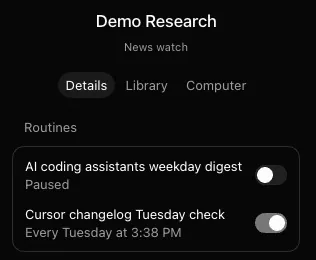
- A routine whose switch is off reads Paused, and a paused routine spends nothing.
2Slow your routines down
Click the Bot's name at the top of its chat. Its routines are under Details, each with its schedule and a switch.
- Switch off every routine whose results you don't read.
- Slow the rest to hourly or a few times a day. A routine every 15 minutes runs almost 100 times a day. To change one, click it, choose Edit, and finish the message the app starts ("Edit your routine:") with the schedule you want.
- For a routine that starts on Slack messages, ask the Bot to watch one channel and one phrase.
Do the same for each of your Bots.
3Give a recurring routine its own Bot
A routine runs in its Bot's chat. On a Bot you talk to all day, every run reads that long chat again, so move the routine to a Bot that does nothing else.
Create a Bot for the job with New chat, then Create new Bot, and ask it for the routine in one message: what to do, and when. Then switch the old routine off on the first Bot, under Details.
4Keep Bots from answering each other
Each Bot that replies in a group chat spends usage, and so does each message one Bot sends another. Keep groups small, and type
@and a Bot's name to send a request to that Bot alone.No setting stops Bots messaging each other, so tell them. Send each Bot this line.
PromptFrom now on, only message another Bot when it needs to act. No acknowledgments, no thanks, no progress updates. Send one summary when the work is done.A Bot can ignore that line. To be sure a Bot you no longer use can't be woken by the others, right-click it in the sidebar and choose Delete. Deleting a Bot removes its profile, its conversation and its routines, so save what you need from it first. Files and sign-ins on the shared computer may stay.

The card is in Settings > Usage & Billing. The same percent, as a whole number, is in the account menu, opened from the account button at the bottom left. 5Check the meter before a big job
Larger and longer jobs use more, so find out what a job costs before you hand over all of it. Look at Weekly usage, hand over one small piece, and look again.
- The meter shows whole percents, so a small piece may not move it. Say where the job ends: "the ten most recent", "one page", "stop and show me before you go further".
- If the first piece moves the percent more than you'd like, split the job, or keep it for after the reset.


If your Bots write code, have them hand the coding to a Cursor Cloud Agent. The agent's work is counted on your Cursor plan, and only the Bot's own turns spend weekly usage.
#If the week still runs out
Some weeks hold more work than the weekly amount covers. There are three ways to keep going, and each costs something different.
| What you do | What it costs | What you get |
|---|---|---|
| Wait for the reset | Nothing | Your Bots stop until the countdown beside Weekly usage ends. |
| Turn on on-demand usage with a Fixed limit | The extra work, billed through Cursor, up to your cap for the month. A Bot already working can finish past it | Your Bots keep working past 100%. Set the cap before you need it. |
| Move up a tier on the plan you already pay for | The difference in price | More weekly usage. Pricing lists every tier. |
A second subscription isn't on the list. A Cursor plan and a SuperGrok or X Premium+ link don't add together: Grok Bot uses whichever gives more.
#Check: spot the leak
Try the idea on someone else's setup.
One line of this setup will use up the week. Tap it.
- A research Bot, with a fresh chat for each topicA fresh chat keeps each reply cheap.
- A news digest routine, weekdays at 8:00 AM, on its own BotFive runs a week, each reading a short chat.
- A routine that checks a Slack channel every 15 minutesEvery 15 minutes is almost 100 runs a day, and every run spends usage.
- A group chat of three Bots, used for Monday planningThree Bots, once a week, is a handful of replies.
Show the answer
A routine that checks a Slack channel every 15 minutes Every 15 minutes is almost 100 runs a day, and every run spends usage.
With the leaks closed, the next thing to get right is the schedule on each routine.
Can I see which Bot used the most?
Not in the app. Usage & Billing shows one percent for your whole account, with no split by Bot or by routine. To see whether a change helped, watch your usage over a few days at cursor.com/dashboard/usage.
Can I pick a cheaper model to save usage?
No. Grok Bot has no model picker. Cursor chooses the model for each request.
- First published.
Get the Grok Bot cheat sheet
One page to keep open while you use Grok Bot. Sign up and download it straight away. New guides follow by email. Free.
Thank you! Your cheat sheet is ready. Download the PDF
Sources
14
- Cursor Help Center: Routines (what to change if usage drops quickly) cursor.com
- Cursor Help Center: Group chats and Bot-to-Bot messages cursor.com
- Cursor Help Center: Plans and billing (Grok Bot) cursor.com
- Cursor Help Center: Grok Bot FAQs cursor.com
- SpaceXAI docs: Chat and collaboration (group chats) docs.x.ai
- SpaceXAI docs: Bots (what deleting a Bot removes) docs.x.ai
- SpaceXAI docs: Skills, routines and automations docs.x.ai
- SpaceXAI docs: Settings and notifications docs.x.ai
- Cursor forum, staff reply: what usage is charged for, and the biggest savings in order forum.cursor.com
- Cursor forum, staff reply: fresh chats, quieter handoffs and slower routines forum.cursor.com
- Cursor forum, staff reply: how the weekly percent is worked out forum.cursor.com
- Cursor forum, staff reply: Bots waking each other forum.cursor.com
- Grok Bot team on X: routines that run too often, 23 August 2026 x.com
- Grok Bot team on X: what group chats cost, 17 September 2026 x.com