Grok Bot and Gmail: connect it, recipes and limits
Connect the Gmail plugin so a Bot can search, read, draft, send and label your mail. With inbox recipes, the draft-before-send card and fixes for Google blocks.
Last verified
On this page
Connect the Gmail plugin and a Bot can search and read your mail, write drafts, send and apply labels, as you, in the mailbox you pick. Set it up so that nothing leaves your account without your click.
#What you can hand over
With Gmail connected, a Bot works in your mailbox directly, without going through gmail.com. The plugin lets it do four things there.
Those four cover most inbox work:
- Sort the morning's mail into what needs you and what doesn't.
- Draft the replies and leave them for you to send.
- Sum up a week of newsletters, receipts or client mail.
- Label a backlog you've stopped looking at.
#Connect Gmail
Connecting takes a click in Grok Bot and two ticks on a Google page. Connect plugins covers how plugins work in general, and these are the Gmail screens.
Connect Gmail
1Open Gmail in Connect Apps and click Add
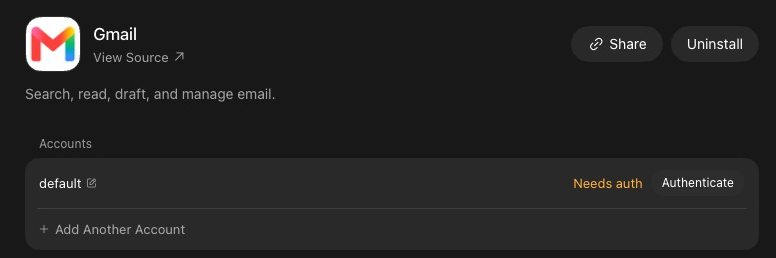
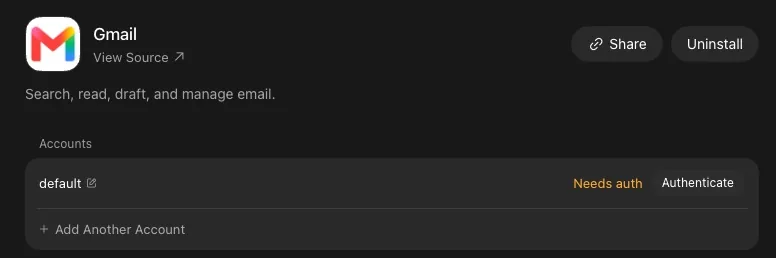
Click Connect apps at the bottom of the sidebar, type Gmail in the search box and open it. Click Add, and Google's sign-in opens in your browser. If Gmail was added earlier and never signed in, its page looks like this one, and the button to click is Authenticate.
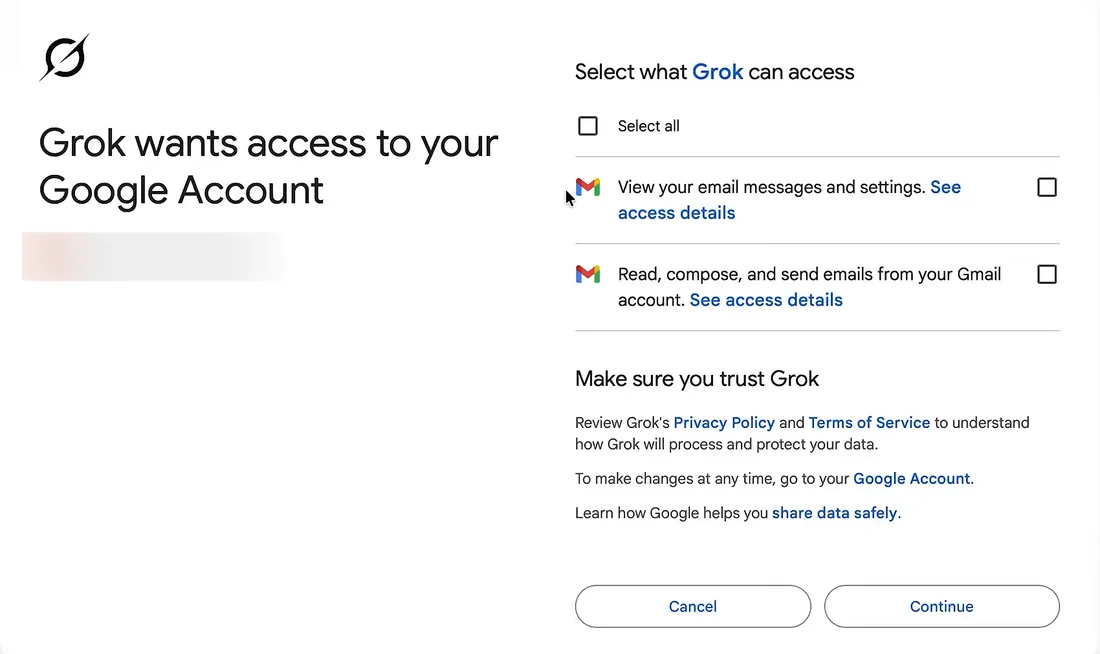
- Google calls the app Grok, or Cursor on some accounts. Either one is Grok Bot.
- Two permissions, both unticked: one to view your messages and settings, one to read, write and send email.
- Continue finishes the sign-in.
Image: AI Master on YouTube 2Approve both permissions on Google's page
Choose the Google account whose mail the Bot should work in. Google then lists what the app wants. Tick both boxes, or Select all, and click Continue.

Image: Debbie O'Brien on YouTube 3Wait for Authorization complete
Google hands you to a plain black page that reads Authorization complete! You can close this tab. Close it. If your browser asks whether to open Grok Bot, click Allow.

For a second mailbox, such as a personal one beside your work one, click Add Another Account on Gmail's page and give it a label. Add a second account has the steps. Then tell a Bot which mailbox to use by its label.
#Keep every send in your hands
A Bot with Gmail connected can send as you, so settle how a send gets approved before you hand over any work. The first safeguard is the draft card: ask for a draft, and the email arrives in the chat like this.
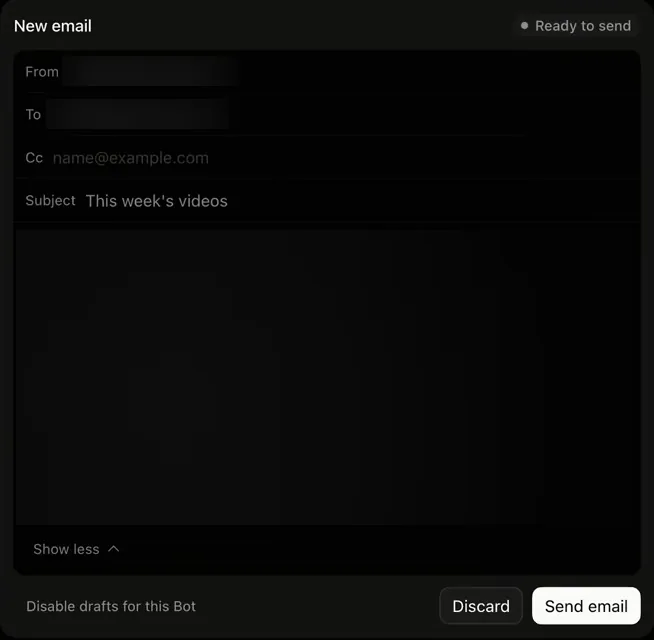
- Every row and the body (blurred here) can be edited in the card.
- Nothing goes out until you click Send email. Discard drops the draft.
- Disable drafts for this Bot makes that Bot send without a card. Leave it alone. If you've clicked it, ask the Bot to turn drafts back on.
The second safeguard covers the times you're not there. In Settings, under Custom Rules, type send an email beside When Grok Bot wants to:, set It should: to Ask first, and click Add Rule. Write a rule of your own shows the screen.
With that rule on:
- Every send stops for your approval first, whichever Bot tries it.
- A send that a routine tries while you're away waits about 10 minutes, then expires. The email isn't sent.
#Four jobs to hand over
Each of these reads, sorts or drafts, and none of them sends. Paste the message into a Bot's chat and change the parts in brackets.
Start with the one that pays back every morning.
Morning inbox triage
For an inbox where a handful of emails a day need you and the rest is noise.
Set up a routine: every weekday at 8:00 AM, read the email that reached my inbox since your last run. Post one summary in this chat with three lists: needs a reply from me today, can wait, and no reply needed. Give each email one line: who it's from, what they want, and any deadline they mention. Don't send, archive or delete anything.A Created routine line in the chat. Then, each weekday morning, one message with the three lists.
Once a morning is enough for most inboxes. Every run spends usage, and Routines shows how fast a tighter schedule adds up.
The second job picks up where the summary ends.
Reply drafts that wait for you
For the emails on the "needs a reply" list.
For each email on today's "needs a reply" list, write a reply in the way I usually write and show it to me as a draft. Keep each one under 120 words. Send nothing: I'll send them myself from the drafts.One New email card for each reply, tagged Ready to send. Edit it in the card, then click Send email or Discard.
Check any link in a draft before you send it. The limits table explains why.
The next two run less often, and open with a click.
Weekly digest of one label
For mail you want to keep up with and never read in full, such as newsletters or one client's threads.Apps it needs: GmailWhen it runs: Fridays at 4:00 PM
Set up a routine: every Friday at 4:00 PM, read everything that arrived under my Gmail label [label name] in the past seven days. Post a digest in this chat: the five things most worth knowing, each with its sender and date, then one line each for the rest. Don't reply to, archive or delete anything.One digest in the chat every Friday afternoon.
The last one is a job to run once, then repeat when the pile grows back.
Label a backlog
For an inbox with months of unread mail. A Bot can create labels and apply them, and it can't create Gmail filters, so the sorting is a job you rerun.Apps it needs: Gmail
Go through the unread email in my inbox from the past 30 days. Give each one a label: Receipts, Newsletters or Needs reply. Create a label if it doesn't exist yet. Don't archive, delete or mark anything as read. When you're done, tell me how many emails got each label.The three labels in Gmail, with your unread mail sorted into them, and a count for each in the chat.
A month of mail is a long job, and long jobs spend more of your week. Try seven days first if your usage is tight.
#What a Bot can and can't do in Gmail
The plugin does a lot of what you do in Gmail, with a few gaps that change how you write a job.
| In Gmail | Can a Bot do it? | What to know |
|---|---|---|
| Search and read your mail | Yes | Everything the connected account can see. |
| Write a draft | Yes | As a card in the chat, or saved to Drafts in Gmail. A file can be attached. |
| Send an email | Yes | From your address, as you. Keep it behind a draft card or an Ask first rule. |
| Create and apply labels | Yes | The way to sort mail, since filters are out. |
| Create filters | No | Gmail refuses the plugin's request. Use labels on a routine. |
| Keep a link as you wrote it | No | Links in drafts and sent mail come out wrapped in a google.com/url address. It's a known issue. |
| Work in two mailboxes | Yes | Add Another Account on Gmail's page, with a label for each. |
| Start work when an email arrives | Yes | A routine can start on an email as well as on a schedule. Each run spends usage. |
| Change what your account can reach | No | A plugin can do only what the account you signed in with can already do. |
Until the link issue is fixed, have the Bot write the email without its links, then add them yourself in Gmail before you send.
#Fix a Gmail connection
Most Gmail trouble shows up as one of these. Find what you see, then do what's beside it.
| What you see | What to do |
|---|---|
| Needs auth on Gmail's page in Connect Apps | Click Authenticate and sign in again. Fix Needs auth has the steps if that doesn't clear it. |
| "Waiting for Gmail authorization..." on a card in the chat | Click Reopen to bring Google's page back, and finish within about 10 minutes. |
| A Bot says Gmail isn't connected, and the plugin reads Added | Added means installed. Open Gmail's page and click Authenticate. |
| Google says Your admin needs to review Grok | You're on a company account that hasn't approved the app. Request access on that page if it offers a button, then wait for your admin. |
| Google says Access blocked | On a company account, ask your Google admin to trust the app. Another browser or adding the plugin again won't clear it. A personal Gmail account doesn't need an admin. |
Links in an email arrive as google.com/url addresses |
A known issue with the plugin. Add the links yourself in Gmail before sending. |
For a company account, send your Google admin these steps:
- In the Google Admin console, open Security, then Access and data control, then API controls.
- Under App access control, open Manage third-party app access.
- Add the app named Grok and set it to Trusted.
That one approval covers Gmail and the other Google plugins. If Google still blocks the sign-in afterwards, email hi@cursor.com with the account's address and a screenshot of the blocked page.
#Check you've got it
One check on what happens while you're asleep.
Your triage routine runs at 8:00 AM, before you're up, and decides one email needs an urgent reply. The Ask first rule for sending is on. What happens to the reply?
- The Bot sends it, because you approved the routine when you created it
- The send stops for your approval, expires, and the email isn't sent
- The Bot waits on that approval for the rest of the day
Show the answer
The send stops for your approval, expires, and the email isn't sent
An approval from work that started without you waits about 10 minutes. Then its card reads Expired and the action doesn't run. That's why the recipes ask for drafts: the reply is waiting when you get in, and nothing has left your account.
An approval from work that started without you waits about 10 minutes. Then its card reads Expired and the action doesn't run. That's why the recipes ask for drafts: the reply is waiting when you get in, and nothing has left your account.
Next, see what an approval card looks like and how to write more rules.
Can a Bot answer email the moment it arrives?
A routine can start when an email arrives, so ask the Bot for that in place of a schedule. Each run spends usage, and a busy inbox means many runs. For most people a check once or twice a day does the job for far less.
Should a Bot use gmail.com in its browser instead of the plugin?
No. Google can stop a Bot on Gmail's website and ask you to verify that it's you. Save the website for the one thing the plugin can't do, which is filters.
Is it safe to connect my main inbox?
A connected mailbox is open to every Bot on your account, and a Bot can do there what you can. Two things limit that: the draft card and the Ask first rule above, and the Tools row on Gmail's page, where you can switch off any action. Is Grok Bot safe? helps you decide which accounts to connect first.
- First published.
Get the Grok Bot cheat sheet
One page to keep open while you use Grok Bot. Sign up and download it straight away. New guides follow by email. Free.
Thank you! Your cheat sheet is ready. Download the PDF
Sources
14
- Cursor Help Center: Connect plugins (what Gmail can do, Google admin blocks) cursor.com
- Cursor Help Center: Grok Bot How Tos (reconnecting a plugin, a second account, approvals that expire) cursor.com
- SpaceXAI docs: Message and collaborate (reviewing a draft before it is sent) docs.x.ai
- SpaceXAI docs: Approvals, security, and privacy (Ask first rules) docs.x.ai
- Cursor Help Center: Routines (schedules, email events, what a run spends) cursor.com
- SpaceXAI: Grok Bot changelog (v0.45.0, v0.53.0, v0.62.0, v0.63.0, v0.64.0) x.ai
- SpaceXAI: the Gmail plugin page x.ai
- Cursor forum: staff on links rewritten by the Gmail plugin forum.cursor.com
- r/GrokBot: the Gmail plugin against Gmail in the Bot's browser, and two labelled mailboxes reddit.com
- Krista Letz on X: inbox routines from the SpaceXAI sales team x.com
- AI Master on YouTube (Google's permission page pictured) youtube.com
- Debbie O'Brien on YouTube (the Authorization complete page pictured) youtube.com
- Riley Brown on YouTube (the email draft card pictured) youtube.com
- Charlie Automates on YouTube (labels and filters through the Gmail plugin) youtube.com