Grok Bot routines: schedule a job without burning usage
Ask a Bot in chat to run a job on a schedule or when something happens. Each run spends usage, so pick how often with care. Covers pausing and late runs.
Last verified
On this page
To set up a routine, ask a Bot in its chat: say what to do and when. The Bot creates the routine, and from then on the job runs in the cloud at that time, with your laptop closed.
You need three things.
#Ask for a routine in chat
A routine belongs to one Bot, and you create it by asking that Bot. The walkthrough follows one request from the message to its first change.
Create a routine, then change it
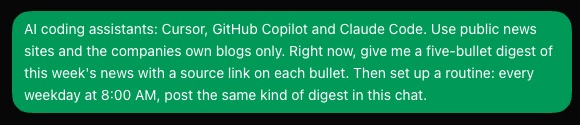
The schedule is the last sentence, in plain words. 1Ask the Bot in its chat
Say what the job is, what to hand back and when to run it. Ask for the result once now as well, so you see today what every run will send.
Here is the same request with blanks for your own job.
PromptA request that sets up a routineCheck [what to look at] and give me [what you want back, and how long]. Do it once now. Then set up a routine: every weekday at 8:00 AM, send the same thing in this chat. If nothing is new, say so in one line.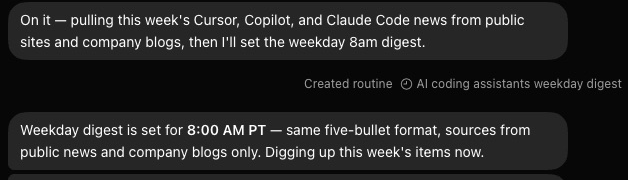
2Click the routine's chip
Within seconds a grey line appears in the chat: Created routine, then a chip with a clock and the routine's name. Click the chip.
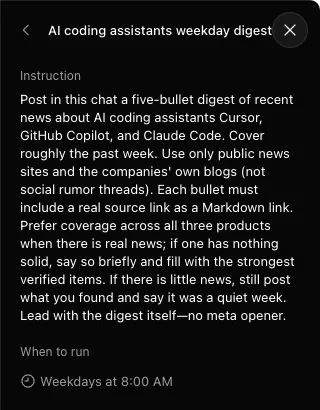
- Instruction is what the Bot does on every run. It's the Bot's rewrite of your request, so check what it added and what it dropped.
- When to run is the schedule as saved. A Bot sometimes picks a time a few minutes off the hour, or saves weekdays when you said every morning.
3Check Instruction and When to run
The routine opens in a panel on the right. Read it before you trust it, because the Bot wrote both parts.

4Click Edit to change the routine
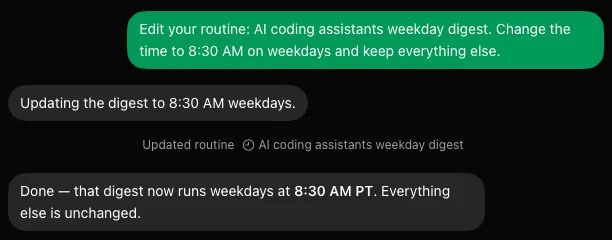
Pause, Edit and a bin sit at the foot of the panel. Click Edit. No form opens: the message box fills with Edit your routine: and the routine's name.
- The app wrote the first sentence. The second is the one you add.
- Updated routine confirms the change, and the open panel shows the new schedule.
5Finish the sentence and send it
After the routine's name, type what should change, then send. The schedule and the instruction both change this way.



A routine can also start when something happens: a message in Slack or Microsoft Teams, an email, or an event in GitHub, Linear, Sentry or PagerDuty. You ask for one the same way, and When to run then shows the trigger in words. Slack covers the Slack trigger.
If the job has fixed steps, save them as a skill first and name the skill in your request. Every run then follows the same steps.
#Pick how often it runs
Each run spends usage from the same weekly pool as your chats, so the schedule decides what a routine costs you. Slide the dial from once a week to every 5 minutes and watch the week fill up.
Three things the count leaves out:
- A run that opens five websites spends more than one that reads a single page.
- A Bot re-reads its conversation on every run. Give a frequent routine to a fresh Bot with a short chat.
- An event trigger runs as often as the event happens. Point it at one channel and one phrase, never at every new message.
Usage running out lists everything else that spends a week.
#See what a run looks like
At the scheduled time the Bot starts by itself, on its cloud computer. Closing the app or your laptop doesn't stop it.
The result arrives as a message in the Bot's chat. This routine was set for 3:38 PM.
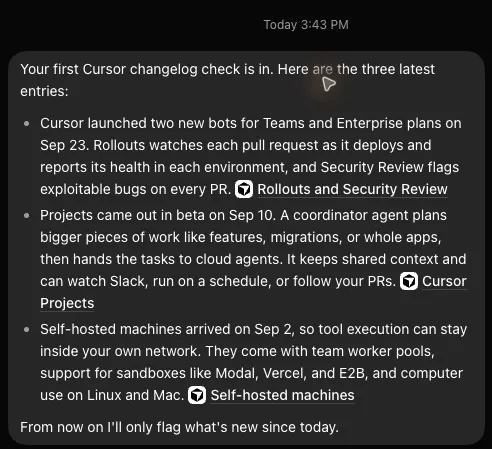
- The message came at 3:43 PM, five minutes after the set time. A wait of a few minutes is normal.
- Nothing labels the message as a routine's. It reads like any other reply.
- While a run is under way, the Bot's row in the sidebar shows a green dot.
- A routine's page looks the same after a run. The app keeps no list of past runs there, so the chat is your record.
- A routine told to stay quiet when nothing has changed sends nothing on a quiet day.
- To see a run without waiting, ask the Bot to run the routine now. That run spends usage like any other.
#Pause or delete a routine
Every routine a Bot owns is listed in one place. Click the Bot's name at the top of its chat, and the list is under the Details tab.
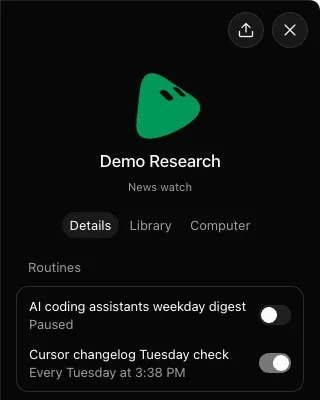
- Details opens on the Bot's routines.
- A switch that's off pauses the routine, and the row reads Paused. A paused routine doesn't run and spends nothing.
- A routine that's on shows its schedule. Click the row to open the routine's page.
On a routine's page, Pause does the same job as the switch and turns into Resume.
To delete a routine, open it and click the bin beside Edit. Deleting stops every future run and can't be undone. Deleting a Bot deletes its routines with it.
#Fix a routine that ran late or not at all
A routine that seems broken is usually late, paused or quiet on purpose. Find what you're seeing in the first column.
| What you see | Why | What to do |
|---|---|---|
| The result came a few minutes after the set time | Runs can start a few minutes after their time, most often at the busiest hours. | Nothing is broken. Set the time a little earlier if you need the result by a fixed hour. Deleting the routine and making it again changes nothing. |
| A routine you just made hasn't run | A new routine waits for its next scheduled time. One made at 8:05 AM for 8:00 AM every day first runs tomorrow. | Wait for the time, or ask the Bot to run the routine now. |
| The row under Details reads Paused | Someone used the switch or the Pause button. After a long time away, Grok Bot can also ask whether to keep your routines running, and pause them when nobody answers. | Turn the switch back on. |
| The run came at the wrong hour | The Bot saved a different schedule, or the app has the wrong time zone. | Read When to run and correct it with Edit. The time zone is Timezone, under Bot in Settings > General. |
| The time passed and no message came | The Instruction tells the Bot to stay quiet when nothing is new. | Read Instruction. Use Edit to ask for a one-line message on quiet days. |
| A card in the chat reads Expired | The run needed your approval. An approval asked for by a routine expires after about 10 minutes. | Ask the Bot to try again. Approvals shows how to let a trusted action through without a card. |
| No routine ran on any Bot | Your weekly usage has run out, or Grok Bot has an incident. | Check your usage, then whether Grok Bot is down. |
A routine that isn't paused, shows the right schedule and still hasn't run for a day is one to report. Support is in the account menu, at the bottom left of the app.
#Check you've got it
One check on when a routine first runs.
It's 8:05 AM. You ask a Bot for a routine that runs every day at 8:00 AM. When does the first run arrive?
- Within a minute, because the routine was just created
- Tomorrow, a few minutes after 8:00 AM
- Today, as soon as you close the laptop
Show the answer
Tomorrow, a few minutes after 8:00 AM
A new routine waits for its next scheduled time, and today's 8:00 AM has passed. To get today's result as well, ask for it once now in the same message, as the walkthrough's request did.
A new routine waits for its next scheduled time, and today's 8:00 AM has passed. To get today's result as well, ask for it once now in the same message, as the walkthrough's request did.
Next, decide what your Bot may do on a run without stopping to ask you.
Where is the Test button?
Earlier versions of the app had a Test run button and a Run history list on a routine's page. The current app has neither. To try a routine, ask the Bot to run it now, and read the result in the chat.
How many routines can one Bot have?
Up to 50.
Can I manage routines on my phone?
You can pause or resume a routine in the phone app. Changing a routine's schedule or its instruction needs the desktop app.
- First published.
Get the Grok Bot cheat sheet
One page to keep open while you use Grok Bot. Sign up and download it straight away. New guides follow by email. Free.
Thank you! Your cheat sheet is ready. Download the PDF
Sources
9
- Cursor Help Center: Routines cursor.com
- SpaceXAI docs: Skills and routines docs.x.ai
- Cursor Help Center: Grok Bot How Tos cursor.com
- Cursor Help Center: Plans and billing cursor.com
- SpaceXAI docs: Grok Bot for Mobile docs.x.ai
- Cursor forum: staff on routines that start late forum.cursor.com
- Cursor forum: staff on what a Bot's work costs forum.cursor.com
- @poteto on X (Grok Bot team): how often a routine should run x.com
- Ben Lang on X: tips collected from the Grok Bot team x.com