Grok Bot's cloud computer: what your Bots share
All your Bots work on one cloud computer and share its files, logins and programs. See what each Bot keeps to itself, how to take over and what Reset removes.
Last verified
On this page
All your Bots work on one computer in the cloud. It has a browser, files and a terminal, and it keeps running when your own computer is off.
#One computer, shared by every Bot
The computer belongs to your account. A Bot you add next month works on the same machine as the Bot you made today.
The drawing shows the arrangement. You talk to each Bot in its own chat, and both Bots do their work in one place.
- The computer runs Linux. Its desktop has a Chrome browser, a file manager and a terminal.
- A Bot that is partway through a job keeps going when you close the app, your laptop or your phone. Routines run there too.
- When no Bot is working, the computer hibernates. Hibernating deletes nothing.
#What two Bots share, and what each keeps
One computer means some things belong to all your Bots at once, and the rest stay with the Bot they started with. Tap each of the six things to see which is which.
So a second Bot walls nothing off. Whatever one Bot can reach on the computer, every Bot on your account can reach, and that includes any site you're signed in to there.
#Watch a Bot work, and step in when it needs you
The computer has a screen, and you can open it from any Bot's chat. You'll want to when a Bot is slow and you wonder what it's doing, and when a site asks for something only you have.
Watch a Bot work, then step in

1Open the Bot's computer
Click the Bot's name at the top of its chat, then the Computer tab. The tile shows the Bot's screen. Move your pointer over the tile and click Open.
- The Bot's own Chrome browser, on the page it's reading. Clicks, typing and page changes show as they happen.
- Exit fullscreen, the small button at the top right, takes you back to the chat. The Bot carries on either way.
2Watch, or click and type
The Bot's desktop fills the window, live. Your mouse and keyboard work here too. A click or a keystroke goes to the Bot's computer, so a stray one lands in the middle of the Bot's work.
3Click Take over when a Bot asks
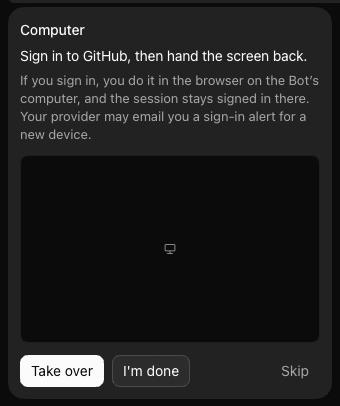
Some steps are yours alone: a password, a two-factor code, a CAPTCHA, a payment check. When a Bot reaches one, it stops and posts a Computer card that says what it needs, and its row in the sidebar starts Waiting for you. Click Take over.
Click Skip if you don't want to do that step now.
4Sign in yourself, then hand the computer back
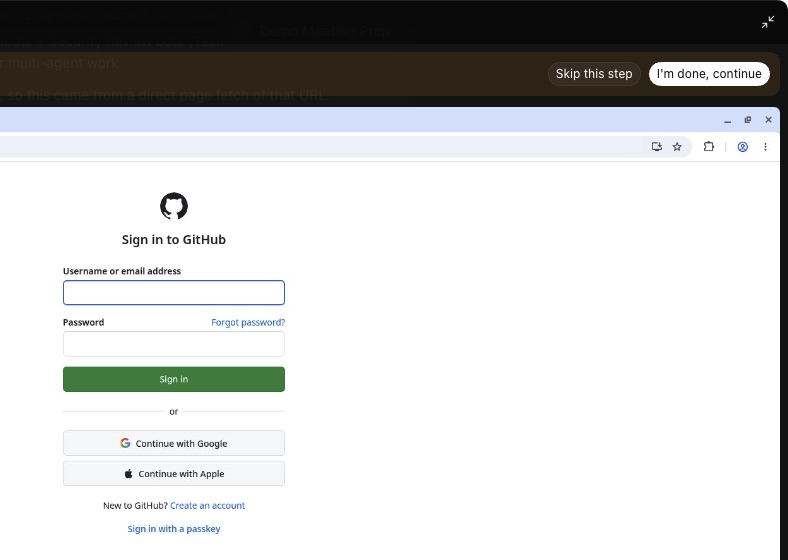
The Bot's browser fills the window, open on the site's own sign-in page. Type your password there, and any code the site sends you. A bar across the top says what the Bot is waiting for and holds two buttons. When you're in, click I'm done, continue.
The card in the chat changes to Done, and the Bot picks up where it stopped.
- The fields match the site's sign-in page.
- The form's own note on where your typing goes: Never shown to your Bot. Filled directly to github.com.
- Continue lights up once every field is filled. To turn a form down, tell the Bot in chat to skip the sign-in.
5Fill in a Secure Form if the Bot sends one
A Bot has a second way to ask. A smaller card reads Sign in to and the site's name, with Secure Form under it. Click Open and the form appears inside the app. Fill it in and click Continue.



#Update or reset the computer
The computer needs looking after now and then, and two controls do it. Both are in the desktop app, in Settings > Updates, under Grok Bot's Computer, and both act on every Bot at once.
What each one keeps and removes
| Use it when | Keeps | Removes | |
|---|---|---|---|
| Update, software only | An update is waiting | Everything, installed programs included | Nothing |
| Update, whole computer | An update is waiting | Your Bots, files and logins | Installed programs |
| Reset | The computer is stuck and nothing else has helped | Your Bots, files and logins, as last saved | Installed programs, and very recent changes if they couldn't be saved first |
- The line under Update Grok Bot's Computer says which kind of update is waiting. With none waiting it reads "Your computer is on the latest version" and there's no button.
- An update saves your work first and doesn't run if it can't. A reset interrupts whatever your Bots are doing, so pick a quiet moment.
- Settings calls installed programs "installed apps and packages". Your chats and the plugins you've connected aren't on the computer, and no update or reset touches them.
When the app says it can't reach the computer, work through the recovery steps in order. Reset is the last of them.
#Check you've got it
You now know where each thing lives and what a reset does to it. Try the same thinking on a case this page hasn't covered.
You delete your Research Bot. Which of its things are still there afterwards?
- Nothing, because deleting a Bot clears out everything it made
- The files it saved and the sites it was signed in to
- Its conversation and its routines
Show the answer
The files it saved and the sites it was signed in to
Deleting a Bot removes what belonged to that Bot: its conversation and its routines. The files it saved and the logins it used are on the computer, which belongs to your account, so they stay and your other Bots can still use them.
To put a Bot away and keep its work, right-click it in the sidebar and choose Hide from sidebar.
Deleting a Bot removes what belonged to that Bot: its conversation and its routines. The files it saved and the logins it used are on the computer, which belongs to your account, so they stay and your other Bots can still use them.
To put a Bot away and keep its work, right-click it in the sidebar and choose Hide from sidebar.
#Three mistakes with the shared computer
Three things to avoid, each with what to do instead.
Next, show a Bot how to do a task by doing it once yourself on this computer.
How big is Grok Bot's computer?
SpaceXAI and Cursor don't publish its processor, memory or disk size. When space runs short the app shows Computer is low on disk space, and a Bot called Disk Saver suggests what to clean up. It asks before it deletes anything.
Where does the computer run?
In the United States, on Cursor's cloud. There's no setting for choosing a region.
Can a Bot use my own computer too?
Only if you allow it. The cloud computer is separate from the Mac or PC in front of you, and a Bot touches yours only under the Execution on this computer setting, which approvals covers.
- The Take over card and the screen you hand back from are now pictures from our own run of the app (version 0.68.1). The waiting card carries no Action needed tag in this version.
- First published.
Get the Grok Bot cheat sheet
One page to keep open while you use Grok Bot. Sign up and download it straight away. New guides follow by email. Free.
Thank you! Your cheat sheet is ready. Download the PDF

Sources
11
- SpaceXAI docs: Use the computer and apps docs.x.ai
- Cursor Help Center: Grok Bot computer cursor.com
- Cursor Help Center: Grok Bot How Tos cursor.com
- SpaceXAI docs: Grok Bot docs.x.ai
- SpaceXAI docs: Create and manage Bots docs.x.ai
- SpaceXAI docs: Skills and routines docs.x.ai
- SpaceXAI docs: Approvals, security, and privacy docs.x.ai
- SpaceXAI docs: Grok Bot security docs.x.ai
- Cursor Help Center: Grok Bot FAQs cursor.com
- SpaceXAI: Grok Bot changelog x.ai
- Cursor forum: staff on the browser session all Bots share forum.cursor.com