Grok Bot blocked by a site or CAPTCHA? What works
Sites block Grok Bot because its computer sits in a US data center. Sign in yourself with Take over, route traffic through your own computer, or use a plugin.
Last verified
On this page
A site that blocks your Bot or keeps showing it a CAPTCHA is reacting to where the Bot's computer is: a data center in the United States. Do the human step yourself on the Bot's computer. If the site still refuses, send the Bot's browsing through your own connection.
#Why a site turns a Bot away
A site judges a visit by where it comes from and how it behaves. The drawing shows the same site meeting you and meeting your Bot.
- Where the visit comes from. The computer runs in the United States, and there's no setting for another region. A site with strict rules about addresses can block the visit before the sign-in page loads.
- Who else comes from there. The address is shared across Grok Bot customers, so a site sees many accounts arriving from one place.
- How the visit behaves. Sites check for automated browsers, and a browser in the cloud can set those checks off.
Nothing in your setup is wrong, and a Bot doesn't try to get past a check. It stops and hands the step to you.
#Work through the fixes in order
There are four fixes. Take them in order, with one exception: if a CAPTCHA returns every time you solve it, the site distrusts the connection itself, so go straight to the third.
Get a Bot into a site
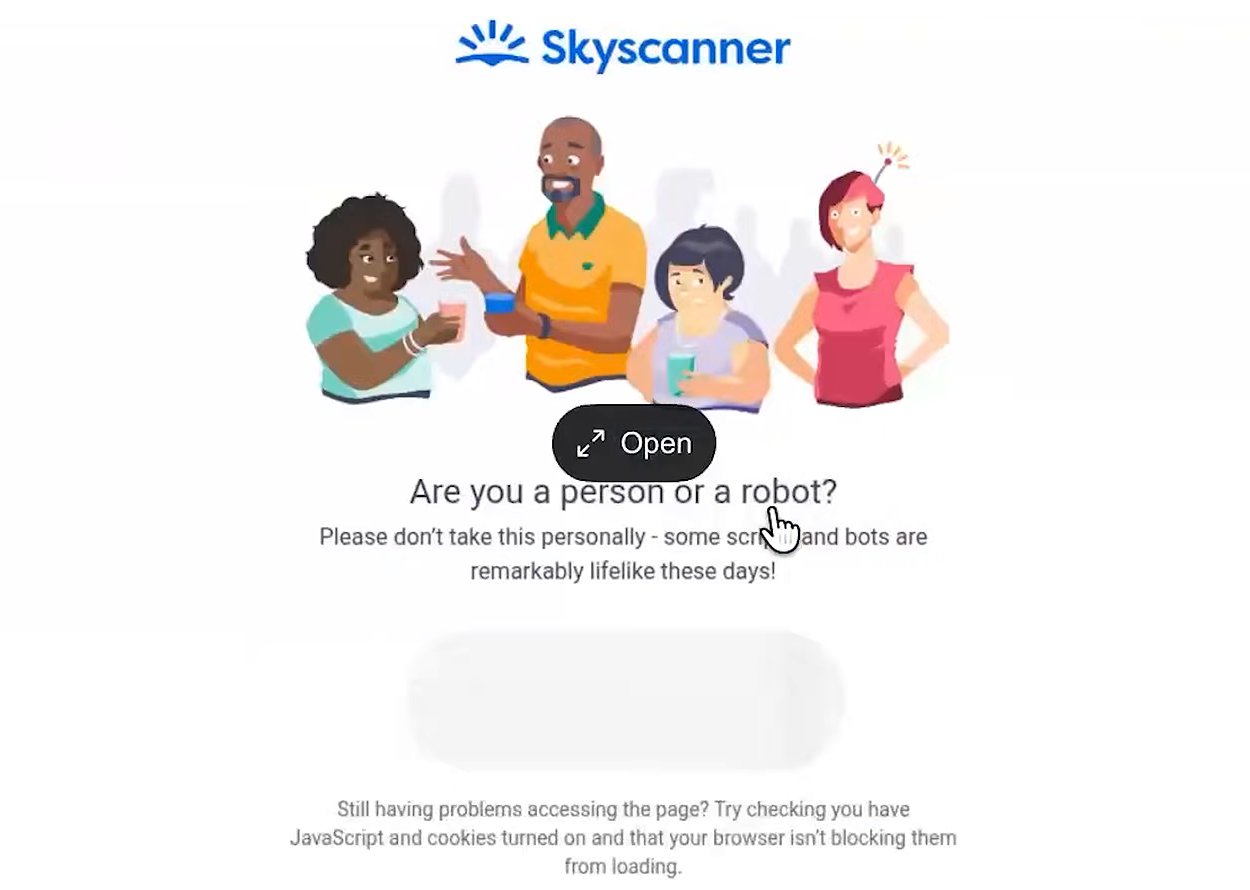
No card? Open the computer yourself: click the Bot's name, then the Computer tab, then Open on the tile. Your mouse and keyboard work in the Bot's browser. Image: AI Master on YouTube 1Do the human step yourself with Take over
When a Bot meets a sign-in page, a code or a CAPTCHA, it stops and posts a Computer card that says what it needs. Click Take over, do that one step in the Bot's browser, then click I'm done, continue. The shared computer shows each screen.
- Wait for the signed-in page to load before you hand back.
- The login now sits on the computer, so every Bot on your account can use it until it expires.
- Fingerprint, Face ID and passkeys saved on your own devices don't work there. Use a password with a code, or an approval on your phone.

The card a Bot posts when it wants you to sign in through a form. 2Treat a Secure Form with care
A Bot can also ask with a smaller card: Sign in to and the site's name, with Secure Form under it. Open shows the site's fields inside the app, and the form types what you enter into the site's page.
The form carries the line "Never shown to your Bot". Don't rely on that line for a password that matters.
The form puts your password into the page and leaves the Bot to press the site's sign-in button. Until the page moves on, the password is sitting in the page the Bot reads, and from there it can end up in the Bot's record of the task.
- For an account that matters: tell the Bot to skip the sign-in and leave the page open. Then open the Bot's screen, type the password on the site's own page and press the site's sign-in button yourself. Once the page has moved past the sign-in form, the password is no longer on it.
- If you've already used the form for one: change that password.

The line under the name ends with a count of what has been routed this session. 3Route the Bot's browsing through your own computer
A site that keeps blocking or re-checking the Bot after you've done the human step distrusts the data-center connection. One setting sends the Bot's web traffic out through the desktop you're using, so sites see your own connection.
In the desktop app, open Settings > Computer. Under Network, turn on Route traffic through this computer.
- The route covers the Bot's browser and nothing else on its computer.
- It applies to new connections, so ask the Bot to open the site in a new tab.
- The setting belongs to this one desktop. The Bot's browser reaches what this desktop can reach, and nothing this desktop can't. If every page on the Bot's computer starts timing out, check your own connection and any VPN, or turn the switch off.
- On an Enterprise team an admin can lock the switch. It then reads "Disabled by your admin. You can't turn this on."
A site can still show a CAPTCHA. Do it yourself, as in the first step.
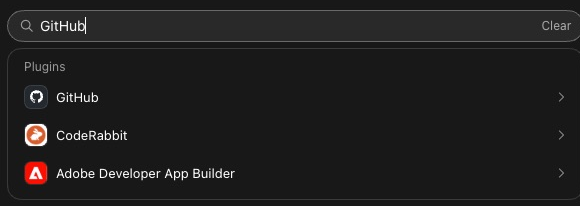
A match shows under Plugins. Click it to open the plugin's page. 4Use a plugin where the app has one
A plugin connects a Bot to a service without the service's website. You approve it once in your own browser, and the Bot never loads the sign-in page from the data center. Where a plugin exists, it's often the more reliable route.
To check, click Connect apps at the bottom of the sidebar and type the app's name in Search across apps and skills.
- Gmail, Google Calendar, Outlook, Slack, Notion and GitHub each have a plugin. Plugins covers adding one and signing it in.
- Some services with no plugin issue an access token for automated use. Create one in the service's settings. When the Bot asks for it, enter it in the card with Save securely, never in a chat message.


Some sites stay closed to a cloud browser even after all four. For those, change the job.
- Do the gated step yourself. Export the report or download the file, and attach it to the Bot's chat.
- Tell the Bot to stop and report when a site blocks it, so it doesn't spend your usage on retries.
- Don't have a Bot install a VPN on its own computer. A VPN there can knock the computer offline, and then none of your Bots can work. If that has happened, see Can't reach your computer.
#When a site won't stay signed in
A login that keeps ending has three possible causes. The first comes from your Bots sharing one browser. Predict what happens in this case.
Your Inbox Bot finishes a job on a site and signs out, to be tidy. An hour later your Research Bot's routine opens the same site. What does it find?
- The site, still signed in
- The sign-in page
- A CAPTCHA
Show the answer
The sign-in page
All your Bots share one browser on one computer, so a login belongs to all of them, and so does a sign-out. Signing in with a second account in one Bot's window changes the login for the others too.
Keep one account per site on the computer, and tell your Bots not to sign out.
All your Bots share one browser on one computer, so a login belongs to all of them, and so does a sign-out. Signing in with a second account in one Bot's window changes the login for the others too.
Keep one account per site on the computer, and tell your Bots not to sign out.
The other two causes sit with the site.
- The site ended the session. Sites expire sessions, and some ask for a fresh check before every sensitive action. You can't switch that off. Take over and sign in again.
- The site distrusts the connection. A site can accept a login and flag the session again later. Route the Bot's browsing through your own computer.
#Sites to keep a Bot away from
Some sites are better left alone even when a Bot can get in. A Bot signs in as you, so whatever a site decides about the Bot's visits, it decides about your account.
Three kinds of site, and what to do instead
| Kind of site | What can happen | Do this instead |
|---|---|---|
| A site whose terms forbid automated access | The site can restrict or close your account. | Read the terms of any social or professional network before a Bot messages, connects or posts from your account. If they forbid it, let the Bot research and draft, and do the part on the site yourself. |
| Your main email account, worked through the browser | A mail provider can flag an account that a cloud browser signs in to. | Connect the Gmail or Outlook plugin, which you approve on the provider's own page. |
| An account you couldn't afford to lose | A block falls on the account itself, and on everything else you use it for. | Where the service allows it, give the Bot an account of its own, with only the access the job needs. |
Under Grok Bot's terms you're responsible for everything a Bot does, whether or not you intended it. Is Grok Bot safe? covers which accounts to connect first.
Next, connect the apps your Bots use most, so fewer jobs go through a sign-in page at all.
Can I give a Bot a fixed address, or one in another country?
No. The computer runs in the United States with no choice of region, and its addresses are shared across Grok Bot customers. Route traffic through this computer is the setting that lets a Bot browse from an address of your own.
Do passkeys, single sign-on and security keys work on the Bot's computer?
Single sign-on works: take over and sign in with your company's identity provider. Passkeys, fingerprint and Face ID from your own devices don't. A hardware security key plugged into your Mac or Windows computer works once you turn on Use hardware security keys in Settings > General, under Security Key, and Grok Bot asks you to approve each use.
Can a Bot use my password manager?
On a Mac, it can use 1Password. Search for it in Connect apps: the plugin shares one dedicated vault with Grok Bot, so a Bot can sign in to the sites you put there. Some sign-in pages don't accept the autofill. Sign in to those yourself with a takeover.
- Checked Take over in our own run of the app (version 0.68.1). The Computer card carries no Action needed tag while it waits.
- First published.
Get the Grok Bot cheat sheet
One page to keep open while you use Grok Bot. Sign up and download it straight away. New guides follow by email. Free.
Thank you! Your cheat sheet is ready. Download the PDF
Sources
20
- Cursor Help Center: Grok Bot FAQs (Why does a website block my Bot or show a captcha?) cursor.com
- SpaceXAI docs: Use the computer and apps (take over, sign in once, connectors) docs.x.ai
- Cursor Help Center: Grok Bot How Tos (single sign-on, security keys) cursor.com
- Cursor docs: Settings (Route traffic through your desktop) cursor.com
- Cursor docs: Connect to private networks cursor.com
- SpaceXAI docs: Grok Bot security (where computers run, shared addresses) docs.x.ai
- SpaceXAI docs: Grok Bot docs.x.ai
- SpaceXAI docs: Troubleshooting (A website keeps asking for login) docs.x.ai
- SpaceXAI docs: Approvals, security, and privacy docs.x.ai
- Cursor Help Center: Store secrets securely cursor.com
- SpaceXAI: Grok Bot changelog (v0.44.0, v0.50.0, v0.53.0, v0.64.0) x.ai
- SpaceXAI: Grok Bot Terms x.ai
- Cursor forum: staff on a password filled by the Secure Form forum.cursor.com
- Cursor forum: staff on sites with heavy bot protection forum.cursor.com
- Cursor forum: staff on where the computer's traffic comes from forum.cursor.com
- Cursor forum: staff on using a service's own access token forum.cursor.com
- Cursor forum: staff on pages timing out with routing on forum.cursor.com
- Cursor forum: staff on VPNs, single sign-on and security keys forum.cursor.com
- Cursor forum: staff on the browser session all Bots share forum.cursor.com
- AI Master on YouTube (the picture of a Bot's browser stopped at a human check) youtube.com