Grok Bot for teams: Team Bots, usage and admin controls
On Cursor Teams every member gets Grok Bot. A Team Bot is one Bot the whole team chats with, each in a private chat, with each person spending their own usage.
Last verified
On this page
Every member of a Cursor Teams plan has Grok Bot with no admin step, and on Cursor Enterprise an admin turns it on. On either plan a team can publish Team Bots: one Bot everyone chats with, each person in a private chat and on their own usage.
#Which plans include Grok Bot for a team?
Two Cursor plans are sold to teams, and both include Grok Bot. They differ in who switches it on and in how much an admin can control.
| Plan | Price | Who gets Grok Bot | Usage, in Cursor's words |
|---|---|---|---|
| Cursor Teams, Standard seat | $40 per user a month | Every member, with no admin step | "Follows the Teams plan allowance" |
| Cursor Teams, Premium seat | $120 per user a month | Every member, with no admin step | "Follows the Teams plan allowance" |
| Cursor Enterprise | Custom | Nobody, until an admin turns it on at cursor.com/dashboard/bot | "Managed by your admin" |
- Usage follows the seat. Moving a member to a Premium seat can raise their weekly usage.
- On-demand usage starts switched on for Teams, so work past a member's included usage is billed. Usage limits explains the on-demand limit.
- Two kinds of team don't get Grok Bot: one on a legacy request-based plan, and one that uses Privacy Mode (Legacy).
#What a Team Bot is
A Team Bot is one Bot that a whole team talks to. Team Bots have been in public beta on Cursor Teams and Enterprise since 28 September 2026, and every teammate finds them in the same place.
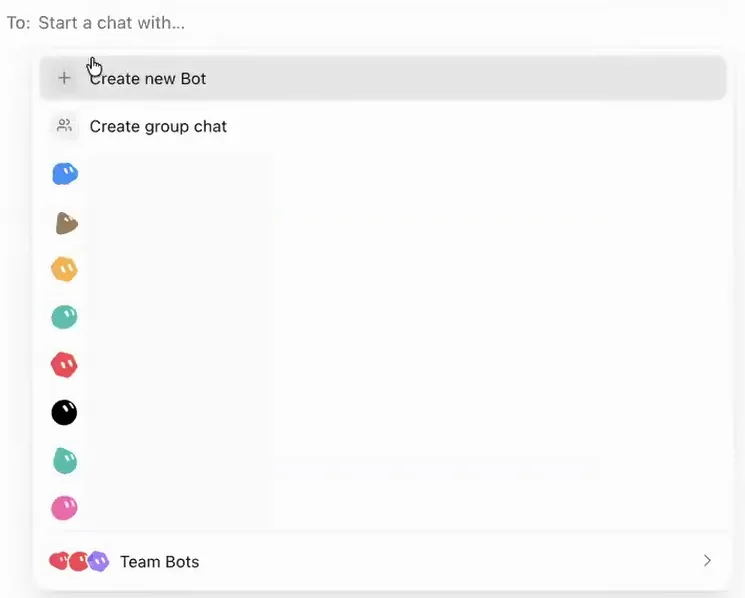
A Team Bot differs from a Bot of your own in four ways:
- One setup. The owner adds its plugins, secrets, skills and files once, and every teammate's chat has them.
- Private chats. Each teammate gets their own chat. The owner can't read it, and teammates can't read the owner's.
- Your own accounts. A plugin that needs a sign-in uses the account of the person asking, so nobody borrows a teammate's access.
- Two memories. What someone says the whole team should know goes into team memory. What the Bot learns about you stays between you and the Bot.
Build one around a single shared job, such as answering questions from a knowledge base or sorting requests that land in one channel.
#Create and publish a Team Bot
You create a Team Bot on a computer, and nobody else can see it until you publish. The phone app can chat with a Team Bot and can't create one.
Create and publish a Team Bot
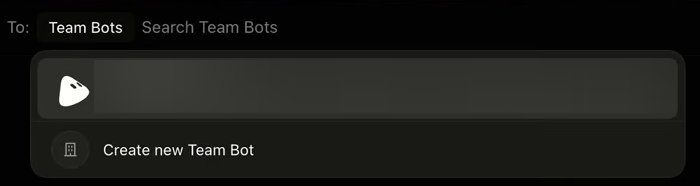
Image: Riley Brown on YouTube 1Click Create new Team Bot
Click New chat, the + at the top of the sidebar, then Team Bots, then Create new Team Bot. The new Bot opens a chat and asks what it should help the team with. One sentence is enough.
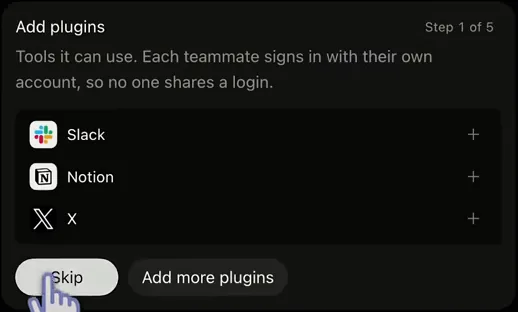
- Each card shows its step, from 1 of 5 to 5 of 5.
- Teammates sign in to a plugin with their own account. A key you add as a secret is different: everyone's chat uses the same one.
- A + adds that plugin for everyone who uses the Bot.
Image: Riley Brown on YouTube 2Work through the setup cards
The Bot hands you one numbered card at a time: plugins first, then secrets, skills and files. Add what the job needs, or click Skip. Put only keys and files on it that the whole team may use.
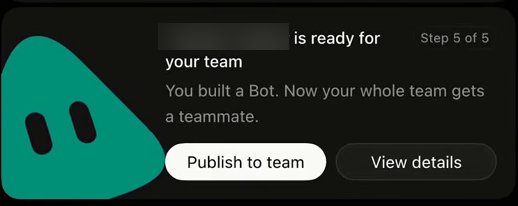
Image: Riley Brown on YouTube 3Click Publish to team
Until you publish, the Bot's details read Draft · Only you can see it. Try it on a real task and correct it. When the last card says it's ready, click Publish to team.


If teammates can't find it, check its name and its description. A Team Bot that still has its default name and no description stays hidden.
#Who can change a Team Bot
| Who | What they can do |
|---|---|
| The owner | Change its name, description, plugins, secrets, skills, files and Slack app. Unpublish it or delete it. |
| Managers | The same setup changes. The owner adds them in the Bot's details once it's published. |
| A team admin | Choose who gets the Bot in their sidebar, and delete it. An admin can't change its setup. |
| Teammates | Pin it, hide it and set up routines with it. A routine on a Team Bot runs only for the person who made it. |
Unpublish takes the Bot away from teammates and keeps their chats for when you publish again. Deleting it removes those chats for good.
A published Team Bot can also join Slack as an app of its own. A Team Bot in a channel has the steps and how it answers there.
#Whose usage does a request spend?
Publishing a Team Bot doesn't put the team on your bill. Each request spends the usage of the person who made it.
- A teammate's chat with the Bot, in the app or in Slack, counts against that teammate's own usage.
- A routine on a Team Bot counts against the person who set it up.
- A Slack message that no linked teammate sent, such as a post from a workflow, counts against the owner.
- A teammate who has run out is told so in the chat or the thread. The Bot doesn't fall back on the owner's usage.
#What an admin controls
Admins manage Grok Bot on the Grok Bot page of the Cursor dashboard, at cursor.com/dashboard/bot, which members never see. Members see only the result, such as a rule they can't change.

- A rule from the team ends in a lock. A member can't edit or delete it.
- A member's own rules (blurred here) keep their edit and delete icons.
- Team rules always apply.
The table lists the main controls and the plan each one needs.
| Control | Teams | Enterprise | What it does |
|---|---|---|---|
| Turn Grok Bot on or off | No | Yes | For the whole team or for chosen groups. On Teams it's on for every member. |
| Team Rules | Yes | Yes | Short rules every member's Bots follow. Members can't turn them off. |
| Which plugins members can use | Yes | Yes | Grok Bot follows the team's Cursor plugin policy. A blocked plugin reads Disabled by team admin. |
| Execution on Local Computer | Yes | Yes | Whether Bots may work on members' own machines: Always allow, Ask every time or Never allow. |
| Cloud Agents and public templates | Yes | Yes | Whether Bots may hand coding work to Cursor Cloud Agents, and whether members may share a Bot template outside the team. |
| Manage Team Bots | Yes | Yes | Who gets each Team Bot in their sidebar by default, and deleting one. |
| Enforce Auto-review, and team Auto-review rules | No | Yes | Stops members turning Auto-review off, and adds rules they can't edit. |
| Network Controls | No | Yes | Which sites and addresses the team's cloud computers can reach. |
| Audit logs and Action Recording | No | Yes | A record of admin events, and of what Bots did. |
| A spend cap for Grok Bot alone | No | No | The account's on-demand limits cover Grok Bot and everything else together. |
#Decide before you invite the team
Six decisions are easier to make before anyone has a Bot running than after. Tick each one off as you settle it.
The dashboard's Setup Checklist then walks an admin through the rest: plugins, Slack or Microsoft Teams, GitHub, sign-in, network settings and inviting teammates. Invite Team, on the same page, emails members a download link.
#Check: who pays for this one?
Use the figure on one more case.
Sam owns a Team Bot that's in the team's Slack. A teammate builds a Slack workflow that posts to a channel every hour and mentions the Bot. Whose usage does each hourly answer spend?
- The teammate's, because the teammate built the workflow
- Sam's, because a workflow isn't a linked teammate
- Nobody's, because no person asked
Show the answer
Sam's, because a workflow isn't a linked teammate
A request spends the usage of the person who sent it. A post from a workflow has no linked person behind it, so it counts against the Bot's owner. An hourly workflow is 24 answers a day on Sam's usage, so Sam should know about it before it's switched on.
A request spends the usage of the person who sent it. A post from a workflow has no linked person behind it, so it counts against the Bot's owner. An hourly workflow is 24 answers a day on Sam's usage, so Sam should know about it before it's switched on.
Rolling out to a team also means deciding which accounts Bots may touch.
Can a member link a personal SuperGrok plan for more usage?
It adds nothing. On a Teams seat Grok Bot follows the seat, and a link doesn't add usage on top. Enterprise seats don't take a personal link at all.
How is a Team Bot different from sharing a Bot as a template?
A template gives each person their own copy, which they then look after separately. A Team Bot is the same Bot for everyone: the owner maintains it, and a change reaches the whole team.
Can I turn a Bot I already have into a Team Bot?
Yes. Open the Bot's share menu and choose Publish to Team. Grok Bot makes a separate team copy and asks what to bring across, and your own Bot stays private.
Where does a Team Bot do its work?
In your own chat with it, usually on your own cloud computer, so it can use the files and logins there. In Slack channels, threads and group chats it works on one computer of its own. The shared computer explains what lives on one.
I'm not the owner. Why does it say "This Bot's owner has reached their usage limit"?
That message means the account paying for the chat has hit its limit. In your own chat with a teammate's Team Bot, that account is yours.
Can I use a Team Bot on my phone?
Yes, for chatting. Team Bots you've added show up in the phone app. Creating, publishing and editing one, and connecting it to Slack, happen on a computer.
- First published.
Get the Grok Bot cheat sheet
One page to keep open while you use Grok Bot. Sign up and download it straight away. New guides follow by email. Free.
Thank you! Your cheat sheet is ready. Download the PDF
Sources
11
- SpaceXAI docs: Grok Bot for teams and enterprises (who gets it, admin controls, before you roll out) docs.x.ai
- SpaceXAI docs: Team Bots (creating, publishing, usage, admins) docs.x.ai
- Cursor Help Center: Team Bots cursor.com
- Cursor docs: Grok Bot for Teams and Enterprise (Manage Team Bots, Enforce Auto-review) cursor.com
- Cursor Help Center: Plans and billing (Teams seats, Enterprise, on-demand usage) cursor.com
- Cursor docs: Team pricing cursor.com
- SpaceXAI: Team Bots announcement, 28 September 2026 x.ai
- SpaceXAI: Grok Bot for enterprise, 3 September 2026 x.ai
- SpaceXAI: Grok Bot changelog (v0.31.0, v0.55.0, v0.61.0, v0.62.0, v0.64.0) x.ai
- Grok on YouTube: Grok Bot 101, recorded on a Cursor Teams account (the New chat list and the rules list pictured) youtube.com
- Riley Brown on YouTube (creating and publishing a Team Bot pictured) youtube.com