Build
Grok Bot builder: get a Bot setup you can paste in
Pick a job, answer a few questions and leave with a Bot name, a first message, a routine to ask for, an approval rule and the plugins it needs, ready to paste.
Last verified
On this page
Pick a job, answer three or four questions, and copy six pieces into Grok Bot: a name, a standing job, a first task, the plugins to connect, an Ask first rule and a routine.
#Build your Bot
Start with the job you'd hand to an assistant every week. Most questions have an answer picked already and the rest can stay blank, so you can click Next and change things later.
Build a Bot for your job
Pick a job and answer a few questions. You get six pieces to copy into Grok Bot.
Here is every Bot the builder makes, with its starting answers. Swap the words in [square brackets] for your own.
Watch competitors or a topic
A Bot that reads public pages and tells you what's new, or only what changed.
Leave it empty and the messages keep a blank in [square brackets] for you to fill in.
What should it look for?
How often should it check?
-
Name
News WatchCompetitor Watch
Click New chat, type this name and click Create “name” Bot. Lesson: create your Bot
-
Standing job
the jobSet your description to this: You watch [the companies or the topic] and tell me what's new.You watch [the companies or the topic] and tell me when their pricing or their products change. where it looksUse public pages only: their own websites and blogs, and public news sites. what comes backGive me five bullets at most, each with a link to its source.Report only what changed since your last check, with a link to the page that shows each change. when to ask firstNever sign in to a site, contact anyone or post anything. If a page asks for a login, stop and tell me. reads it backThen show me the description exactly as saved.
Send this in the new Bot's chat. The Bot saves it and repeats it back. If the reply doesn't match, send it again. Lesson: tell the Bot its standing job
-
First task
Right now, give me a five-bullet digest of this week's news about [the companies or the topic]. Use public news sites and the companies' own blogs only, with a source link on each bullet.Right now, open the public pricing page for each of these: [the companies or the topic]. Make one table of each plan, its price and what it includes, with a link to each page. Don't sign in anywhere.
Send this next, in the same chat. It uses public pages, so nothing needs connecting. Lesson: a first task that needs no plugin
-
Plugins
Nothing to connect. The Bot reads public pages in the browser on its own computer.
If a page you want watched sits behind a login, send this and sign in yourself when the Bot asks.
Open [the site's address] in your browser and ask me to sign in when you reach the login page.
-
Ask first rule
send an email or post a message anywhereIn Settings > General, under Custom Rules, type this beside When Grok Bot wants to:, set It should: to Ask first and click Add Rule. Lesson: write a rule of your own
-
Routine
Set up a routine: every Monday at 9:00 AMevery weekday at 8:00 AM, post the same kind of digest in this chat, covering what's new since your last run. If nothing is new, say so in one line.check the same pages and post in this chat only what changed since your last check. If nothing changed, say so in one line.
Send this once the first task has come back the way you want. The Bot answers with a Created routine line. That's 1 run5 runs a week. Lesson: ask for a routine in chat Pick how often it runs
Prepare notes before meetings
A Bot that reads your calendar and writes notes on each company you're about to meet.
Which calendar do you use?
How do you want the notes?
When should the notes arrive?
-
Name
Meeting Prep
Click New chat, type this name and click Create “name” Bot. Lesson: create your Bot
-
Standing job
the jobSet your description to this: You prepare me for meetings with people outside my company. where it looksRead my calendar to see who I'm meeting, then use each company's public website and public news only. what comes backGive me one page of notes per meeting, as a file, with a link for every fact.Give me a short message per meeting that I can read on my phone, with a link for every fact. when to ask firstNever contact anyone, and never create or change a calendar event. Ask me before you sign in to any site. reads it backThen show me the description exactly as saved.
Send this in the new Bot's chat. The Bot saves it and repeats it back. If the reply doesn't match, send it again. Lesson: tell the Bot its standing job
-
First task
I have an intro call with [company] ([their website]) tomorrow. From their public website only, write one page of prep notes: what they sell, who it's for, pricing in one line, three recent items from their blog or changelog, and five questions I should ask. Save the notes as a file and share it here.Send the notes as one message in this chat.
Put a company you're about to meet in the brackets and send this next, in the same chat. Nothing needs connecting. Lesson: a first task that needs no plugin
-
Plugins
Connect Google CalendarOutlook Calendar in Connect apps before you ask for the routine. The first task doesn't need it.
No plugin for your calendar? Send this, and sign in yourself when the Bot asks.
Open [your calendar's web address] in your browser and ask me to sign in when you reach the login page.
-
Ask first rules
send an email or post a message anywherecreate, change or cancel a calendar eventAdd each line as its own rule. In Settings > General, under Custom Rules, type it beside When Grok Bot wants to:, set It should: to Ask first and click Add Rule. Lesson: write a rule of your own
-
Routine
Set up a routine: every weekday at 4:30 PM, read my calendar for the next working day.every Monday at 8:00 AM, read my calendar for the week. For each meeting with someone outside my company, write the same kind of prep notes and post them in this chat. If there are no outside meetings, say so in one line.
Connect the calendar first, then send this once the first task has come back the way you want. The Bot answers with a Created routine line. That's 5 runs1 run a week. Lesson: ask for a routine in chat Pick how often it runs
Keep an inbox under control
A Bot that sorts new mail into three lists and writes replies for you to send.
Which inbox?
Should the Bot write replies?
How often should it run?
What should wait for your OK?
-
Name
Inbox
Click New chat, type this name and click Create “name” Bot. Lesson: create your Bot
-
Standing job
the jobSet your description to this: You keep my GmailOutlook inbox under control. where it looksRead only the mail in that inbox. what comes backSort new mail into three lists: needs a reply from me today, can wait, and no reply needed. Write a reply for each email on the first list and show it to me as a draft.Give each email one line: who it's from, what they want and any deadline. when to ask firstNever send, archive or delete anything. I send every reply myself.Never send anything. I send every reply myself. reads it backThen show me the description exactly as saved.
Send this in the new Bot's chat. The Bot saves it and repeats it back. If the reply doesn't match, send it again. Lesson: tell the Bot its standing job
-
First task
Here's an email I got: [paste the email]. Tell me in one line what they want and by when. Then write a reply under 120 words and show it to me here as text.Then tell me whether it needs a reply today. Don't send anything.
Paste a real email over the brackets and send this next, in the same chat. Nothing needs connecting. Lesson: a first task that needs no plugin
-
Plugins
Connect GmailOutlook in Connect apps before you ask for the routine. The first task doesn't need it.
Without the plugin, the Bot can open your webmail in its browser. A plugin is often more reliable than clicking through a website.
Open [your webmail's address] in your browser and ask me to sign in when you reach the login page.
-
Ask first rules
send an email or post a message anywheredelete an email, a file or a calendar eventAdd each line as its own rule. In Settings > General, under Custom Rules, type it beside When Grok Bot wants to:, set It should: to Ask first and click Add Rule. Lesson: write a rule of your own
-
Routine
Set up a routine: every weekday at 8:00 AMevery day at 8:00 AM, read the email that reached my inbox since your last run. Post one summary in this chat with three lists: needs a reply from me today, can wait, and no reply needed. Give each email one line: who it's from, what they want and any deadline they mention. For each email on the first list, write a reply and show it to me as a draft. Don't send, archive or delete anything.
Connect the inbox first, then send this once the first task has come back the way you want. The Bot answers with a Created routine line. That's 5 runs7 runs a week. Lesson: ask for a routine in chat Pick how often it runs
Chase follow-ups
A Bot that keeps one list of open promises and writes a follow-up for each one that's overdue.
Where do the promises get made?
When is something overdue?
How often should it check?
-
Name
Follow-ups
Click New chat, type this name and click Create “name” Bot. Lesson: create your Bot
-
Standing job
the jobSet your description to this: You keep track of what I've promised people and what they've promised me. where it looksRead my sent mail and my inbox in Gmail.Read my sent mail and my inbox in Outlook.Read these Slack channels and my direct messages: [channel names].Read my meeting notes in Granola. what comes backKeep one list of open items: who owes what to whom, since when, and where you found it. Flag anything open for more than three working daysa week, and write a follow-up for each for me to send. when to ask firstNever send, post or reply to anything. I send every follow-up myself. reads it backThen show me the description exactly as saved.
Put your own channel names in the brackets. Send this in the new Bot's chat. The Bot saves it and repeats it back. If the reply doesn't match, send it again. Lesson: tell the Bot its standing job
-
First task
Here are my notes from a call: [paste your notes]. List what I promised and what they promised, each with a date if one was mentioned. Then write one follow-up email that confirms the list, under 150 words, and show it to me here as text. Don't send anything.
Paste your notes over the brackets and send this next, in the same chat. Nothing needs connecting. Lesson: a first task that needs no plugin
-
Plugins
Connect GmailOutlookSlackGranola in Connect apps before you ask for the routine. With it connected, a follow-up arrives as a draft card. The first task doesn't need it.
No plugin for the app you use? Send this, and sign in yourself when the Bot asks.
Open [the app's web address] in your browser and ask me to sign in when you reach the login page.
-
Ask first rule
send an email or post a message anywhereIn Settings > General, under Custom Rules, type this beside When Grok Bot wants to:, set It should: to Ask first and click Add Rule. Lesson: write a rule of your own
-
Routine
Set up a routine: every Monday at 9:00 AMevery weekday at 9:00 AM, go through my Gmail sent mail and inboxmy Outlook sent mail and inboxthose Slack channels and my direct messagesmy Granola notes for promises made since your last run, and update the list of open items. Post the list in this chat, with anything open for more than three working daysa week at the top. Write a follow-up for each of those for me to send. Don't send or post anything. If nothing is open, say so in one line.
Connect the plugin first, then send this once the first task has come back the way you want. The Bot answers with a Created routine line. That's 1 run5 runs a week. Lesson: ask for a routine in chat Pick how often it runs
A weekly report from a few sources
A Bot that writes one page a week from the sources you name, and marks what it couldn't find.
Leave it empty and the messages keep a blank in [square brackets] for you to fill in.
Where does the information live?
Pick every one that applies. Pick none and the message keeps a blank for your sources.
When should it arrive?
How do you want it?
-
Name
Weekly Report
Click New chat, type this name and click Create “name” Bot. Lesson: create your Bot
-
Standing job
the jobSet your description to this: You write my weekly report on [what the report covers]. where it looksUse only these sources: [your sources]. what comes backGive me one page: the numbers that moved, what got done, what's stuck, and what needs a decision. Say where each item came from. Mark anything you couldn't find as missing, and never fill a gap with a guess. when to ask firstNever send or post the report, and never change anything in the sources. I share it myself. reads it backThen show me the description exactly as saved.
Send this in the new Bot's chat. The Bot saves it and repeats it back. If the reply doesn't match, send it again. Lesson: tell the Bot its standing job
-
First task
I've attached [last week's report or an export]. Summarize it in five bullets. List every number, decision and open question in a separate section, and say which page or section each one came from. Don't change the file.
Click + and Attach files, add the file, then send this in the same chat. Nothing needs connecting. Lesson: a first task that needs no plugin
-
Plugins
- Connect one plugin for each app your sources live in, in Connect apps.
- Files you attach need nothing connected.
- Notion has a plugin. Connect it in Connect apps.
- Slack has a plugin. Connect it in Connect apps.
- Linear has a plugin. Connect it in Connect apps.
- HubSpot has a plugin. Connect it in Connect apps.
- A website you sign in to needs no plugin. The Bot opens it in the browser on its own computer.
For a website, or an app with no plugin, send this and sign in yourself when the Bot asks.
Open [the site's address] in your browser and ask me to sign in when you reach the login page.
-
Ask first rule
send an email or post a message anywhereIn Settings > General, under Custom Rules, type this beside When Grok Bot wants to:, set It should: to Ask first and click Add Rule. Lesson: write a rule of your own
-
Routine
Set up a routine: every Monday at 9:00 AM, write my report on [what the report covers] for the past seven daysevery Friday at 4:00 PM, write my report on [what the report covers] for this week, from the sources in your description. Save it as a file and share it in this chat.Post it as one message in this chat. Don't send it to anyone. If a source can't be reached, say which one.
Connect your sources first, then send this once the first task has come back the way you want. The Bot answers with a Created routine line. That's 1 run a week. Lesson: ask for a routine in chat Pick how often it runs
A chief of staff that coordinates
A Bot that tells you what needs you and hands work to your other Bots.
Which mail and calendar do you use?
Should it read Slack too?
Which routines do you want?
What should wait for your OK?
-
Name
Chief of Staff
Give this job to your Main Bot, the one with the star. Lesson: how the Main Bot changes the pattern For a new Bot, click New chat, type this name and click Create “name” Bot.
-
Standing job
the jobSet your description to this: You are my chief of staff. You keep track of my day and hand work to my other Bots. where it looksRead my calendar and my inbox.Read my calendar, my inbox and these Slack channels: [channel names]. what comes backTell me only what needs me, with where you found it and the next step you suggest. passes work onWhen I give you a job that belongs to another Bot, message that Bot once, then send me one summary when the work is done. keeps replies downDon't message other Bots to check in, and stay quiet when nothing has changed. when to ask firstDraft every email and message for me to send. Never send, post, delete or change a meeting without asking me first.Never send or post anything without asking me first. reads it backThen show me the description exactly as saved.
Put your own channel names in the brackets. Send this in the Bot's chat. The Bot saves it and repeats it back. If the reply doesn't match, send it again. Lesson: the chief of staff's standing job
-
First task
Here's my day: today's meetings and my to-do list. [paste them here] Tell me the three things that need me first and why, what can wait, and what I could hand to another Bot. Don't contact anyone.
Paste today's meetings and your to-do list over the brackets, and send this next, in the same chat. Nothing needs connecting. Lesson: a first task that needs no plugin
-
Plugins
Connect Google Calendar and GmailGoogle Calendar, Gmail and SlackOutlook Calendar and OutlookOutlook Calendar, Outlook and Slack in Connect apps before you ask for a routine. The first task doesn't need them.
No plugin for an app you use? Send this, and sign in yourself when the Bot asks.
Open [the app's web address] in your browser and ask me to sign in when you reach the login page.
-
Ask first rules
send an email or post a message anywherecreate, change or cancel a calendar eventdelete an email, a file or a calendar eventAdd each line as its own rule. In Settings > General, under Custom Rules, type it beside When Grok Bot wants to:, set It should: to Ask first and click Add Rule. Lesson: write a rule of your own
-
Routines
Set up a routine: every weekday at 8:00 AM, read my calendar for today and the email that reached my inbox since your last run.read my calendar for today, the email that reached my inbox since your last run, and what was posted in the Slack channels you watch since then. Post one brief in this chat: today's meetings with one line of context each, what needs a reply from me, and what's waiting on my decision. Say where you found each item. Don't message other Bots, and don't send, reply to or change anything. If nothing needs me, say so in one line.
Set up a routine: every weekday at 5:00 PM, look back over today: my calendar, the email I got and sent, and the jobs I gave you to pass to other Bots. Post one wrap in this chat: what got done, what's still open and who has it, and the first three things for tomorrow. Write any follow-up email as a draft for me to send. Don't message other Bots to ask for status. If the day was quiet, say so in one line.
Connect the plugins first, then send thiseach message on its own once the first task has come back the way you want. The Bot answers with a Created routine line. That's 5 runs10 runs a week. Lesson: ask for a routine in chat Pick how often it runs
Something of my own
A Bot for a job you describe in one sentence.
Leave it empty and the messages keep a blank in [square brackets] for you to fill in.
The name steers the Bot from its first message.
What should it work from?
How often should it run?
-
Name
[two or three words that say the job]
Click New chat, type this name and click Create “name” Bot. Lesson: create your Bot
-
Standing job
the jobSet your description to this: Your job: [the job in one sentence]. where it looksUse public web pages only.Use only the files I attach.Use only these apps: [the apps to use]. what comes backGive me a short summary of what you did and what you found, with a link or a file name for each item. Say plainly what you couldn't do. when to ask firstNever send, post, delete or pay for anything without asking me first. If you're not sure whether something needs my say, ask. reads it backThen show me the description exactly as saved.
Put the apps the job uses in the brackets. Send this in the new Bot's chat. The Bot saves it and repeats it back. If the reply doesn't match, send it again. Lesson: tell the Bot its standing job
-
First task
Do the job once now, as a trial: [the job in one sentence]. Use public web pages only, and don't sign in anywhere.Do the job once now, as a trial, with the file I've attached: [the job in one sentence]. Don't change the file.Do the reading half of the job once now, as a trial: [the job in one sentence]. Change nothing in any app. Show me what you'd hand back, then stop and wait for my comments.
Send this next, in the same chat. Nothing needs connecting.Click + and Attach files, add a file, then send this in the same chat.Connect the apps first, then send this in the same chat. Lesson: a first task that needs no plugin
-
Plugins
Nothing to connect. The Bot reads public pages in the browser on its own computer.Nothing to connect. The Bot works from the files you attach with + and Attach files.Connect one plugin for each app the job uses, in Connect apps.
For a site with a login, or an app with no plugin, send this and sign in yourself when the Bot asks.
Open [the site's address] in your browser and ask me to sign in when you reach the login page.
-
Ask first rules
send an email or post a message anywheredelete an email, a file or a calendar eventAdd each line as its own rule. In Settings > General, under Custom Rules, type it beside When Grok Bot wants to:, set It should: to Ask first and click Add Rule. Lesson: write a rule of your own
-
Routine
Set up a routine: every Monday at 9:00 AMevery weekday at 8:00 AM, do the same job and post the result in this chat. If there's nothing to report, say so in one line.
Ask for the routine only after the trial has come back right. The Bot answers with a Created routine line. That's 1 run5 runs a week. Lesson: ask for a routine in chat Pick how often it runs
The six pieces are numbered in the order you use them.
#Put the pieces into Grok Bot
With your six pieces ready, open Grok Bot on your computer. The four steps follow the numbers in the builder.
From six pieces to a working Bot
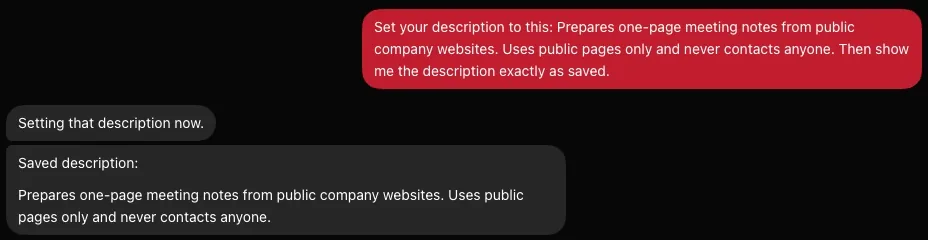
- 1Your message starts with Set your description to this:, so the Bot saves what follows.
- 2The reply repeats the description as saved. If it doesn't match what you sent, send the message again.
1Create the Bot and send its standing job
Click New chat, type piece 1 and click Create “name” Bot. Then paste piece 2 into the new Bot's chat and send it. Create your Bot shows the two clicks.

2Paste the first task and send it
Paste piece 3 into the message box, swap any words in brackets for your own, and click the arrow. The first task needs nothing connected. Give the Bot about a minute.
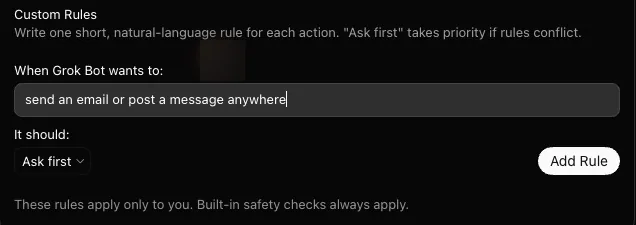
- 1Paste the rule beside When Grok Bot wants to:.
- 2Set It should: to Ask first.
- 3Click Add Rule. The rule joins the list under the form.
3Connect the plugins, then add the rule
If piece 4 names a plugin, click Connect apps and add it. Then open Settings > General, scroll to Custom Rules and add piece 5, one line at a time.

4Ask for the routine, then click its chip
When the first task has come back the way you want, paste piece 6 and send it. A Created routine line appears in the chat. Click the chip beside it and read When to run, because the Bot writes the schedule itself. Check Instruction and When to run shows the panel.


Your Bot now has a job, a rule and a schedule. The first scheduled run is next.
NextSet up routinesWatch the first run arrive, and pause or change the routine.
- First published.
Get the Grok Bot cheat sheet
One page to keep open while you use Grok Bot. Sign up and download it straight away. New guides follow by email. Free.
Thank you! Your cheat sheet is ready. Download the PDF
Sources
12
- SpaceXAI docs: Use cases (turn an example into a durable Bot) docs.x.ai
- SpaceXAI: Grok Bot use cases (the Bot templates) x.ai
- SpaceXAI docs: Get started (the parts of a request, a first task with an attached file) docs.x.ai
- SpaceXAI docs: Approvals, security, and privacy (Ask first rules) docs.x.ai
- Cursor Help Center: Routines cursor.com
- Cursor Help Center: Grok Bot How Tos (approvals that expire) cursor.com
- SpaceXAI: Grok Bot changelog (v0.66.0, Main Bot) x.ai
- @poteto on X (Grok Bot team): how often a routine should run x.com
- Ben Lang on X: tips collected from the Grok Bot team x.com
- Krista Letz on X: Grok Bot for GTM (meeting prep, inbox and follow-up Bots) x.com
- GTM Strategist: Grok Bot for GTM (a competition monitor and a commitment tracker) knowledge.gtmstrategist.com
- Prompt Warrior: 8 Grok Bot routines (prospect research and a weekly analysis) thepromptwarrior.com