Grok Bot and Outlook: Microsoft 365, Teams and OneDrive
Grok Bot has four Microsoft plugins: Outlook, Outlook Calendar, OneDrive and Teams. Connect them, hand over four jobs, and fix a work account that needs IT.
Last verified
On this page
Grok Bot reaches Microsoft 365 through four plugins: Outlook, Outlook Calendar, OneDrive and Teams. Add the ones you need in Connect Apps, and set things up so that nothing is sent, posted or booked without your click.
#What you can hand over
Each of the four plugins is named for one Microsoft app and does a short list of things there. The drawing shows the four, with what each one reaches.
Those cover most of a working day in Microsoft 365:
- Draft the replies your inbox is waiting on, and leave them for you to send.
- Prepare tomorrow's meetings from your calendar, your mail and your files.
- Catch up on a Teams channel you've been away from.
- Propose meeting times, and book one when you say so.
SharePoint, Word, Excel and PowerPoint have no plugin of their own. The browser route covers them.
#Connect the Microsoft plugins
Each plugin takes a click in Grok Bot and a sign-in on a Microsoft page. Connect plugins covers how plugins work in general, and these are the Microsoft steps, shown with Outlook.
Connect Outlook
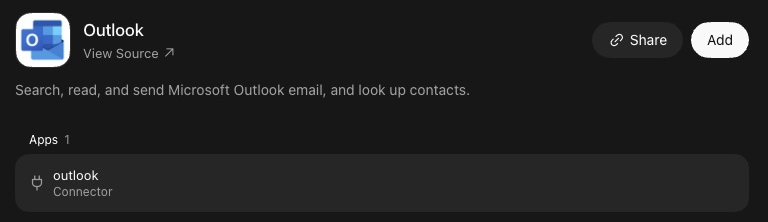
1Open Outlook in Connect Apps and click Add
Click Connect apps at the bottom of the sidebar, type Outlook in the search box and open it. Click Add, and Microsoft's sign-in opens in your browser.
On a personal account you're the only one who has to approve. A work account can need a second yes. 2Sign in on Microsoft's page
Choose the Microsoft account whose mail the Bot should work in, and approve the access the page lists. Whose account it is decides what happens next.
- A personal account has no admin, so yours is the only approval it needs.
- A work account can stop on a page that says the app needs approval. Send the request from that page and wait for your IT admin. Fix a Microsoft sign-in covers what to do once they've approved.
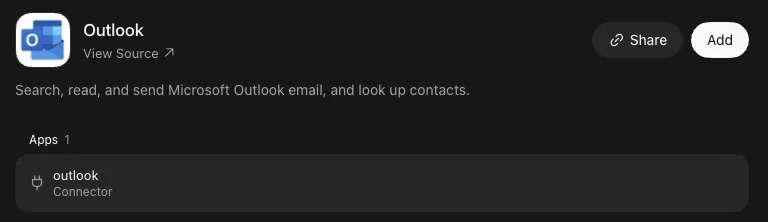
Outlook Calendar, OneDrive and Teams are added the same way, each from its own page. Outlook Calendar sits under Communication with Outlook, and OneDrive and Teams sit under Productivity. Adding Outlook doesn't add the calendar.
To connect a second Microsoft account, such as a personal mailbox beside your work one, look for Add Another Account on the plugin's page and give the account a label. Add a second account has the steps.
#Four jobs to hand over
Each of these reads or drafts, and none of them sends, posts or books.
Add one rule first, so a Bot that does try to send has to ask. In Settings, under Custom Rules, type send an email beside When Grok Bot wants to:, set It should: to Ask first and click Add Rule. Write a rule of your own shows the screen. Two of the jobs name a rule of their own, which you add the same way.
Then paste a message into a Bot's chat and change the parts in brackets. Start with the one that clears the most mail.
Reply drafts in Outlook
For the emails that have been sitting in your inbox, waiting on an answer from you.
Look through my Outlook inbox for emails from the past two days that ask me a question I haven't answered. Draft a reply to each one and show me each draft before anything is sent. Where a reply needs a fact you don't have, leave [a gap in square brackets] for me to fill in. Don't send anything.One draft card for each reply, tagged Ready to send. Edit it in the card, then click Send email to send it from your Outlook account, or Discard.
Keep every send in your hands shows the card and the one link on it to leave alone.
The second job uses three plugins together.
Tomorrow's meetings, prepared
For days of back-to-back meetings. The calendar gives the Bot the meetings, your mail gives it the latest thread and OneDrive gives it the files.
Set up a routine: every weekday at 4:30 PM, list tomorrow's meetings from my Outlook calendar. For each one, find the most recent email thread with the people invited, and any file in my OneDrive whose name matches the meeting's title. Post one note per meeting in this chat: who's coming, where the last thread left off, the files worth opening, and one question I should be ready for. Don't send, reply to or change anything.A Created routine line in the chat. Then, each weekday afternoon, one message with a note for each of tomorrow's meetings.
Once a day is enough for this one. Every run spends usage, and Routines shows how fast a tighter schedule adds up.
The next two open with a click. The first reads Teams and writes nothing there.
Catch up on one Teams channel
For a channel you've been away from. The Bot reads and reports, and any answer it suggests stays in its own chat.Apps it needs: Teams
Read what was posted in the [channel] channel of [team] in Teams since [day]. Give me three lists in this chat: decisions made, questions still open, and anything addressed to me. Say who wrote each item. Where something needs an answer from me, write a suggested reply here in this chat. Don't send or post anything in Teams.The three lists in the Bot's chat, with a suggested reply under each item that needs one. Copy a reply into Teams yourself, or tell the Bot to send it and answer the approval card that follows.
The last job ends in a calendar event, so it carries a rule for that.
A meeting proposed, then booked on your word
For setting up a meeting without comparing calendars by eye.Apps it needs: Outlook CalendarOutlook
Look at my Outlook calendar for next week, Monday to Friday, 9:00 AM to 5:00 PM. Suggest three 30-minute slots where I have nothing booked, and draft a short email to [name] offering them. Show me the email as a draft. Don't create a calendar event until I tell you which slot they picked.Three slots in the chat and one draft card for the email. When you reply with the slot, the Bot goes to create the event, and the rule stops it for your approval first.
#What a Bot can and can't do in Microsoft 365
Every plugin works as the Microsoft account you signed in with, so it reaches what that account reaches and no more. Here is what that covers, app by app.
| In Microsoft 365 | Can a Bot do it? | What to know |
|---|---|---|
| Search and read Outlook email, and look up contacts | Yes | Everything the connected account can see. |
| Send an Outlook email | Yes | From your address, as you. Keep it behind a draft card or the Ask first rule. |
| List, create, update and cancel calendar events | Yes | Through Outlook Calendar, which is added separately from Outlook. |
| Browse, search and read OneDrive files | Yes | A Bot can also upload a file it has made to OneDrive. |
| Search, read and send Teams chats and channel messages | Yes | As you. Keep a send behind the Ask first rule. |
| Start work when a Teams message arrives | Yes | A routine can start from a Microsoft Teams message as well as on a schedule. Each run spends usage. |
| Work in SharePoint, Word, Excel or PowerPoint | Partial | None of them has a plugin. A Bot can use their websites through its browser. |
| Reach something your account can't | No | A plugin can't raise your access, and it can't change who a file is shared with. |
Connect Apps also lists Azure and Azure Cosmos DB. Those are developer tools, and they don't stand in for Outlook or Teams.
#When there's no plugin: SharePoint, Word and Excel
For a Microsoft app with no plugin, a Bot opens the app's website in the browser on its own computer, and you sign in there yourself. With a work account, look at that sign-in from Microsoft's side before you do it.
A work account's security can answer that second session in three ways:
- It signs you out of Outlook and Teams on your own computer.
- It locks the account.
- It refuses the Bot's sign-in.
So take the browser route in this order:
- Use a plugin for everything a plugin covers. Mail, calendar, OneDrive files and Teams never need the browser. A plugin is approved once on Microsoft's own page and leaves no session open on the Bot's computer.
- Check with your IT team first. Ask before a Bot signs in to a work account from a cloud computer.
- Sign in yourself. When the Bot reaches the sign-in page it stops and posts a Computer card. Click Take over, sign in and do the verification step, then hand back. Do the human step yourself shows the card. The login stays on the computer for all your Bots.
- If Microsoft refuses the sign-in, turn on Route traffic through this computer, so Microsoft sees your own connection. Route the Bot's browsing has the setting.
#Fix a Microsoft sign-in
Most Microsoft trouble is the work-account approval, in one form or another. Find what you see, then do what's beside it.
| What you see | What to do |
|---|---|
| A Microsoft page says the app needs approval, and asks why you want it | Your organization hasn't approved the app yet. Send the request from that page, then wait for your IT admin. |
| A page that reads OAuth callback failed. after you sent the request | The sign-in ended without connecting, which is what happens while a request is waiting. Close the tab. |
| Your admin has approved, and nothing changed in Grok Bot | An approval doesn't finish the old sign-in. Open the plugin's page, click Authenticate and sign in again. |
| Microsoft asks for approval again after your admin said yes | Start once more from the plugin's page, in a fresh browser tab. If the request comes back, email hi@cursor.com with the account's address and a screenshot of Microsoft's page. |
| Needs auth on the plugin's page | Click Authenticate and sign in again. Fix Needs auth has the steps if that doesn't clear it. |
| A Bot says Outlook isn't connected, and the plugin reads Added | Added means installed. Open Outlook's page and click Authenticate. |
| The plugin reads Disabled by team admin | Your Cursor team's admin has blocked it. Ask them to turn it on. That setting is separate from your Microsoft admin's approval. |
| A Bot keeps getting signed out of a Microsoft site in its browser | Move the job to a plugin if one covers it. If none does, see When a site won't stay signed in. |
#Check you've got it
One check on the route that causes the most trouble.
You're signed in to your work account at your desk. A Bot opens SharePoint in its browser, and you take over and sign in there with the same account. What can Microsoft do next?
- Treat it like one more tab you opened yourself
- See a second session from a data center, and sign you out or lock the account
- Ask the Bot to approve the sign-in on your behalf
Show the answer
See a second session from a data center, and sign you out or lock the account
The Bot's computer runs in the United States, and a sign-in there is a second live session of your account. A work account's security can answer with a sign-out or a lock.
That's why mail, calendar, files and Teams go through plugins. You approve a plugin once, on Microsoft's own page, and no session stays open on the Bot's computer.
The Bot's computer runs in the United States, and a sign-in there is a second live session of your account. A work account's security can answer with a sign-out or a lock.
That's why mail, calendar, files and Teams go through plugins. You approve a plugin once, on Microsoft's own page, and no session stays open on the Bot's computer.
Next, see what an approval card looks like and how to write more rules.
Is Grok for Outlook the same thing?
No. Grok for Outlook is an add-in that puts the Grok chat app in a panel inside Outlook. Grok and Grok Bot are two different apps, and the add-in doesn't connect a Bot to your mail. For that, add the Outlook plugin in Connect Apps.
Can a Bot work on a Word or Excel file?
Word and Excel have no plugin, and three things work without one. A Bot can read a file that's in your OneDrive. You can attach a Word, Excel or PowerPoint file to a chat, up to 25 MB. And a Bot can upload a file it has made to OneDrive. To change a document in place on Microsoft's website, see the browser route.
- First published.
Get the Grok Bot cheat sheet
One page to keep open while you use Grok Bot. Sign up and download it straight away. New guides follow by email. Free.
Thank you! Your cheat sheet is ready. Download the PDF
Sources
17
- Cursor Help Center: Connect plugins (what a plugin can do with your account, plugins a team admin has disabled) cursor.com
- Cursor Help Center: Grok Bot How Tos (reconnecting a plugin, a second account, approvals that expire) cursor.com
- SpaceXAI: the Outlook plugin page x.ai
- SpaceXAI: the Outlook Calendar plugin page x.ai
- SpaceXAI: the OneDrive plugin page x.ai
- SpaceXAI: the Teams plugin page x.ai
- SpaceXAI: Grok Bot changelog (v0.17.0, v0.53.0, v0.58.0, v0.60.0) x.ai
- SpaceXAI docs: Message and collaborate (reviewing a draft before it is sent) docs.x.ai
- SpaceXAI docs: Approvals, security, and privacy (Ask first rules) docs.x.ai
- SpaceXAI docs: Use the computer and apps (an app's website when it has no plugin) docs.x.ai
- SpaceXAI docs: Files and results (the kinds of file you can attach) docs.x.ai
- Cursor Help Center: Routines (what a run spends) cursor.com
- Cursor Help Center: Get help (the support address) cursor.com
- Grok Bot on X: Outlook, Calendar and OneDrive plugins, 31 August 2026 x.com
- Grok Bot on X: the Microsoft Teams plugin, 11 September 2026 x.com
- Cursor forum: staff on the Microsoft plugins, work accounts and signing in through a Bot's browser forum.cursor.com
- SpaceXAI: Grok for Outlook (an add-in for the Grok app, a different product) x.ai